

Last Updated: November 16, 2026
Quick Summary
To choose a reliable webcam for video calls, judge the parts that fail under real conditions: sensor size and lens quality, focus behavior, mounting hardware, and software support. A reliable webcam delivers consistent image quality, stable focus, and clean audio across the lighting and seating conditions you actually work in. For most remote work, 1080p at 30 frames per second is the sensible floor.
- A 1080p camera with a decent sensor often looks better on a call than a 4K model fighting bad light.
- Fixed focus locks at roughly arm's length and softens when you lean in or roll back.
- A wide-angle lens around 90 degrees suits small rooms and shared desks.
- Test a budget camera in your normal room, with a window behind you, and through your dock.
- Refuse budget models with no privacy shutter, no indicator light, or no firmware path.
Table of Contents
- What Separates a Reliable Webcam From a Frustrating One
- The Specs That Actually Matter: Resolution, Frame Rate, and Low Light
- 1080p vs. 4K Webcam: Which Resolution Do Your Video Calls Need?
- Autofocus, Field of View, and the Details That Decide Call Quality
- How to Pick the Best Webcam for Video Conferencing in Your Space
- The Best Webcam for Zoom Meetings: What to Prioritize
- Finding the Best Budget Webcam for Video Conferencing
- Upgrade Your Call Setup at The Techie Den
- Frequently Asked Questions
What Separates a Reliable Webcam From a Frustrating One
Most webcam problems start before the call does. A camera that looks fine on the box can produce grainy skin tones in a dim room, hunt for focus mid-sentence, or drift during meetings.
A reliable webcam delivers consistent image quality, stable focus, and clean audio across the lighting and seating conditions you actually work in. Readers weighing reliability can learn what makes tech accessories durable and how to spot quality gear.
The difference usually comes down to four things:
- Sensor size and lens quality, which decide how much light the camera can work with
- Focus behavior, since fixed-focus lenses blur the moment you lean back
- Mounting hardware, because a loose clip ruins framing on every call
- Software support, meaning the camera still gets driver updates two years in
A common pattern in reader questions is that people buy on resolution alone, then discover the weak link was low-light performance or a microphone that picks up every keyboard click. Below: the specs that matter, a decision framework built around your room, and where to save versus where to spend.
The Specs That Actually Matter: Resolution, Frame Rate, and Low Light
Three specifications decide most of your call quality: resolution sets the ceiling on sharpness, frame rate controls motion smoothness, and the image sensor determines whether any of that survives a dim room.
Resolution is the easiest to overrate. A 1080p camera with a decent sensor often looks better on a call than a 4K model fighting bad light, because video-calling software compresses the feed anyway.
Frame rate matters more than people expect. At 30fps, hand gestures and head turns stay smooth; below that, motion smears.
Low-light performance is where budget models fall apart. A larger image sensor captures more light, and software exposure and white balance corrections do the rest.
1080p vs. 4K Webcam: Which Resolution Do Your Video Calls Need?
For video calls, 1080p is enough. A 4K webcam makes sense only if you record content, stream, or regularly present detailed visuals like design work or documents on screen.
Conferencing platforms compress outgoing video aggressively to protect bandwidth, so the extra pixels in a 4K feed rarely reach the other side intact.
| Resolution | Best For | Trade-Off |
|---|---|---|
| 720p | Casual internal calls | Soft image, struggles in low light |
| 1080p | Most remote work and Zoom calls | Needs decent lighting to shine |
| 2K | Presenters and frequent screen sharing | Higher bandwidth, modest gain |
| 4K | Recording, streaming, detailed visuals | Large files, compression erases gains on calls |
The 1080p vs. 4K webcam decision gets simpler once you separate calling from creating. For a Tuesday standup, 1080p with a good sensor wins. If you record tutorials or stream, 4K earns its keep.
One caveat: 4K cameras often ship with better sensors and lenses than their 1080p siblings, so the image can improve even when the resolution does not. Judge the sensor, not just the number.
Autofocus, Field of View, and the Details That Decide Call Quality
Autofocus and field of view decide whether you look sharp and framed correctly, and both are easy to get wrong. Great resolution with poor focus still produces a soft, distracting image.
Autofocus adjusts the lens continuously so your face stays sharp as you move. Fixed focus locks at one distance, usually a meter or so, and softens when you lean in or roll back.
Field of view controls how much of the room the camera captures.
Other details that separate good calls from frustrating ones:
- Privacy shutter, a physical cover that blocks the lens when the camera is idle
- Mounting clip and tripod mount, so the camera stays put and can be raised to eye level
- Microphone quality, since audio problems annoy callers faster than video problems
- Plug-and-play USB connection, ideally USB-C, for setup without driver hunts
Eye-level framing matters more than most people realize. A camera clipped to a laptop screen points up your nose. Raising it to eye level changes how engaged you appear on the call.
How to Pick the Best Webcam for Video Conferencing in Your Space
Picking the best webcam for video conferencing starts with your room, not a review roundup.
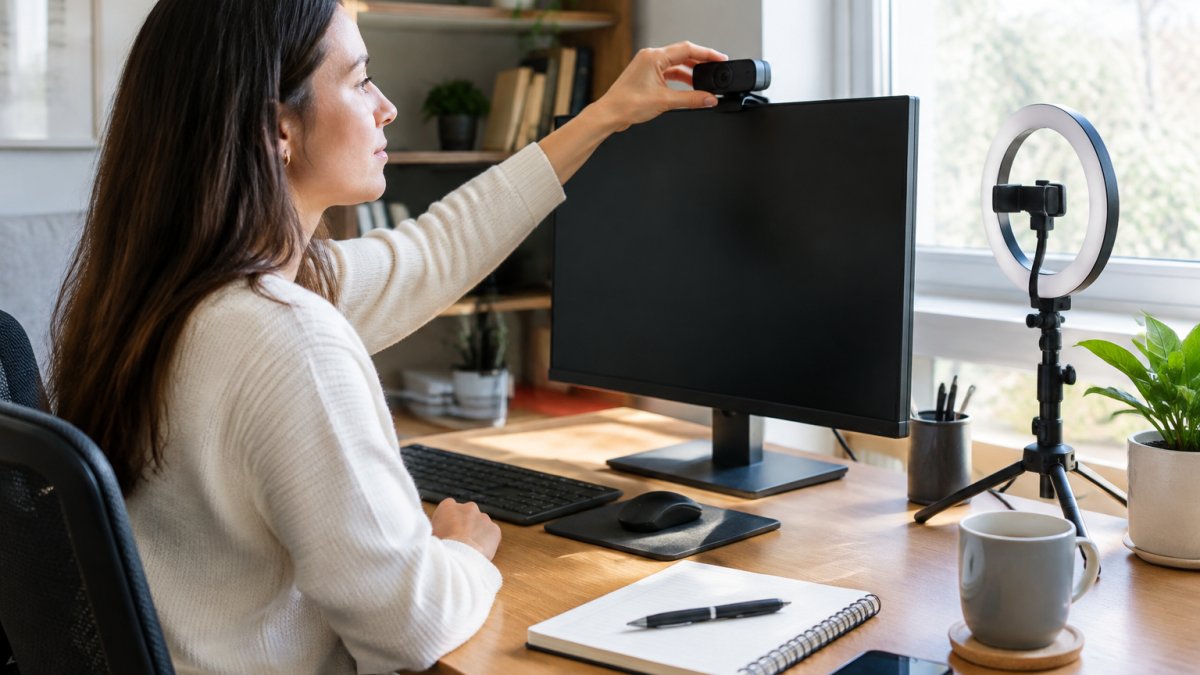
Step 1: Measure the light where you actually sit. Hold a piece of white paper at face height during your normal call hour.
Step 4: Check the bandwidth and software ceiling before you blame the camera. Your upload speed and your computer's encoder decide what the other side actually sees.
Step 5: Confirm compatibility and setup path. Check that the camera works with your video-calling software and operating system without extra drivers.
Readers building out a full desk setup can find broader guidance in our guide to reliable tech accessories for remote work, and anyone assembling the machine side of the equation will want our walkthrough of a reliable PC setup for a home office.
Watch out: buying on resolution alone is the most common mistake we see.
The Best Webcam for Zoom Meetings: What to Prioritize
The best webcam for Zoom meetings prioritizes clean audio, stable exposure, and dependable software compatibility over raw resolution. Zoom compresses video for every participant, so consistency beats peak specs.
Zoom-specific priorities look like this:
- Reliable exposure and white balance, so you do not flicker between bright and dark as clouds pass
- A microphone with background noise handling, since Zoom callers forgive soft video but not garbled audio
- Plug-and-play USB connection, because driver conflicts before a meeting are the worst kind of surprise
- A privacy shutter, useful in shared or home spaces
Frame rate deserves a mention here too. Zoom handles 30fps feeds well; cameras promising 60fps offer little on a standard call, so do not pay extra unless you stream.
Audio is the sleeper issue. Many webcams include a microphone that picks up room echo and keyboard noise. If your calls matter, test the mic before the camera. A cheap external microphone often fixes more complaints than a camera upgrade.
Finding the Best Budget Webcam for Video Conferencing
The best budget webcam for video conferencing is the one that spends its money on the sensor and lens instead of extras you will not use.
Safe corners to accept on a budget model:
- Fixed focus is common and acceptable if you sit still at your desk. Fixed-focus lenses are set at roughly arm's length, so they soften when you lean in or roll back; if you move a lot, this is the one corner worth paying to avoid.
- Smaller sensors struggle in low light, so plan to add a lamp or sit facing a window. A cheap camera in good light often beats an expensive one in bad light.
- Basic mounting clips can wobble, so check reviews for mount complaints and budget for a small tripod if the clip is the weak point.
- Built-in microphones are usually passable but rarely great. Test the mic before the camera; a cheap external microphone often fixes more complaints than a camera upgrade.
- Plastic bodies and short cables are cosmetic trade-offs that do not affect the image.
Disqualifying corners to refuse, even at the lowest price:
- No privacy shutter and no indicator light. A physical shutter is the only reliable way to know the lens is blocked, and an indicator light that stays on when the camera is active is a basic trust signal. If a budget model has neither, skip it.
- No firmware or driver path. A camera that never receives updates is a camera that will eventually break on a new operating system or conferencing app. Check that the manufacturer publishes firmware or that the camera relies on standard operating-system camera support, which is more durable than a bundled driver.
- Nonstandard or captive cables. A permanently attached cable that fails means the whole camera is disposable. A standard USB-C or USB-A connection lets you replace the cable.
- No compatibility confirmation. Confirm the camera works with your video-calling software and operating system before buying; a bargain that requires a driver hunt before every meeting is not a bargain.
How to test a budget camera in the return window. Set it up the day it arrives and run three checks: a call in your normal room at your normal hour, a call with a window behind you, and a call through any dock or hub you use. If the image holds up in all three, keep it; if it only fails through the hub, try a different port before returning it.
The privacy and long-term reliability angle budget shoppers miss. Cheap cameras are where privacy features are most often cut, and where firmware support is shortest.
Our guide to choosing durable tech for remote work covers how to spot gear that survives daily use, which matters more on a tight budget than any single spec.
Watch out: a budget camera that looks fine in a bright store demo can fall apart in a dim home office, so judge it in your own room during your own call hour, not on the spec sheet.
Upgrade Your Call Setup at The Techie Den
A reliable webcam is one piece of a setup that has to hold together every morning: power, connectivity, and audio all feed into how you show up on a call.
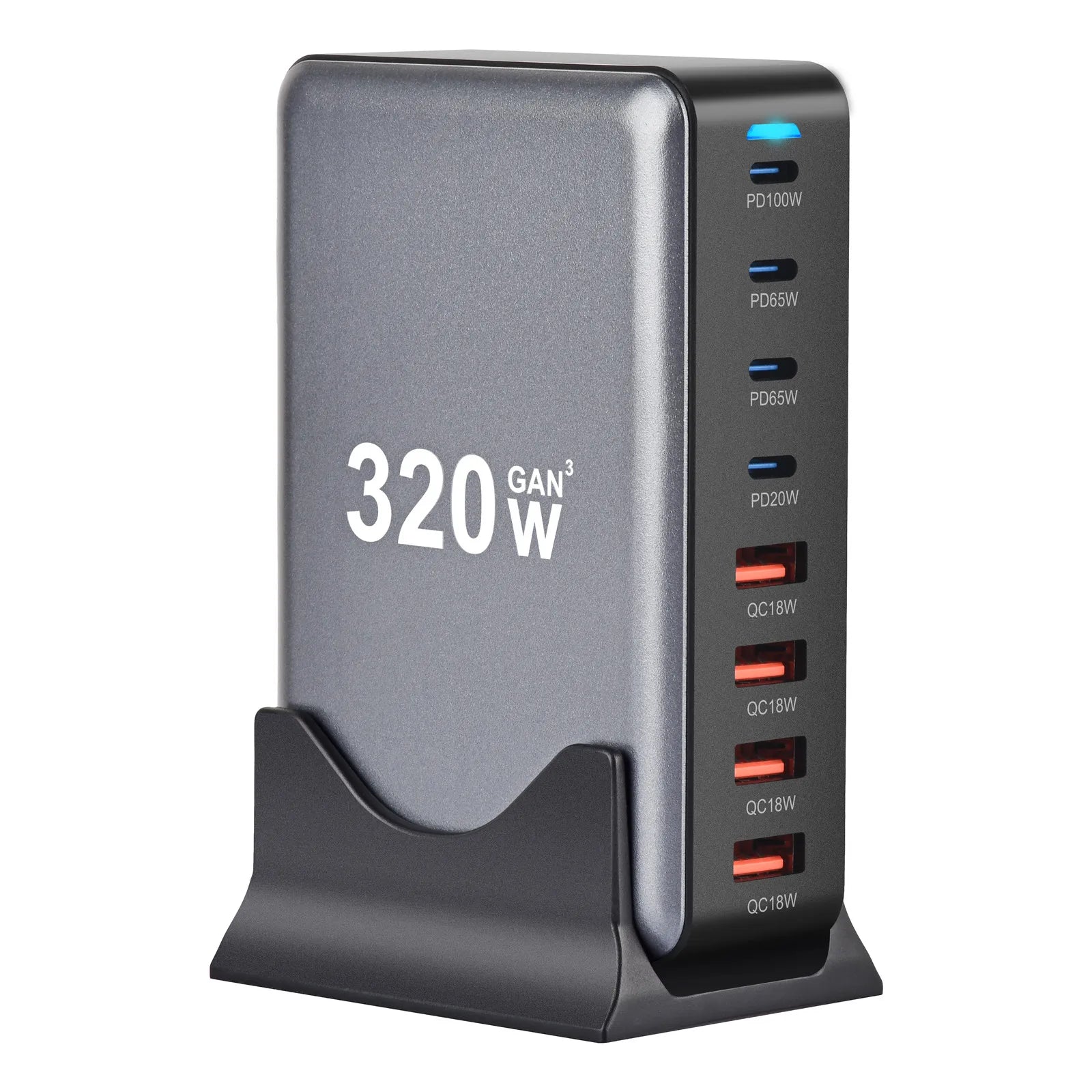
If your desk has grown a tangle of adapters and half-working chargers, a multi-port charging solution can help consolidate power for your devices.
Start with the room and the light, buy for the calls you actually take, and upgrade the weak links around the camera before replacing the camera itself.
Ready to build a call setup that does not fail on a Monday morning? The Techie Den carries charging solutions, audio equipment, and desk accessories chosen for reliability, with fast shipping and support when something does not work.
Frequently Asked Questions
What should I look for when buying a reliable webcam for video calls?
Start with resolution (1080p is the practical baseline), frame rate (30 fps minimum, 60 fps for motion), and low-light performance, since most rooms are dimmer than they look on camera. Check autofocus reliability, field of view (around 90 degrees suits a desk), and whether the microphone is good enough to skip a headset. Also confirm a privacy shutter and a mounting clip or tripod thread. A reliable webcam gets the basics right in average lighting, not just in a studio.
Is a 1080p webcam good enough for video conferencing?
For most video calls, yes. Zoom, Teams, and Meet typically compress video to well below 1080p anyway, so a clean 1080p sensor with good exposure and color beats a noisy 4K image. A 1080p webcam also uses less bandwidth, which matters on shared home internet. Upgrade to 2K or 4K only if you record content, present detailed visuals, or frequently crop and reframe. Spend the difference on lighting first.
Do I need a 4K webcam for work meetings?
Rarely. Most meeting platforms cap outgoing video resolution and compress it further, so the extra pixels seldom reach colleagues. 4K helps when you record webinars, stream, or need to crop into a tighter frame without losing sharpness. It also demands more bandwidth and a stronger processor. For standard Zoom meetings, a well-lit 1080p or 2K camera with reliable autofocus is the better value.
How can I check whether a webcam works with Zoom or Teams?
Look for UVC (USB Video Class) compliance, which means the camera works without proprietary drivers on Windows and macOS. Then check the manufacturer's compatibility notes for Zoom, Teams, and Google Meet. Before a real call, open the app's video settings and confirm the camera appears in the device list, test the microphone, and run a short test meeting. Plug-and-play USB or USB-C connection with a mounting clip covers most setups.


