

Table of Contents
- What Defines a Reliable PC Setup for Home Office Work?
- Desktop vs. All-in-One: Which Form Factor Lasts Longer?
- Essential Hardware Specs for a Future-Proof Workstation
- Budget Allocation: How Much Should You Spend?
- Essential Home Office Computer Accessories for Daily Productivity
- Ergonomic Home Office Setup Tips to Prevent Fatigue
- Maintaining Your Home Office Computer for Reliability
- Security and Privacy: Protecting Your Home Network
- Frequently Asked Questions
Last Updated: September 9, 2026
A reliable pc setup for home office work is more than a fast processor and a big monitor; it is a complete system that keeps your data safe, your posture supported, and your workflow uninterrupted. In this guide from The Techie Den, we break down the hardware, accessories, and habits that separate a dependable workstation from one that constantly fights you, covering everything from form factor choices to maintenance routines.
What Defines a Reliable PC Setup for Home Office Work?
A reliable pc setup delivers consistent performance for your workload without frequent repairs. Hardware reliability starts with business-grade components but extends to power, ventilation, and software updates. The measure is simple: your computer should be invisible during the workday, letting you focus on tasks rather than troubleshooting.
Most people overestimate specs while underestimating supporting infrastructure. A top-tier machine still fails on a carpeted floor with blocked vents or an unstable power supply. Responsiveness depends on the whole chain: clean power, adequate cooling, and an OS free of bloatware.
Desktop vs. All-in-One: Which Form Factor Lasts Longer?
Traditional desktops generally outlast all-in-one systems due to easier upgrades and simpler thermal management. When a component fails in a tower, you replace just that part; in an all-in-one, the entire unit often requires professional service. For maximum uptime, swapping a failing part in minutes is a decisive advantage.
The Advantage of Traditional Desktops
Desktops offer superior airflow, keeping internal temperatures lower and extending component lifespan. They also allow adding storage or RAM as needs grow, making the system future-proof rather than disposable. For hardware reliability and repairability, a standard tower is the safer long-term investment.
When an All-in-One System Makes Sense
An all-in-one shines when desk space is tight and cable management is a priority, bundling computer and monitor into a single clean package. The trade-off is reduced upgradeability and higher repair costs, suiting users who prefer replacing a whole system every few years.
Essential Hardware Specs for a Future-Proof Workstation
Building a reliable pc setup for home office tasks starts with matching components to your workflow, not chasing benchmark scores. For most office work, a mid-range processor with ample memory outperforms a top-tier CPU with minimal RAM. The goal is balanced responsiveness, not a single impressive spec.
Processor and RAM Requirements for Multitasking
Core count matters more than architecture for office multitasking. A modern quad-core or six-core processor handles these workloads easily; eight cores give headroom for heavier tasks. For RAM, 16 GB is the practical minimum in 2026, with 32 GB recommended for large spreadsheets, virtual machines, or creative software.
Storage: Why a Solid-State Drive Is Non-Negotiable
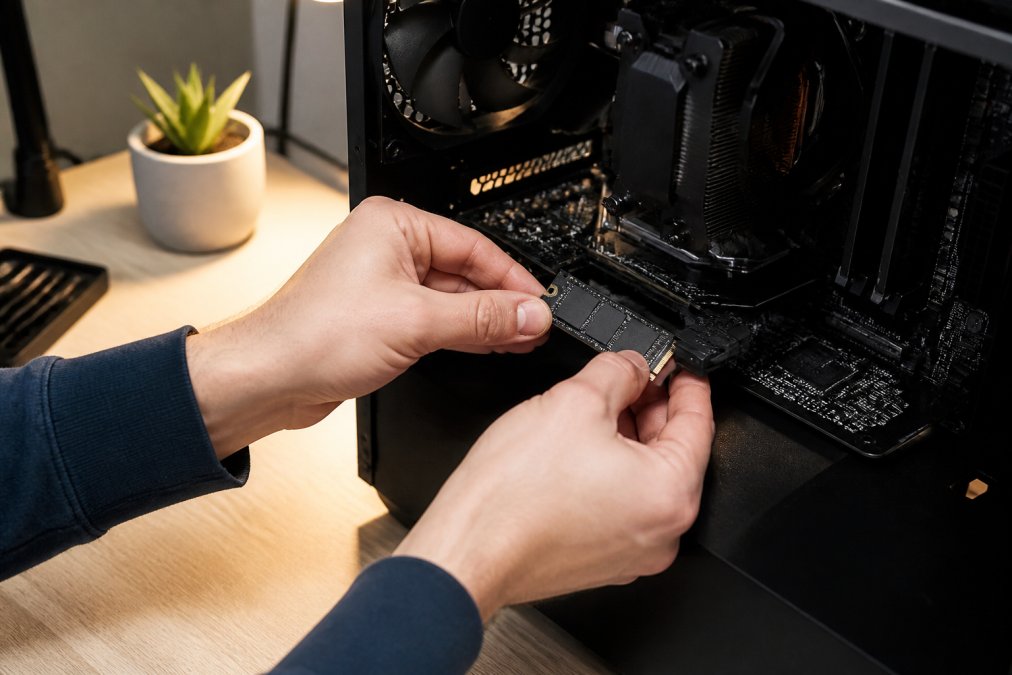
A solid-state drive is the single most impactful upgrade for perceived performance. Unlike hard drives, an SSD delivers near-instant boot times and app launches. Choose an NVMe SSD with at least 512 GB, paired with a separate backup drive or cloud storage to protect against data loss.
Budget Allocation: How Much Should You Spend?
A practical budget for a dependable home office desktop lands between $700 and $1,200 for the tower alone, with monitors, peripherals, and furniture separate. Spending less forces compromises in PSU quality or storage speed, undermining reliability. Spending more buys diminishing returns unless your work involves video editing, 3D rendering, or large-scale data analysis.
| Component | Recommended Budget | Key Priority | Upgrade Path |
|---|---|---|---|
| Processor (CPU) | $200 - $350 | Core count over clock speed | Replace after 4-5 years |
| Random Access Memory | $60 - $120 | 16 GB minimum, 32 GB ideal | Add modules as needed |
| Solid-State Drive | $60 - $150 | NVMe for speed | Add second drive for backup |
| Power Supply Unit | $80 - $150 | 80 Plus Bronze or better | Keep through multiple builds |
| Motherboard & Case | $150 - $250 | Chipset with upgrade room | Rarely needs replacing |
Resist overspending on a dedicated GPU if your work is document-based. That money is better spent on a higher-capacity SSD or a more comfortable ergonomic chair, which directly affects daily productivity and long-term health.

Essential Home Office Computer Accessories for Daily Productivity
Essential accessories extend beyond the tower to include reliable power delivery and comfortable input devices. A surge protector or uninterruptible power supply protects your investment, while a dependable charger keeps peripherals running. The Techie Den carries the UGREEN GaN 35W Charger USB Charger at $30.99, supporting multiple fast-charge protocols across USB-C and USB-A, and the 320W Charger USB C Fast Desktop 8-port at $38.99 for powering an entire desk from one hub.

Peripheral connectivity matters more than most guides admit. Wireless input devices reduce clutter but introduce latency and battery anxiety. A wired keyboard for typing and a quality wireless mouse for navigation strikes the right balance between responsiveness and freedom.
Ergonomic Home Office Setup Tips to Prevent Fatigue
An ergonomic home office setup prevents the neck, back, and wrist strain that develops over months of daily use. Most guides stop at "adjust your chair," but a reliable setup integrates hardware with your body's limits. The core principle is neutral posture: monitor at eye level, forearms parallel to the floor, feet flat. This requires precise measurements, not guesswork.
Desk Height and Monitor Arm Positioning
Start with desk height. A standard 29-inch desk works only if your chair adjusts so elbows rest at 90 degrees when typing. If too high, raise your chair and add a footrest; if too low, use risers. The monitor top should sit at or slightly below eye level, about an arm's length away. A monitor arm is the most reliable way to achieve this, letting you adjust height, tilt, and depth independently. If an arm is out of budget, a stack of hardcover books works, just ensure the screen doesn't wobble.
Cable Management as an Ergonomic Tool
Cable management directly affects ergonomics. Loose cables underfoot can pull your chair off-position or cause awkward twisting. Use adhesive clips along the desk underside to route cables cleanly, and a cable tray to catch excess length. The goal is never having to stretch, lean, or bend to reach a port, everything within natural arm's reach.
The 20-20-20 Rule and Micro-Breaks
Hardware alone cannot prevent fatigue. The 20-20-20 rule, every 20 minutes, look 20 feet away for 20 seconds, reduces eye strain. Pair this with micro-breaks every hour to stand, stretch, and roll your wrists. A timer app can enforce this. Over a 9-hour day, these breaks cost about 15 minutes but prevent cumulative stiffness.
Product Recommendations That Fit the System
The Techie Den offers an Ergonomic Chair Adjustable Swivel with Flip-up Armrest at $76.99, supporting proper posture with adjustable armrests and easy-to-clean synthetic leather. Pair it with the Wooden Table with CPU Storage Shelf & Side Bag at $79.99, an L-shaped desk keeping your tower off the floor with a side bag for cables. For monitor height, an [adjustable monitor stand] bridges the gap, look for one supporting your VESA pattern for a future arm.

Maintaining Your Home Office Computer for Reliability
Maintaining your home office computer requires a consistent schedule of cleaning, updates, and backups. Dust is the silent killer of components, insulating heat sinks and shortening fan lifespan. Open your tower and blow out dust every three to six months, depending on air quality.
Enable automatic updates for your OS and key apps, but schedule restarts during off-hours. For backups, follow the 3-2-1 rule: three copies, on two media types, one off-site. Cloud storage handles off-site automatically; a local external drive provides fast recovery.
Security and Privacy: Protecting Your Home Network
A reliable pc setup is only as dependable as the network it connects to. Most guides focus on software, antivirus and passwords, but hardware-level security differentiates a truly reliable setup. For those handling client data, a breach is not just an inconvenience; it is a liability.
Hardware-Level Security: TPM and Secure Boot
Modern OSes rely on a Trusted Platform Module (TPM) chip to encrypt data and verify system integrity. Ensure TPM 2.0 is enabled in firmware, most business-grade desktops from Dell, HP, and Lenovo ship with it, but budget models sometimes disable it. TPM 2.0 is required for Windows 11's BitLocker, so verify it in BIOS. Secure Boot prevents unauthorized OSes or malware from loading during startup. Both are your first line of defense against firmware-level attacks.
Biometric Login and Privacy Shutters
Passwords are the weakest link. Biometric login, fingerprint or Windows Hello, adds a hardware layer far harder to phish. Include at least one biometric method. For laptops, a privacy shutter over the webcam is non-negotiable; a sliding adhesive cover costs under $10. For desktops, consider a monitor with a built-in privacy screen if you work in a shared space.
Network Segmentation and Router Hardening
Start with your router: change the default admin password, enable WPA3, and keep firmware updated. Then segment your network, create a separate guest network for smart home devices like thermostats and cameras. These IoT devices are notoriously insecure and can pivot to your work computer. Enable the guest network feature and connect only work devices to the primary network.
Full-Disk Encryption and Backup Security
For your computer itself, use a standard (non-administrator) account for daily work and reserve admin rights for installations and system changes. This limits the damage from malicious downloads and phishing attempts. Enable full-disk encryption through your operating system's built-in tools, such as BitLocker on Windows or FileVault on macOS, so your data remains unreadable if the device is stolen. According to guidance from the Cybersecurity and Infrastructure Security Agency, regular software updates and strong, unique passwords remain foundational defenses against most common threats. For backups, encrypt your external drive as well, a stolen backup drive with unencrypted client files is a breach waiting to happen.
Physical Security for Your Workspace
Finally, do not overlook physical access. Lock your office door when stepping away, and use a Kensington lock to secure your tower or laptop if you have visitors. A reliable setup controls who can physically touch your hardware. The Techie Den's 8" Mini Touchscreen Laptop with 360-degree rotation at $408.99 provides a portable secondary option for secure work on the go.
Frequently Asked Questions
What is the best computer setup for a home office?
The best setup depends on your workflow, but a reliable PC setup for home office use starts with a desktop or all-in-one system featuring a modern multi-core processor, at least 16GB of RAM, and a fast solid-state drive. Pair this with a high-resolution monitor, an ergonomic chair, and a desk that supports proper posture. This combination ensures smooth multitasking and system responsiveness for years.
How much should I spend on a reliable home office computer?
For a dependable machine that handles spreadsheets, video calls, and web apps, plan a budget allocation of $600 to $1,000 for the tower or all-in-one system alone. This price range gets you a business-grade processor, 16GB of RAM, and a 512GB solid-state drive. Allocate another $200 to $400 for essential home office computer accessories like a monitor, keyboard, and ergonomic seating.
Are all-in-one PCs better than traditional desktops for home offices?
Traditional desktops offer better long-term value because they are easier to upgrade and repair, extending hardware reliability. All-in-one systems save space and reduce cable management, but they often use laptop components, which can limit performance and make future upgrades difficult. If desk space is tight, an all-in-one works; if longevity and cost-per-year matter more, a standard desktop is the safer choice.
What specs do I need for a home office PC to ensure longevity?
To ensure your reliable PC setup for home office tasks lasts five years or more, focus on three core components. Choose a processor with at least 6 cores (like an Intel Core i5 or AMD Ryzen 5). Install 16GB of random access memory to handle dozens of browser tabs and office apps without lag. Finally, use a 512GB or larger solid-state drive for faster boot times and data backup reliability.
How do I optimize my home office PC setup for better ergonomics and performance?
Start with ergonomic home office setup tips: place your monitor at arm's length with the top of the screen at eye level. Use an ergonomic chair with adjustable lumbar support to keep your feet flat. For performance, enable automatic updates, restart your machine weekly, and keep your storage below 85% capacity. These habits prevent slowdowns and reduce physical strain during long workdays.


