

Table of Contents
- What Actually Creates Low Latency in a Gaming Mouse
- 8000Hz Polling Rate Gaming Mouse: Is It Worth It?
- Wireless vs Wired Mouse Latency: What the Data Shows
- How to Reduce Mouse Input Lag Without Buying New Gear
- Mchose A7 V2 Pro Ultra: A Low Latency Mouse Built for Competitive Play
- Battery Life vs Performance: The Trade-Offs Nobody Mentions
- Conclusion
- Frequently Asked Questions
Last Updated: September 10, 2026
What Actually Creates Low Latency in a Gaming Mouse
Low latency in a gaming mouse is the total delay between your click or movement and the on-screen action, measured in milliseconds. It comes from stacked sources: sensor, polling rate, click mechanism, and connection type, most buyers obsess over one spec and ignore the rest.
The best gaming mouse for low latency isn't the one with the biggest number on the box, it's the one where every link in the chain is fast. A sensor that tracks cleanly at speed, a polling rate that reports often enough, and a receiver that doesn't drop packets matter equally.
Here's what most guides get wrong: latency is a system property, not a mouse property. A flagship mouse still feels sluggish if your USB port, mousepad, or display holds you back. Below, we break down what moves the needle, then how to fix the rest without replacing your gear.
Sensor performance is how accurately a mouse translates movement into cursor position. It depends on the sensor's resolution, tracking speed, and how cleanly it handles fast flicks without spinning out.
Sensor Performance and Tracking Accuracy
Tracking accuracy sets the ceiling for everything else. A sensor that jitters or accelerates unpredictably adds perceived lag even when the raw millisecond count looks fine.
Three specs define sensor behavior:
- DPI (dots per inch): sensitivity. Higher isn't better; most competitive players sit between 400 and 1600.
- IPS (inches per second): the maximum speed the sensor tracks before losing accuracy.
- Acceleration handling: whether the sensor adds unwanted cursor speed-up during fast movements.
According to RTINGS mouse sensor testing methodology, sensor quality shows up most clearly during fast, erratic movements, exactly the motions that matter in competitive gaming. A sensor that holds tracking accuracy at high IPS with zero acceleration gives you predictable aim, the predictability players actually feel as "low latency," even when the polling rate matches a cheaper mouse.
8000Hz Polling Rate Gaming Mouse: Is It Worth It?
An 8000Hz polling rate gaming mouse reports its position 8,000 times per second, versus 1,000 for a standard 1000Hz mouse, cutting the report interval from 1ms to 0.125ms. The gain is real but small, and depends on three things most guides ignore: how USB transfers work, your CPU headroom, and your display refresh rate.
What Polling Rate Actually Measures
Polling rate is how often the mouse's microcontroller sends a HID report over USB, containing button states, wheel delta, and X/Y movement. At 1000Hz the host gets a new position every 1ms; at 8000Hz, every 0.125ms. The mouse doesn't "think" faster, it reports more often, so the host has a fresher sample when building the next frame.
The catch: USB is a polled bus, not an interrupt bus. The host schedules transfers on a 125µs microframe cadence. A 1000Hz mouse fits one transfer per millisecond; an 8000Hz mouse needs eight, interleaved with every other device on the bus. That scheduling is where CPU overhead and jitter come from.
The Real Costs of 8000Hz
- CPU overhead. Each HID report triggers an interrupt and driver callback, 8× the load of 1000Hz. Modern desktops absorb this, but older laptops or CPU-bound systems can show micro-stutter.
- Battery drain. Wireless mice transmit every report over 2.4GHz, so doubling the rate roughly doubles radio-on time. That's why 8K wireless mice ship with larger batteries or shorter 8K runtime.
- Diminishing perceptual returns. Human visual reaction time is 150-250ms; the 1ms vs 0.125ms difference is far below that. Players notice smoother cursor motion between frames, not faster reactions.
| Polling Rate | Report Interval | Reports per 1ms | Best For | Trade-off |
|---|---|---|---|---|
| 1000Hz | 1ms | 1 | Most players, casual to mid-tier | Baseline; no real downside |
| 2000Hz | 0.5ms | 2 | 144Hz-240Hz setups | Slightly higher CPU load |
| 4000Hz | 0.25ms | 4 | 240Hz+ competitive play | Noticeable battery drain on wireless |
| 8000Hz | 0.125ms | 8 | 360Hz+ esports, top-tier hardware | Heaviest CPU and battery cost |
The Display Math Nobody Shows You
Polling rate only matters if your display can present the updated position. Frame time is the ceiling: 60Hz → 16.7ms, 144Hz → 6.9ms, 240Hz → 4.2ms, 360Hz → 2.8ms, 500Hz → 2.0ms.
Going from 1000Hz to 8000Hz saves 0.875ms of report interval, roughly 5% of a 60Hz frame (invisible) but about 31% of a 360Hz frame, where smoother motion becomes perceptible during fast flicks. Rule of thumb: match polling rate to refresh rate, then stop.
How to Verify Your Polling Rate Is Actually Running
Many mice ship at 1000Hz and require enabling 8K in vendor software. Two checks:
- Vendor utility. Confirm the polling-rate toggle reads 8000Hz and is saved to onboard memory, not just the active profile.
- Third-party polling testers. Web-based testers report measured Hz. If you set 8000Hz and it reads ~1000Hz, the bottleneck is usually the USB port, a hub, or an outdated driver.
When 8000Hz Is Worth It, and When It Is Not
Worth it if: you run a 240Hz+ display, your CPU has headroom, and you're on a 2.4GHz proprietary receiver or wired. Not worth it if: you're on a 60-144Hz panel, CPU-bound on a laptop, or using Bluetooth (which can't sustain 8K). A practical compromise: run 4000Hz daily and switch to 8000Hz for ranked or tournament play.
Wireless vs Wired Mouse Latency: What the Data Shows
Wireless vs wired mouse latency is no longer the mismatch it was a decade ago. Modern 2.4GHz wireless with a proprietary receiver matches wired performance in most measurable tests; the old "wireless feels laggy" complaint traces back to Bluetooth, not 2.4GHz.
Bluetooth vs 2.4GHz Proprietary Receivers
Bluetooth prioritizes compatibility over speed: lower effective polling rate, shared bandwidth, and jitter or packet loss. A proprietary 2.4GHz receiver dedicates a clean channel to the mouse, giving lower, more consistent input lag, for competitive gaming, 2.4GHz is the only wireless mode worth considering. Wired still wins on zero battery anxiety and no interference, but the latency gap has effectively closed; the deciding factor is usually convenience, not milliseconds.
How to Reduce Mouse Input Lag Without Buying New Gear
You can reduce mouse input lag without buying new gear by fixing the system around the mouse first. Most perceived lag lives in software settings, USB configuration, display pipeline, and surfaces, not the mouse itself. Most "best mouse" articles skip this because it doesn't sell hardware, yet it's where the largest real-world gains are.
Step 1: Fix the Operating System Pointer Pipeline
Windows applies pointer acceleration and smoothing by default, adding unpredictable cursor behavior that reads as lag.
- Turn off "Enhance pointer precision." Settings → Bluetooth & devices → Mouse → Additional mouse options → Pointer Options, and uncheck it. This disables the OS acceleration curve.
- Set pointer speed to the middle notch (6/11). Above 6 introduces software scaling; below 6 can clip movement. The middle notch is 1:1.
- Disable "Scroll inactive windows when I hover over them" if you notice scroll lag, it forces extra input processing on background windows.
- Check for vendor software overlays. Some utilities inject smoothing or "angle snapping." Turn both off unless you want them.
Step 2: Optimize USB Port Selection and Power
Not all USB ports are equal, your choice changes latency and stability.
- Use a direct rear I/O port on a desktop. Rear ports are soldered to the motherboard and share fewer internal hubs than front-panel headers.
- Avoid unpowered hubs and monitor USB ports. They add a hop and share bandwidth.
- Prefer USB 2.0 for 1000Hz mice, USB 3.x for 4000Hz/8000Hz. USB 2.0 handles 1000Hz cleanly; higher rates benefit from USB 3.x microframe scheduling.
- Disable USB selective suspend. Control Panel → Power Options → Change plan settings → Change advanced power settings → USB settings → USB selective suspend setting → Disabled. This prevents the OS from powering down the port during idle, which can cause a wake-up stutter on first movement.
- In Device Manager, open the mouse's USB Root Hub → Power Management and uncheck "Allow the computer to turn off this device to save power."
Step 3: Reduce 2.4GHz and USB 3.0 Interference
USB 3.0 ports emit broadband RF noise in the 2.4GHz band, exactly where proprietary wireless receivers operate.
- Keep the receiver a few inches from USB 3.0 ports and external SSDs. A short USB extension cable is a cheap, effective fix.
- Move the receiver to the front of the desk, not the back of the tower. Line-of-sight reduces packet retries.
- Separate 2.4GHz Wi-Fi and the mouse receiver. If both are on 2.4GHz, move Wi-Fi to 5GHz.
- Turn off Bluetooth when not in use. It shares spectrum and an idle radio still polls.
Step 4: Align the Display and GPU Pipeline
A mouse can only be as responsive as the frame it lands in. Two settings matter most:
- Enable a low-latency GPU feature if supported. NVIDIA Reflex reduces render-queue latency by synchronizing CPU and GPU work; AMD's equivalent is Radeon Anti-Lag / Anti-Lag+. Both are driver-level and free.
- Cap frame rate slightly below your refresh rate (e.g., ~237 FPS on 240Hz) with variable refresh rate, so the GPU doesn't run ahead and add queue latency.
- Disable in-game motion blur and heavy post-processing, they don't change input latency directly but obscure the visual feedback that makes low latency feel low.
Step 5: Match the Mousepad to the Sensor
Mousepad surface affects sensor latency because textures change how consistently the optical sensor reads movement. A worn, glossy, or reflective pad causes tracking inconsistencies that feel like input delay, even with perfect polling and click latency.
- Cloth pads offer consistent tracking, the safe default for optical sensors.
- Hard pads are faster but can cause lift-off issues on some mice.
- Replace worn pads. A shiny, polished center has lost its texture and tracks less consistently.
Step 6: Firmware and Driver Hygiene
- Update mouse firmware, vendors frequently ship polling-stability and wireless-coexistence fixes.
- Update chipset and USB drivers from your motherboard vendor, not just Windows Update.
- Remove unused peripheral software that installs background services competing for USB bandwidth.
A Quick Verification Routine
After making these changes, verify rather than assume:
- Run a web-based polling-rate tester and confirm the mouse reports the rate you set.
- Use a high-speed camera or a slow-motion phone video to film a click and the on-screen response; count frames between them to estimate end-to-end latency.
- Compare before/after in the same game, same map, same sensitivity, perception alone is unreliable.
Mchose A7 V2 Pro Ultra: A Low Latency Mouse Built for Competitive Play
The Mchose A7 V2 Pro Ultra is a tri-mode lightweight wireless gaming mouse pairing a 42,000 DPI PAW3950 sensor with dual 8K polling, built for players who want low latency without a wired tether. It covers the full latency chain: fast sensor, high polling rates, and 2.4GHz wireless stability.

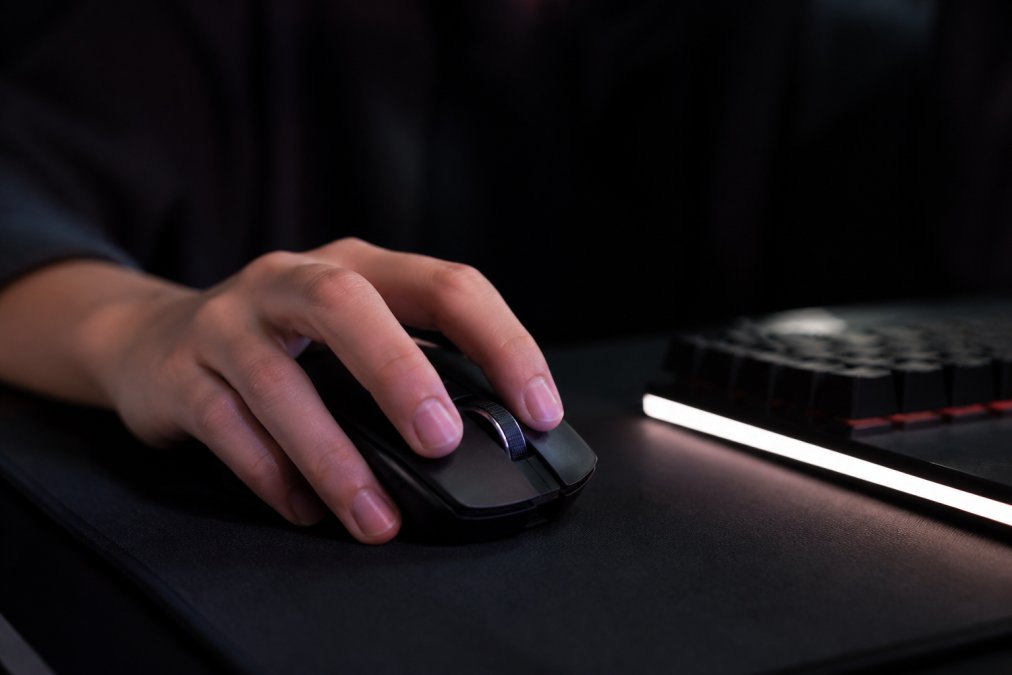
What stands out for latency-focused buyers:
- Tri-mode connectivity: switch between 2.4GHz wireless, Bluetooth, and wired, so you can game on the low-latency 2.4GHz receiver and fall back to wired when needed.
- Up to 42,000 DPI with the PAW3950 sensor for precise tracking and fine aiming control.
- Dual 8K support for high polling rates on both wired and 2.4GHz connections.
- Ergonomic, lightweight shell for long sessions without hand fatigue.
At $80.99, the Mchose A7 V2 Pro Ultra offers advanced features. If you want one mouse that handles the sensor, polling, and receiver side of the latency equation, this is a strong option. You can add the Mchose A7 V2 Pro Ultra to your cart here.
Battery Life vs Performance: The Trade-Offs Nobody Mentions
Battery life and performance pull in opposite directions on wireless mice. Every latency improvement, higher polling rates, brighter RGB, stronger signal, draws more power.
- 8K polling drains batteries faster than 1K. Running 8000Hz all day means charging more often.
- RGB lighting adds constant draw, especially on wireless models.
- Signal strength vs efficiency: a stronger 2.4GHz link resists interference better but uses more power.
A 500mAh battery, common on lightweight wireless mice, balances runtime against weight. The honest trade-off: run 8K when competing and drop to a lower rate for everyday use. Most quality mice let you toggle polling rates on the fly.
Battery level itself affects behavior: as it drains, some mice reduce transmission power or polling consistency to extend runtime, subtly increasing latency near the end of a charge. Keep it topped up before a ranked session.
Conclusion
The best gaming mouse for low latency solves the whole chain, not one spec. Sensor accuracy, polling rate, click response, and a clean 2.4GHz connection must work together, and the system around the mouse matters as much as the mouse itself. Get the fundamentals right and you'll feel the difference immediately.
Frequently Asked Questions
What gaming mouse has the least delay?
The lowest latency comes from mice using a 2.4GHz proprietary receiver with a high polling rate (4000Hz or 8000Hz) and optical switches. Wired USB mice still have a slight edge in consistency, but top wireless models like the Mchose A7 V2 Pro Ultra now match wired performance in end-to-end click registration. Sensor quality and firmware also matter more than connection type alone.
Is 1000Hz or 8000Hz polling rate better for gaming?
8000Hz polling rate reduces the interval between data reports from 1ms to 0.125ms, which can lower motion latency and improve tracking smoothness on high-refresh-rate monitors. However, the real-world benefit depends on your CPU overhead and game engine. For most players, 1000Hz is sufficient, but competitive gamers with 240Hz+ displays may notice a difference in consistency.
Is a wired mouse still better for low latency than wireless?
Not necessarily. Modern 2.4GHz wireless mice with proprietary receivers can match or beat wired latency because they avoid USB polling inconsistencies. The gap has closed significantly. Wired still wins on zero battery concerns and no signal interference, but wireless vs wired mouse latency is now measured in fractions of a millisecond for top-tier models.
How do I reduce mouse input lag without buying a new mouse?
Start by disabling pointer acceleration in Windows and setting your mouse to 1000Hz polling in its software. Use a wired connection or a dedicated 2.4GHz receiver on a front USB port. Close background apps that spike CPU usage, update your mouse firmware, and avoid Bluetooth for gaming. These steps can cut system latency by several milliseconds without spending a dollar.
Chasing low latency gets frustrating when your gear can't keep up with your settings. The Techie Den stocks precision-engineered gaming mice built for exactly this, including the Mchose A7 V2 Pro Ultra with its 42,000 DPI PAW3950 sensor, dual 8K polling, and tri-mode connectivity for wired, 2.4GHz, and Bluetooth flexibility. Add it to your cart and give your aim the hardware it deserves.


