

Table of Contents
- Understanding Gaming Mouse Latency and Input Lag
- Best Mouse Polling Rate for Gaming Performance
- How to Test Mouse Input Lag Accurately
- Disable Mouse Acceleration Windows 10 and Beyond
- Optimize USB Connection and Hardware Settings
- NVIDIA Reflex Low Latency Mode Setup
- Update Graphics Drivers and Clean System Bloatware
- Wired vs Wireless Connection Performance
Last Updated: August 5, 2026
Understanding Gaming Mouse Latency and Input Lag
Input lag in gaming mice represents the delay between your physical movement or click and when that action registers on screen. This delay, measured in milliseconds, accumulates across multiple system layers: the mouse sensor, USB communication, operating system processing, graphics driver handling, and display refresh. For competitive gamers, understanding how to reduce gaming mouse latency has become essential because milliseconds determine outcomes in fast-paced titles.
The Techie Den recognizes that gamers investing in high-performance peripherals need to optimize their entire setup, not just buy expensive hardware. This guide walks through the specific settings, hardware choices, and software optimizations that eliminate unnecessary latency.
What Causes Input Lag in Gaming Mice
Gaming mouse latency originates from several distinct sources. The mouse sensor processes your hand movement and converts it to digital data. That data travels through a USB cable or wireless connection to your computer. USB 2.0 connections poll at fixed intervals (typically 125Hz, 250Hz, 500Hz, or 1000Hz), meaning the mouse reports position only at those intervals. Wireless mice using 2.4GHz add additional latency from signal transmission and potential interference.
Once data reaches your system, the operating system's HID (Human Interface Device) layer processes it. Windows applies mouse acceleration by default, which adds computational delay. Your graphics driver then interprets the mouse position for cursor rendering. Finally, your monitor's refresh rate determines when that cursor appears on screen, a 60Hz monitor updates every 16.67ms, while a 240Hz monitor updates every 4.17ms. Software running in the background, including antivirus scanning and cloud sync applications, compounds every layer by consuming CPU cycles.
Why Latency Matters in Competitive Gaming
In competitive shooters, fighting games, and real-time strategy titles, latency directly impacts performance. Esports professionals target sub-5ms total system latency through wired connections, high polling rates, disabled mouse acceleration, updated drivers, and clean system configurations. Casual players often operate at 20-40ms latency without realizing it, which feels sluggish in competitive scenarios but remains acceptable for relaxed play. Reducing perceived latency, even by just a few milliseconds, improves player confidence and consistency.
Best Mouse Polling Rate for Gaming Performance
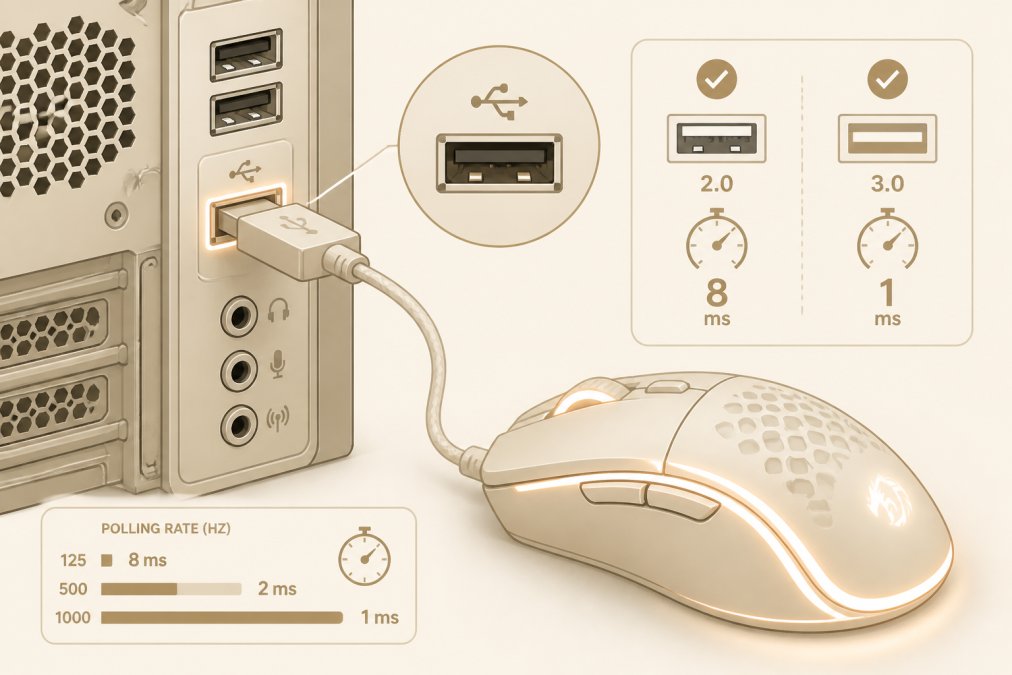
Polling rate defines how frequently your mouse reports its position to your computer. A 1000Hz polling rate means the mouse sends position data 1000 times per second, or every 1 millisecond. A 125Hz polling rate reports position every 8 milliseconds. Higher polling rates reduce the window where your actual hand position diverges from your computer's understanding of that position. For competitive gaming, 1000Hz polling rate is now standard.
Polling Rate vs USB Report Rate Explained
Polling rate refers to how often the mouse sends data. USB report rate describes how often the USB host controller requests data from the mouse. In most gaming setups, these align, a 1000Hz mouse sends data at 1000Hz because the USB controller polls at that interval. Some gaming mice support higher effective rates through overclocking, though this requires specific hardware support. Standard USB 2.0 bandwidth supports 1000Hz polling for a single mouse without issues. Wireless mice typically max out at 1000Hz equivalent due to 2.4GHz wireless protocol limitations.
Configuring Polling Rate in Your Mouse Software
Most gaming mice come with manufacturer software (Razer Synapse, SteelSeries Engine, Corsair iCUE, Logitech G Hub) that allows polling rate configuration. Access this software, locate the polling rate setting, and select the highest available option, typically 1000Hz. Some mice require firmware updates to unlock higher polling rates, check the manufacturer's website for your specific model. After changing polling rate, test in your game of choice. If you experience erratic cursor behavior, reduce to 1000Hz.
How to Test Mouse Input Lag Accurately
Measuring actual input lag requires specialized equipment or software. Unlike polling rate, which you can verify through mouse settings, total system latency involves multiple components and demands careful testing methodology.
Hardware Latency Measurement Tools
The most accurate method uses high-speed camera analysis. Film your mouse movement and screen response simultaneously at 240+ frames per second, then count frames between movement and cursor update. Some gaming mice include built-in latency displays in their software, measuring sensor-to-USB latency only, not total system latency.
Testing Before and After Optimization
Establish a baseline before making changes. Play your primary competitive game for 30 minutes, focusing on aim consistency and responsiveness. After implementing optimizations, repeat the same test under identical conditions. Use aim training software like Aim Lab or Kovaak's to measure objective improvement.
Disable Mouse Acceleration Windows 10 and Beyond
Mouse acceleration, also called mouse smoothing, applies mathematical curves to your mouse input. Windows interprets rapid mouse movements differently than slow movements, accelerating the cursor more for fast flicks. This feature helps casual users navigate desktops but introduces unpredictability in gaming.
Why Mouse Smoothing Increases Click Latency
Acceleration processing adds computational overhead. The operating system must analyze movement velocity, apply acceleration curves, and recalculate cursor position before passing data to your game. More importantly, acceleration breaks the direct relationship between hand movement and cursor movement. Professional gamers disable acceleration to establish consistent, predictable aiming.
Step-by-Step: Turning Off Acceleration
Windows 10/11 Native Settings:
- Open Settings (Windows key + I)
- Navigate to Devices > Mouse
- Scroll down and click "Additional mouse options"
- In the Mouse Properties window, select the "Pointer Options" tab
- Uncheck "Enhance pointer precision"
- Click "Apply" then "OK"
For Precision:
Some gaming mice include separate acceleration settings in their manufacturer software. In Razer Synapse, look for "Acceleration" under mouse settings and disable it. In SteelSeries Engine, find "Acceleration" in sensitivity settings and set it to zero or off.
Verify the Change:
After disabling acceleration, your mouse should feel different. Give yourself 2-3 hours of gameplay to readjust. Most competitive players report improved aim consistency within a single gaming session.
Optimize USB Connection and Hardware Settings
Your mouse connects through a USB port, and port quality affects data transmission reliability. USB 3.0 ports offer better electrical isolation and lower noise floors compared to USB 2.0, reducing the likelihood of signal corruption.
USB 2.0 vs USB 3.0 for Gaming Mice
USB 2.0 operates at 480 Mbps theoretical bandwidth. A single gaming mouse at 1000Hz polling rate consumes approximately 16 Kbps, a tiny fraction of available bandwidth. In practice, USB 3.0 ports use better shielding and electrical design, reducing interference. Connect your gaming mouse to a USB 3.0 port (usually blue or labeled 3.0) rather than USB 2.0. Avoid USB hubs for gaming mice; connect directly to motherboard ports when possible.
Debounce Time and Sensor Performance Tuning
Debounce time refers to the delay a mouse sensor applies before registering contact. Most gaming mice use 5-10ms debounce time, which typically balances reliability and responsiveness optimally. Ensure your mousepad surface remains clean; dust and debris degrade sensor tracking. Wipe your mousepad weekly with a slightly damp cloth.
NVIDIA Reflex Low Latency Mode Setup
NVIDIA Reflex represents a modern approach to reducing system latency by coordinating GPU rendering with game frame delivery, eliminating unnecessary queued frames that increase latency.
Enabling Reflex in Your Graphics Driver
Reflex requires an NVIDIA GPU (GeForce RTX series or newer) and compatible game support. Check your game's graphics settings menu for "NVIDIA Reflex" or "Low Latency Mode" options.
- Ensure your graphics driver is current
- Launch your game
- Open graphics settings
- Search for "Reflex" or "Low Latency"
- Select "On" or "On + Boost"
- Apply settings
"On + Boost" mode delivers maximum latency reduction but increases GPU power consumption. For competitive gaming, this trade-off usually favors the latency reduction.
How Reflex Reduces System Responsiveness Lag
Traditional GPU rendering queues frames. Reflex detects when your GPU would queue frames and throttles game logic to prevent unnecessary queuing. Your game runs at the exact pace your GPU can render and your monitor can display, eliminating queued frame latency and typically reducing total system latency by 10-30ms.
Update Graphics Drivers and Clean System Bloatware
Graphics drivers directly impact input processing latency. Outdated drivers contain inefficiencies and bugs that slow frame delivery. Modern drivers optimize rendering paths and reduce unnecessary processing overhead.
Impact of Outdated Drivers on Input Processing
Your graphics driver translates game rendering commands into GPU operations. Older drivers contain legacy code paths that process rendering commands inefficiently. Update your graphics driver monthly. NVIDIA provides GeForce Experience and AMD provides Radeon Software, both offering automatic updates.
Removing Background Software That Causes Input Lag
Every background application consumes CPU cycles. Create a "Gaming Profile" in your antivirus software that disables scanning during gaming. Pause cloud storage sync before gaming sessions. Open Task Manager (Ctrl+Shift+Esc), select the "Startup" tab, and disable non-essential startup applications. Disable Discord overlay, open Discord settings, select "Overlay," and toggle overlay off. This optimization compounds with others, producing noticeable responsiveness improvement.
Wired vs Wireless Connection Performance
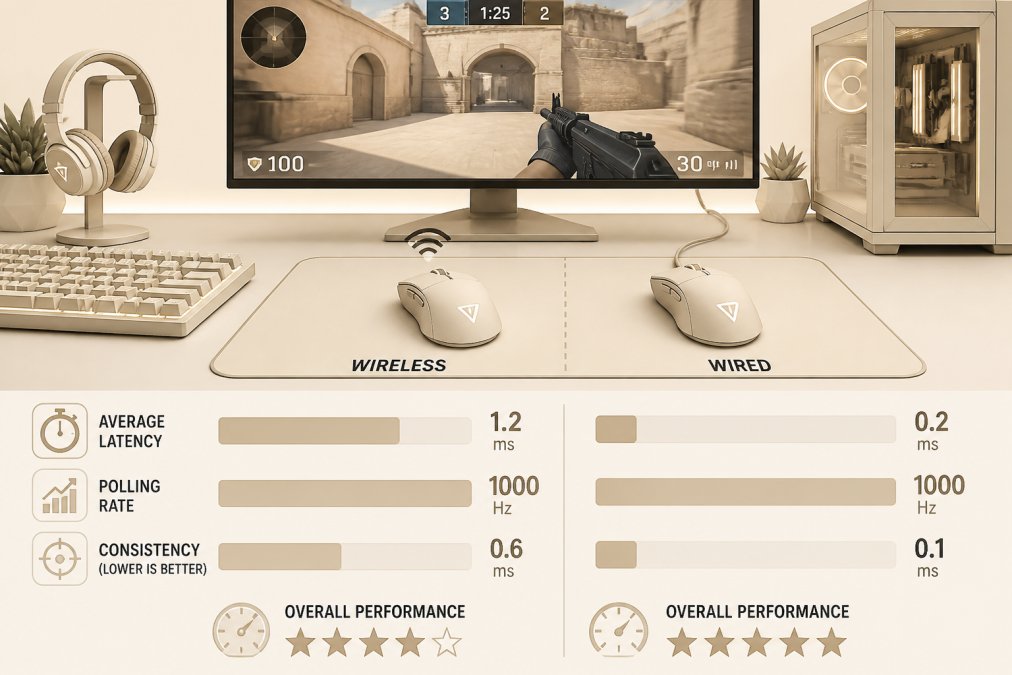
The wired versus wireless debate has evolved. Modern wireless gaming mice using 2.4GHz technology now rival wired mice in latency performance.
2.4GHz Wireless Signal Stability and Interference
Modern wireless gaming mice operate on the 2.4GHz frequency band, shared by WiFi, Bluetooth, microwaves, and cordless phones. Quality 2.4GHz wireless mice use frequency-hopping spread spectrum (FHSS) technology, rapidly switching between different frequencies within the 2.4GHz band to avoid interference. Signal stability depends on distance and obstacles. Wireless mice work best within 6 feet of the receiver with clear line of sight.
Choosing Between Wired and Wireless for Competitive Play
Wired mice eliminate wireless latency entirely. For competitive esports, wired remains the technically superior choice. However, modern premium wireless mice achieve latency comparable to wired mice through optimized wireless protocols and high polling rates. For competitive gamers, wired mice are often recommended, while premium wireless mice can be a great option for casual players prioritizing comfort.
Reducing gaming mouse latency requires a systematic approach addressing hardware, software, and system configuration. Higher polling rates, disabled acceleration, updated drivers, USB 3.0 connections, and background application removal each contribute small improvements. Combined, they produce dramatic responsiveness gains that separate casual gaming from competitive performance. Test each optimization individually to identify which changes deliver the most noticeable improvement for your specific setup, then layer them together for maximum effect.
Frequently Asked Questions
Does mouse polling rate affect latency?
Yes, polling rate directly affects latency. A higher polling rate means your mouse reports its position more frequently to your computer. At 125 Hz, your mouse updates every 8 milliseconds; at 1000 Hz, it updates every 1 millisecond. Higher polling rates reduce input lag, but require a compatible USB controller and adequate bandwidth. Most competitive gamers use 1000 Hz for the lowest latency, though 500 Hz provides a good balance between performance and system overhead.
How do I check my mouse input lag?
You can test input lag using specialized tools like the UFO Test or hardware latency measurement devices that photograph your screen and mouse simultaneously. Many gaming mice include built-in latency testing software. Alternatively, use slow-motion video recording at 240+ fps: click your mouse while recording your screen, then count the frames between the click and the on-screen response. Divide the frame count by your recording framerate to get milliseconds of latency.
Does Windows mouse acceleration cause input lag?
Mouse acceleration (also called mouse smoothing) doesn't directly add latency in milliseconds, but it does introduce unpredictability. With acceleration enabled, your cursor movement doesn't match your physical mouse movement consistently, the operating system modifies your input based on speed. This causes perceived lag and makes aiming inconsistent in competitive games. Disabling it in Windows settings ensures a 1:1 relationship between physical movement and cursor position, improving control and responsiveness.
Can monitor refresh rate reduce perceived mouse latency?
Yes, monitor refresh rate significantly affects how latency feels. A 60 Hz monitor displays a new frame every 16.7 milliseconds, while a 144 Hz monitor updates every 6.9 milliseconds. Even if your mouse latency stays the same, a higher refresh rate display shows cursor movement more frequently, making the overall system feel more responsive. For the best experience, match your monitor refresh rate to your GPU's output, pair a 1000 Hz polling rate mouse with at least a 144 Hz monitor for optimal perceived responsiveness.
This article was written using GrandRanker


