

Table of Contents
- Multi-Monitor Display Setup for Productivity vs Gaming: What Actually Matters
- Dual Monitor Setup for Work and Gaming: The Balanced Starting Point
- Dual Monitors vs Ultrawide: Which Gives More Usable Screen Real Estate?
- Multi-Monitor Gaming Performance: What Happens to Frame Rate and Refresh Rate
- Ergonomic Monitor Placement: Setting Up Your Desk for Comfort and Focus
- Compatibility and Connection Planning: Ports, Cables, and GPU Limits
- Conclusion: Matching Your Multi-Monitor Display Setup to Your Real Workflow
- Frequently Asked Questions
Last Updated: October 4, 2026
Multi-Monitor Display Setup for Productivity vs Gaming: What Actually Matters
A multi-monitor display setup uses two or more physical screens with a single computer to expand desktop space and separate applications. At The Techie Den, we see this question constantly: does adding screens make you more productive, or just look impressive?
Most productivity gains come from application separation, not raw pixel count. Gaming gains come from a single fast panel, not more panels.
How We Evaluated These Setups
We judged each configuration against four criteria: usable screen real estate, workflow fit, gaming impact, and setup complexity. Usable screen real estate means the space you can actually work in, not the marketing diagonal.
Gaming impact covers frame rate, refresh rate, and how many displays your graphics card can drive at once. Setup complexity includes ports, cables, desk depth, and GPU resolution support.
Dual Monitor Setup for Work and Gaming: The Balanced Starting Point
A dual monitor setup for work and gaming is the safest starting point because it splits the difference between productivity and play. One screen handles email, chat, and reference material while the other runs your main application.
Two 27-inch 1440p panels at 144Hz give most people the best balance. You get enough horizontal space for two full windows without turning your head like a spectator.
Pros and Cons of Dual Monitors
Pros
- Clear application separation between work and communication
- Cheaper entry point than one large ultrawide
- Easy to repurpose one screen for gaming, one for streaming tools
- Simple cable management compared to three or four panels
Cons
- The bezel gap breaks visual continuity across windows
- Two mid-tier panels can cost more than one quality ultrawide
- Requires more desk depth and two stands or a dual arm
- Gaming across both screens is impractical for most titles
Dual Monitors vs Ultrawide: Which Gives More Usable Screen Real Estate?
An ultrawide monitor gives more uninterrupted horizontal space, while dual monitors give more physical separation between applications. The harder question is which gives more usable screen real estate per dollar, per GPU watt, and per inch of desk depth.
Start with the pixel math. A 34-inch ultrawide at 3440x1440 delivers about 4.95 million pixels across one seamless panel. Two 27-inch 1440p panels deliver about 7.37 million pixels combined, minus 1 to 2 inches lost to bezels and the gap.
| Setup | Approx. Pixels | Best For | Main Drawback |
|---|---|---|---|
| Dual 27-inch 1440p | ~7.37M | Multitasking, app separation | Visible center seam |
| 34-inch ultrawide (3440x1440) | ~4.95M | Editing, wide spreadsheets | No true app isolation |
| 49-inch super-ultrawide (5120x1440) | ~7.37M | Trading, timeline editing | Cost, GPU load, desk depth |
| Triple 27-inch 1440p | ~11.06M | Immersive sims, sim racing | Desk depth, GPU load, cost |
| Single 32-inch 4K | ~8.29M | Focused single-task work | Less side-by-side room |
Cost and Desk-Space Trade-Offs
Two mid-tier 27-inch 1440p panels plus a dual monitor arm often cost more than one quality 34-inch ultrawide, but less than a 49-inch super-ultrawide.
Desk depth is the constraint people underestimate. A 34-inch ultrawide needs roughly 30 to 36 inches of viewing distance. Two 27-inch panels on a dual arm need similar depth but more width, often 50 inches or more once you angle the outer edges inward.
GPU Load and Refresh-Rate Reality
Pixel count is not the only load. Refresh rate multiplies it. Driving two 1440p panels at 144Hz asks the GPU to push far more pixels per second than one 3440x1440 panel at 60Hz, even though the resolutions look similar on paper.
A practical rule: if you game on one panel and work on the other, the second panel adds almost no gaming load because it only renders desktop content.
Which One Wins for Your Use Case
- Coding and documentation: dual monitors, because you can pin a reference doc on one screen and an editor on the other without window juggling.
- Video editing and audio production: ultrawide, because timelines and mixer panels stretch naturally across one seamless canvas.
- Spreadsheets and financial work: super-ultrawide or dual monitors, depending on whether you prefer one wide grid or two isolated workbooks.
- Mixed office work plus gaming: dual monitors, because you can dedicate one fast panel to games and keep the second for chat, guides, and monitoring.
- Single-app focus work: one large 4K panel, because extra screens become distraction rather than workspace.
For pure productivity, ultrawide often wins on desk cleanliness. For mixed work and gaming, dual monitors stay more flexible. The right answer depends on whether your day is built around one big canvas or several separate ones.
Multi-Monitor Gaming Performance: What Happens to Frame Rate and Refresh Rate
Multi-monitor gaming performance drops sharply once you spread a game across multiple panels, and the reason is arithmetic. Each additional display adds pixels the GPU must render every frame, and frame rate falls as pixel count climbs. A game running smoothly on one 1440p screen can struggle across three.
A single 1440p panel is about 3.69 million pixels. Three in a surround configuration total about 11.06 million pixels, roughly triple the load per frame.
Desktop Output vs In-Game Rendering
A common misconception is that because a graphics card drives three monitors on the desktop easily, it will drive three in a game just as easily. Desktop output is light work: the GPU composites static windows, not geometry, lighting, and effects every frame. In-game rendering across three panels is much heavier, and mismatched refresh rates can cause stutter or tearing even when average frame rate looks acceptable.
Why Two Panels Rarely Work for Gaming
Two-panel gaming is the awkward middle case. The bezel lands in the middle of your view, splitting the crosshair, character, or road ahead. Most titles lack a clean two-screen surround mode, and those that have one still put the seam where your eyes focus most. For competitive play, a single high refresh rate panel beats any multi-screen arrangement because input lag, motion clarity, and frame pacing matter more than peripheral vision.
When Multi-Monitor Gaming Actually Makes Sense
There is a real case for surround gaming, just a narrow one. Sim racing, flight simulation, and some driving and space titles benefit from the wide field of view because extra panels show peripheral motion rather than splitting the main action. In those genres, three matched panels at the same resolution and refresh rate, driven by a strong GPU, deliver an experience a single monitor cannot match.
Practical Settings That Recover Frame Rate
If you do run a multi-panel gaming setup, a few settings do most of the work:
- Lower the in-game resolution scale or enable GPU upscaling to cut the per-frame pixel load.
- Cap the frame rate to a value your GPU can hold consistently rather than chasing a peak number.
- Match refresh rate and resolution across all panels to avoid stutter and tearing.
- Keep secondary panels on desktop duty only, so the game renders on one screen and the others stay light.
- Use the operating system's display settings to confirm each panel is running at its rated refresh rate, not a default lower value.
For competitive play, a single high refresh rate panel beats any multi-screen arrangement. For immersion in the right genres, three matched panels can be worth the hardware cost. The mistake is buying three screens expecting the frame rate of one.
Ergonomic Monitor Placement: Setting Up Your Desk for Comfort and Focus
Ergonomic monitor placement means positioning the top of your primary screen near eye level, roughly an arm's length away, centered in front of you.
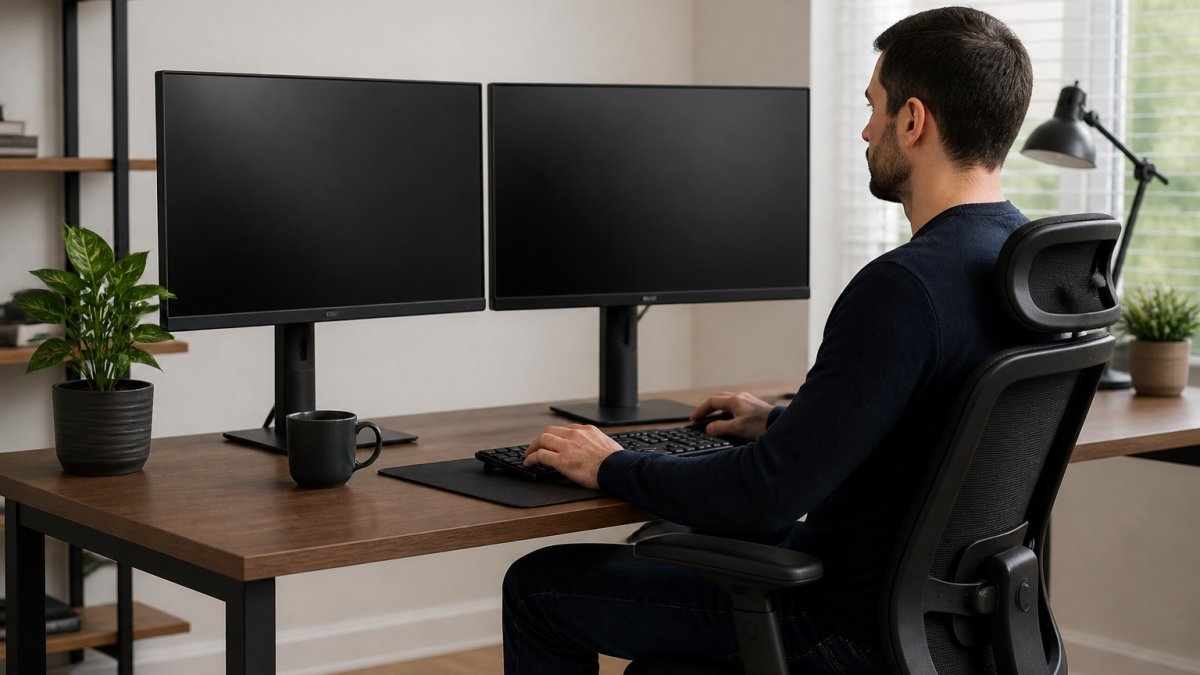
Neck strain from multi-monitor setups usually traces back to one cause: the primary screen sits off-center. Put the display you stare at most directly ahead. Everything else orbits it.
Window Management and Application Separation Tips
Good window management turns extra screens into productivity rather than clutter. Assign each display a job and stick to it.
- Primary screen: your main application, whether that is a code editor, spreadsheet, or game
- Left screen: email, chat, and calendar
- Right screen: reference material, documentation, or music playback
- Use the operating system's snap and virtual desktop features to keep layouts consistent
A simple routine beats a complicated one. If you spend more time arranging windows than working, you have too many screens or too few rules.
Compatibility and Connection Planning: Ports, Cables, and GPU Limits
Compatibility planning starts with counting display outputs on your graphics card and checking the maximum resolution each port supports. Modern cards offer multiple DisplayPort and HDMI connections, but laptops and integrated graphics often cap out lower.
Cable choice matters more than people expect. DisplayPort generally handles higher refresh rates and resolutions than older HDMI standards. A mismatched cable can silently limit you to a lower refresh rate, which feels like a sluggish screen with no obvious cause.
For charging and connectivity across a mixed set of devices, a reliable adapter or dock keeps the desk from turning into a cable nest. That is the kind of accessory The Techie Den focuses on, because a clean connection plan is what makes a multi-monitor display setup actually usable day to day.
Conclusion: Matching Your Multi-Monitor Display Setup to Your Real Workflow
The challenge with any multi-monitor display setup is resisting the urge to add screens before you know what each is for. Productivity rewards application separation and comfortable ergonomics. Gaming rewards one fast panel and a graphics card that can feed it.
Get started with The Techie Den and build a multi-monitor display setup that matches how you actually work and play.
Frequently Asked Questions
Is a dual-monitor setup better for productivity or gaming?
It depends on what you do most. For productivity, a dual monitor setup lets you keep email, a spreadsheet, and a browser open side by side, cutting window-switching time. For gaming, a single high-refresh monitor often works better because most games run on one screen, and a second display can distract you or pull GPU resources. If you split your time, dual monitors give you the flexibility to switch between focused work and immersive gaming without rebuilding your desk.
Is one ultrawide monitor better than two monitors for work and gaming?
An ultrawide monitor gives you a single, seamless horizontal space that works well for timelines and wide spreadsheets. Dual monitors offer a physical bezel that helps you separate tasks, like keeping email on one screen and your main project on the other. For gaming, many titles support ultrawide resolutions, but some older games do not, and you may see black bars. Dual monitors are more flexible if you often game on one screen while monitoring chat or system stats on the other.
Does using multiple monitors affect gaming performance?
Yes, but mostly when you extend a game across several screens. Running a game on three monitors at a high resolution demands far more from your graphics card than a single 1080p or 1440p display, which can lower your frame rate. If you only game on one monitor and keep the others for chat or browsing, the performance hit is usually small. Your GPU, its display outputs, and the total resolution you push all determine how much impact you feel.
What is the best monitor arrangement for work and gaming?
A common arrangement is a primary monitor centered at eye level for gaming and main tasks, with a secondary monitor angled to the side for email, chat, or reference material. This keeps your neck neutral and lets you focus on one screen without turning. For productivity-heavy days, you can rotate the secondary monitor vertically for documents. Adjust brightness and resolution so both screens look consistent, and use window management tools to snap apps into place quickly.


