

Quick Summary
Mouse sensor performance is how accurately and consistently a gaming mouse's sensor tracks movement across speeds and surfaces. It matters more than the maximum DPI number printed on the box, which only shows the sensor's ceiling. Judge a mouse by how cleanly it tracks at the DPI you actually use.
- Optical sensors dominate gaming mice because they offer consistent lift-off distance and low power draw.
- A higher maximum DPI rating does not make a mouse more accurate than one with a lower rating.
- Polling rate sets the report interval: 1000Hz reports every 1ms, while 8000Hz reports every 0.125ms.
- High polling raises CPU load, USB bandwidth use, and wireless battery drain.
- Test a mouse on the surface you game on, since the same sensor can track differently on each pad.
Table of Contents
- What a Gaming Mouse Sensor Actually Does
- Gaming Mouse DPI Explained Without the Hype
- Gaming Mouse Polling Rate Explained: 1000Hz, 2000Hz, 8000Hz
- Gaming Mouse Sensor Latency and Input Lag
- Smoothing, Jitter and Lift-Off Distance: The Hidden Factors
- How to Test Gaming Mouse Sensor Performance at Home
- Choosing Your Next Mouse: Where to Start
- Frequently Asked Questions
What a Gaming Mouse Sensor Actually Does
Last Updated: November 18, 2026
Every gaming mouse hides a small camera-like chip underneath that decides how your cursor moves: the sensor.
A mouse sensor watches the surface beneath it, tracks tiny movements many times per second, and converts them into cursor motion.
Sensor performance comes down to a few measurable traits: how accurately it reads movement, how consistently it does so at slow and fast speeds, and how well it handles different surfaces.
Optical vs. Laser Sensors: Pros and Cons
Most modern gaming mice use optical sensors, and market analysts agree on why.
Optical sensors use an LED or infrared light and a camera to read surface texture. They are predictable, efficient and easy to tune, which is why most gaming mice rely on them.
Laser sensors shine a coherent laser onto the surface and read the reflected pattern, tracking on a wider range of surfaces including glass.
Gaming Mouse DPI Explained Without the Hype
DPI, or dots per inch, measures how far the cursor moves on screen for each inch you slide the mouse. See how DPI actually affects accuracy in games for what changes on screen.
Most players find a moderate DPI setting gives them the control they need. Manufacturers love advertising huge numbers, but the figure that matters is the one you actually use.
Why a Higher Maximum DPI Does Not Mean a More Accurate Mouse
A mouse advertised at a very high maximum DPI is not automatically better. DAREU notes that a mouse rated at 26,000 DPI is not more accurate than one rated at 16,000 DPI, and points out that almost nobody plays above 3,200 DPI.
The maximum rating only tells you the sensor's ceiling. What matters is how cleanly the sensor tracks at the DPI you pick.
Gaming Mouse Polling Rate Explained: 1000Hz, 2000Hz, 8000Hz
Polling rate is how often the mouse reports its position to your computer, measured in hertz. A 1000Hz mouse reports 1,000 times per second; an 8000Hz mouse reports 8,000 times per second.
That interval is the part beginners miss. Between two reports, the computer is guessing where the mouse is. At 1000Hz the guess window is 1ms; at 8000Hz it is eight times smaller.
What Each Polling Rate Actually Costs You
- 1000Hz: the default for nearly every gaming mouse. One report per millisecond, modest USB traffic, and no meaningful CPU overhead on a modern desktop. This is the baseline every other rate is judged against.
- 2000Hz and 4000Hz: halve and quarter the report interval. The smoothness gain over 1000Hz is real but small, and it shows up mostly in very fast swipes rather than slow aim.
- 8000Hz: one report every 0.125ms. The gain over 4000Hz is smaller still, and the cost is the highest of any setting: eight times the USB data of 1000Hz, plus more CPU time spent processing those reports.
Players who upgrade from 1000Hz to 8000Hz typically notice the difference for a day or two and then stop, while players who drop from 8000Hz back to 1000Hz notice a slight coarseness in fast flicks. The gain is real but small, not the transformative upgrade marketing suggests.
The Hidden Costs of High Polling
High polling is not free, and the costs are easy to overlook:
- CPU load. Every report must be received and processed. At 8000Hz that is 8,000 polls per second per mouse. A fast gaming PC absorbs this without a visible frame-rate hit; an older or heavily loaded system can show stutter or higher frame times in CPU-bound games.
- USB bandwidth and controller sharing. High-polling mice push far more data over USB. If the mouse shares a controller with a keyboard, headset, or capture card, extra traffic can cause dropped reports. Plugging the mouse into its own port, ideally directly into the motherboard rather than a hub, is the usual fix.
- Wireless overhead. A wireless mouse at 8000Hz must sustain that rate over its link. Battery life drops noticeably versus 1000Hz, and some implementations only hold 8000Hz reliably at short range or with the receiver on an extension cable near the mousepad.
Watch out: buying an 8000Hz mouse and leaving it at 8000Hz on a system that cannot keep up can make aim feel worse, not better, because dropped or delayed reports introduce inconsistency that a steady 1000Hz stream would not have.
How to Tell Whether Higher Polling Helps You
You do not need a lab to make this call. Set the mouse to 1000Hz, play for a few days, then switch to the highest rate it supports and play a few more.
Polling rate is one piece of the puzzle, not the whole picture.
The article's polling rate breakdown boils down to how often each setting reports and what it costs you.
| Polling rate | Report interval | Main trade-off |
|---|---|---|
| 1000Hz | 1ms | Default baseline; minimal CPU and USB load |
| 2000Hz | 0.5ms | Smoother fast swipes; small real gain |
| 4000Hz | 0.25ms | Gain shows mainly in very fast swipes |
| 8000Hz | 0.125ms | Highest USB and CPU cost; shorter battery life |
Gaming mouse polling rates: report interval per setting
Gaming Mouse Sensor Latency and Input Lag
Input lag is the delay between moving your mouse and seeing the cursor respond on screen. Sensor latency is one part of that delay. The connection type, the polling interval and your monitor all add to it.
Wired and wireless connections can behave differently. If lag has been bothering you, compare results from tests that measure wired and wireless mice side by side. Wired vs Wireless Gaming Mouse Latency Test
If you already suspect lag, start with the basics: update drivers, check your connection mode, and close background apps that consume CPU. Our step-by-step guide on fixing input lag walks through each fix. Fix input lag on a gaming mouse
Smoothing, Jitter and Lift-Off Distance: The Hidden Factors
Three traits rarely appear on spec sheets but shape how a mouse feels. Two mice with the same sensor can feel completely different because of the hidden processing layer spec sheets do not show.
Smoothing and Jitter Correction: The Processing You Cannot See
A mouse sensor is a tiny camera taking thousands of frames per second.
Smoothing is the fix manufacturers apply: the firmware averages or filters recent position samples before reporting them, trading a small amount of raw fidelity for a steadier cursor.
On a good sensor, this processing is minimal and consistent.
The problem is that smoothing is invisible on the box. A 26,000 DPI sensor with aggressive smoothing can feel less direct than a 16,000 DPI sensor with none.
Lift-Off Distance: Why Short Usually Beats Long
Lift-off distance (LOD) is how high you can raise the mouse before tracking stops. A short LOD means the cursor stays put the moment you lift, which is what most players want when they reposition the mouse mid-flick.
Most gaming-grade optical sensors let you set LOD in software, typically to a low setting (around 1mm) or a higher one (around 2mm). Low is the default choice for shooters.
Surface Compatibility: The Same Mouse Behaves Differently on Every Pad
Surface compatibility is the most under-covered variable in sensor performance, and it matters more than most beginners expect. The same sensor can track beautifully on one mousepad and erratically on another because it reads surface texture, and every surface presents a different pattern.
- Cloth pads: the most common choice. The woven texture gives the sensor plenty of detail to track, and most modern optical sensors handle cloth well. Very soft or heavily worn cloth can reduce tracking detail, and thick pads can interact with a low LOD setting.
- Hard pads (plastic, aluminum): very consistent surface, but some hard pads are too smooth for certain sensors, producing jitter or tracking dropouts at high speeds. Hard pads also tend to wear down mouse feet faster.
- Glass pads: the hardest case. Standard optical sensors often struggle on glass because the surface offers little texture to read, and tracking can stutter or fail entirely. Some newer sensors are specifically tuned for glass, but compatibility varies widely by model.
The practical rule: test the mouse on the surface you actually game on before blaming the sensor. If a mouse tracks well on one pad and poorly on another, the surface is the variable, not the sensor's quality.
Firmware: The Hidden Variable That Changes Over Time
Sensor behavior is not fixed at the factory. Manufacturers ship firmware updates that adjust smoothing, jitter correction, LOD behavior, and polling stability after launch. A mouse that reviewed well can behave differently after an update, and a mouse that launched with a tracking bug can be fixed months later. Check for firmware updates before judging a new mouse, and re-check if a mouse that used to feel crisp starts feeling off.
How to Test Gaming Mouse Sensor Performance at Home
You do not need lab equipment to get a useful read on a mouse. Try this simple routine:
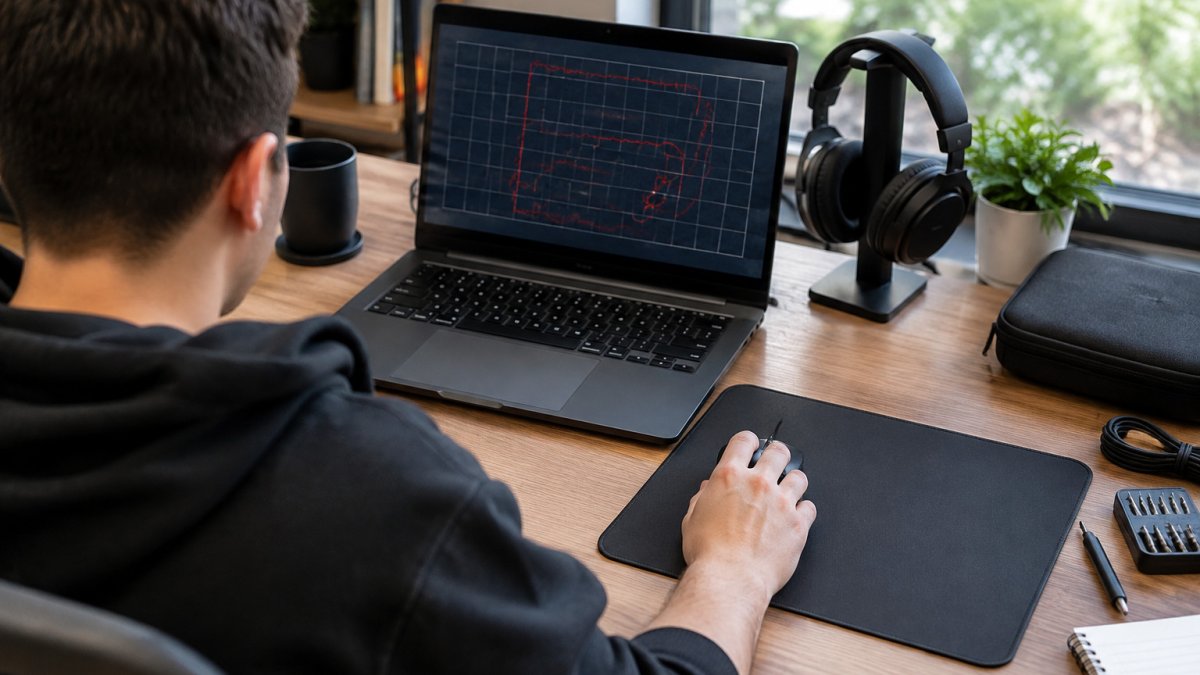
- Set a fixed DPI. Pick one value and keep it the same across every mouse you test.
- Use the same mousepad. Surface changes skew results more than most people expect.
- Run a slow tracking test. Move the cursor slowly across a straight line in a drawing app and watch for stutter or drift.
- Run a fast flick test. Snap the cursor between two targets repeatedly and note whether it lands where you aim.
- Check lift-off. Lift the mouse slowly and see how high you can go before the cursor stops responding.
- Repeat across sessions. One good run proves little. Consistent results across several days carry more weight.
A common mistake is judging a mouse after one short session. Give yourself a few days of normal use before drawing conclusions.
Choosing Your Next Mouse: Where to Start
Start with the traits that affect your play: consistent tracking, a comfortable shape and a sensor you can tune. Ignore the biggest DPI number on the box and focus on what you will actually use.
If you want a strong starting point, the Mchose A7 V2 Pro Ultra is a lightweight tri-mode mouse with a 42,000 DPI ceiling, priced at $80.99. It offers 2.4GHz, Bluetooth and wired modes, along with an ergonomic shape for long sessions. Mchose A7 V2 Pro Ultra

For a broader look at current options, see our list of low-latency gaming mice. Best low latency gaming mice for 2026
Frequently Asked Questions
Does a higher DPI make a gaming mouse more accurate?
Not necessarily. A mouse rated at a very high DPI is not automatically more accurate than one rated lower. DPI sets how far the cursor moves per inch of hand movement, so the number that matters most is the one you actually use. Many players find a comfortable setting works well, then tune sensitivity in-game. Accuracy depends more on the sensor quality, consistent tracking at slow and fast speeds, and how well your hand and surface work together.
Should I use 1000Hz or 2000Hz polling rate?
For most beginners, 1000Hz is a solid default. It is supported almost everywhere and keeps the mouse reporting its position once per millisecond, which is fast enough for the vast majority of games. Higher rates such as 2000Hz or 8000Hz can make movement feel slightly smoother on high-refresh monitors, but they also demand more CPU work and can drain wireless batteries faster. If your system struggles or your mouse runs hot or disconnects, drop back to 1000Hz. Check whether your PC and games actually benefit before paying for a higher rate.
What is a good sensor for a gaming mouse?
Optical sensors are the dominant choice in gaming mice. The Mchose A7 V2 Pro Ultra uses a high-precision sensor with up to 42,000 DPI. Laser sensors can track on more surfaces but often show more jitter and acceleration artifacts. For a beginner, a well-reviewed optical sensor paired with a reasonable DPI range is the practical choice.
Is the PixArt 3395 better than the 3950?
Sensor specifications alone do not determine overall gaming performance, so weigh the full mouse design too.
How can I test whether my gaming mouse sensor tracks accurately?
Start with a simple test: draw a straight line on paper or a whiteboard, then move the mouse across a mousepad in a straight path and watch the cursor. Look for jitter, stutters, or cursor drift when moving slowly. Next, use an online tracking or aim trainer and compare results at different speeds. Repeat tests on different mousepads, because surface compatibility affects lift-off distance and tracking stability. Keep the same DPI and polling settings across tests so the comparison is fair.
What mouse settings should beginners use for gaming?
Begin with a 1000Hz polling rate and acceleration turned off. Raw input or raw mouse input in your game settings removes operating system smoothing, which helps consistent aim. Keep your mousepad and surface clean, and update firmware only from the manufacturer's official software. Change one setting at a time and note what improves your results. Small, consistent settings usually beat chasing the highest specification numbers.
Does firmware affect how my gaming mouse sensor behaves?
It can. Firmware controls how the sensor reports movement, including polling behavior, smoothing, and lift-off calibration, so an update can noticeably change how a mouse feels. Check the manufacturer's release notes before updating, and reconfigure your DPI and polling settings afterward. If performance changes after an update and you dislike it, most manufacturers allow you to reinstall an earlier version. Keep a record of your settings so you can compare before and after.


