

Table of Contents
- Quick Fixes to Try First
- How to Change Mouse Polling Rate for Lower Input Lag
- Wireless Mouse Interference Troubleshooting
- USB Port Optimization and Controller Bus Saturation
- Software-Level Input Processing: Drivers, Firmware, and Windows Settings
- Best Low Latency Gaming Mice 2026
- In-Game Graphics Settings and Monitor Refresh Rate vs Input Latency
- Conclusion
- Frequently Asked Questions
Last Updated: October 1, 2026
Quick Fixes to Try First
Input lag is the delay between moving your mouse and seeing that movement on screen. Before reinstalling drivers, run through these fast fixes, most players find the culprit in under five minutes.
Here is the short checklist:
- Switch to a different USB port, ideally one on the back of your PC
- Close background apps hogging CPU and bandwidth
- Turn off mouse acceleration in Windows settings
- Check your monitor's refresh rate is set correctly
- Move your wireless receiver closer to the mouse
- Test with a wired connection to rule out wireless issues
How to Change Mouse Polling Rate for Lower Input Lag
Polling rate is how many times per second your mouse reports its position to your PC. A 1,000Hz mouse sends a packet every 1 millisecond; a 125Hz mouse every 8 milliseconds. That 7-millisecond gap is the difference between a flick that lands and one that feels a beat behind.
Here is how to change it:
- Open your mouse's software (Logitech G HUB, Razer Synapse, Corsair iCUE, or the brand's own utility)
- Find the polling rate or report rate setting, sometimes labeled "USB report rate"
- Select your target rate: 125Hz, 500Hz, 1,000Hz, or higher if supported
- Save the profile to the mouse's onboard memory so it survives a reboot and works on other machines
- Verify in-game with a mouse tester or the game's own input display if it has one
What Each Polling Rate Actually Costs You
Higher polling rates are not free. Each report is a USB interrupt the CPU must service. On a modern desktop this is trivial, but on an older laptop or a system already pinned by a game, 1,000Hz can add measurable overhead.
| Polling Rate | Report Interval | Typical CPU Cost | When It Helps |
|---|---|---|---|
| 125Hz | 8 ms | Negligible | Office, browsing, battery saving |
| 500Hz | 2 ms | Very low | MOBA, strategy, casual play |
| 1,000Hz | 1 ms | Low | Competitive FPS, high-refresh displays |
| 2,000Hz+ | 0.5 ms or less | Low to moderate | Only with 240Hz+ displays and strong CPUs |
Polling Rate and Wireless Mice
Wireless mice add a wrinkle. A 2.4GHz connection must transmit every report, and at very high polling rates the radio link becomes the limiting factor. Most quality wireless gaming mice handle 1,000Hz cleanly; above that you rely on the manufacturer's proprietary low-latency protocol, and performance varies by model and by how crowded the 2.4GHz band is.
Wireless Mouse Interference Troubleshooting
Wireless interference is the top cause of lag spikes on wireless mice. The fix is usually placement, not replacement.
Start with these steps:
- Move the 2.4GHz receiver to a port away from USB 3.0 and Wi-Fi hardware
- Use the extension cable that came with your mouse to raise the dongle
- Keep the receiver within a clear line of sight to the mouse
- Turn off nearby Bluetooth devices during play
- Switch your router to the 5GHz band if possible
2.4GHz Receiver Placement and USB Hub Issues
A USB hub can be the hidden problem. Cheap hubs share bandwidth across every device plugged in, including your mouse's signal path.
USB Port Optimization and Controller Bus Saturation
USB controller bus saturation is the angle most guides skip. Every USB port connects to a controller, and each controller has a bandwidth ceiling. Plug too many devices into one controller and they compete for that bandwidth.
Here is how to check and fix it:
- Open Device Manager and expand "Universal Serial Bus controllers"
- Note how many controllers you have
- Spread high-bandwidth devices (webcam, capture card, external drive) across different controllers
- Keep your mouse on its own controller if possible
- Avoid daisy-chaining through unpowered hubs
Software-Level Input Processing: Drivers, Firmware, and Windows Settings
Software is where lag hides quietly. Even perfect hardware gets slowed by a bad driver or a Windows setting working against you.
Run through this list:
Mchose A7 V2 Pro Ultra – Tri‑Mode →
- Update your mouse firmware from the manufacturer's site
- Update or reinstall your mouse driver
- Check for driver conflicts in Device Manager
- Turn off "Enhance pointer precision" in Windows
- Disable power management on USB root hubs
Mouse Acceleration and Pointer Precision
Mouse acceleration changes cursor speed based on how fast you move the mouse, making the cursor travel further on quick movements and breaking muscle memory in games.
To disable it:
- Open Settings, then Bluetooth & devices, then Mouse
- Click Additional mouse settings
- Go to the Pointer Options tab
- Uncheck "Enhance pointer precision"
- Click Apply
Best Low Latency Gaming Mice 2026
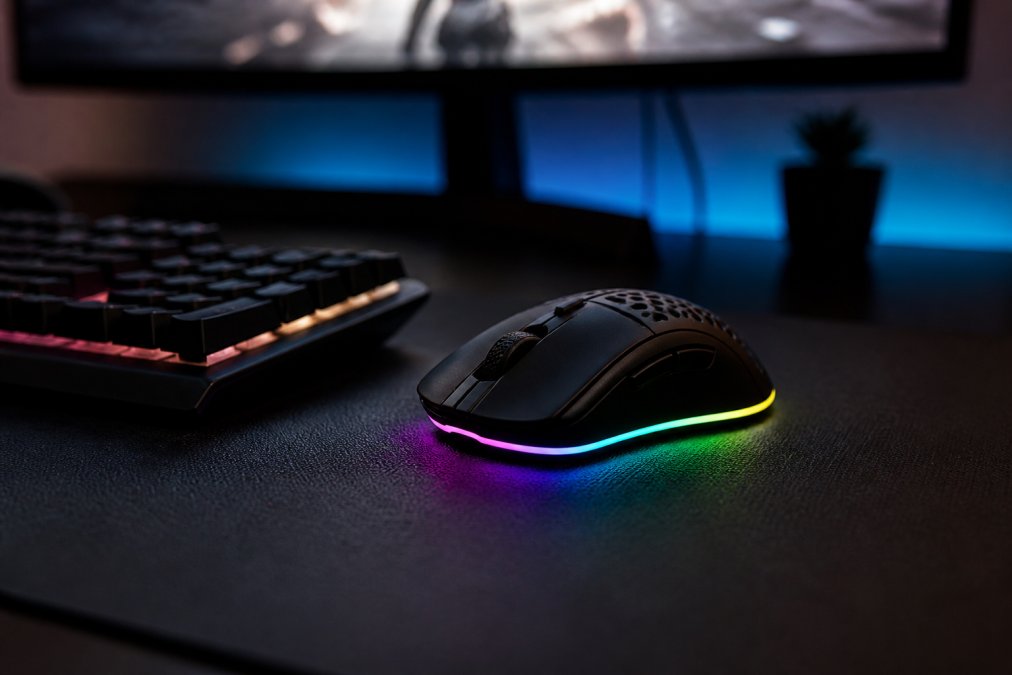
The best low latency gaming mice in 2026 combine a high polling rate, a clean wireless connection, and a sensor that tracks without smoothing, no fortune required.
In-Game Graphics Settings and Monitor Refresh Rate vs Input Latency
Most guides treat "input lag" as one thing. It is not. At least four separate delays stack between your hand and the pixels, and only one is the mouse. Understanding the chain separates a fix from a guess.
The chain looks like this:
- Mouse sensor and report, the mouse reads movement and sends a USB report (0.125 ms to 8 ms depending on polling rate)
- Game engine input processing, the game samples that report, applies raw input or Windows pointer processing, and queues the action
- Render pipeline, the GPU draws the frame, which takes one or more frame intervals depending on settings and frame pacing
- Display pipeline, the monitor receives the frame and updates the panel, which adds its own processing delay
Display Lag Is Not Mouse Input Lag
A monitor with high display latency, the time from receiving a frame to showing it, makes everything feel delayed, including your mouse. No mouse setting will fix it, because the delay happens after the mouse has done its job.
Two display features matter here:
- G-Sync and FreeSync synchronize the monitor's refresh to the GPU's frame output. They remove tearing and reduce the stutter that comes from mismatched frame pacing. They do not eliminate the panel's own response time, and they do not touch mouse input processing.
- V-Sync forces the GPU to wait for the monitor. That wait is added latency, often one to three frames. On a 60Hz display, one frame is 16.7 milliseconds, which is enormous in a competitive game.
Settings That Actually Reduce Latency
Once you know which stage is the problem, these settings matter:
- Cap your frame rate slightly below your monitor's refresh rate (for example, 141 on a 144Hz panel). This keeps the GPU from running ahead and reduces the queue depth.
- Turn on V-Sync only if tearing bothers you. It adds delay. Competitive players usually leave it off and cap frames instead.
- Disable motion blur, depth of field, and post-processing, these add render time without improving competitive visibility.
- Use exclusive fullscreen where the game supports it. Borderless windowed mode routes frames through the desktop compositor, which adds a frame of latency on many systems.
- Enable raw input in the game if the option exists. This bypasses Windows pointer processing entirely and gives the game the mouse's report directly.
- Lower in-game resolution or render scale if you are GPU-bound. Frame rate and frame pacing matter more than resolution for latency.
Conclusion
Chasing down input lag can feel like a losing battle after five fixes that did nothing. The truth is that lag usually comes from a stack of small problems, not one broken part. Fix the USB layout, kill the interference, disable pointer precision, and cap your frame rate, the difference shows up fast.
Frequently Asked Questions
Is there any way to fix input lag?
Yes, most input lag on a gaming mouse can be fixed or reduced. Start by plugging the mouse directly into a rear USB port, disabling mouse acceleration in Windows, and updating drivers and firmware. If you use wireless, move the 2.4GHz receiver closer with a USB extension cable. Adjusting polling rate to 1000Hz and turning off V-Sync can also cut input delay. For persistent issues, test the mouse on another PC to rule out hardware faults.
Why is my 2.4GHz mouse stuttering?
Stuttering on a 2.4GHz wireless mouse usually comes from signal interference. Common culprits include USB 3.0 ports, Wi-Fi routers, and metal desks. Try moving the receiver to a front USB port using an extension cable, keeping it at least 8 inches from the mouse. Also check for nearby devices like Bluetooth speakers or cordless phones. If stuttering continues, switch to wired mode or replace the batteries if the mouse uses them.
Does polling rate affect mouse input lag?
Yes, polling rate directly affects how often your mouse reports its position to the PC. A 125Hz polling rate means the mouse updates every 8 milliseconds, while 1000Hz updates every 1 millisecond. Higher polling rates reduce input lag and make cursor movement smoother, but they also increase CPU overhead. For most gamers, 1000Hz is the sweet spot. Some esports mice support 4000Hz or 8000Hz, but the gains are smaller and require a powerful CPU.
How do I know if my mouse has input lag?
Signs of input lag include delayed cursor response, clicks that register late, and a feeling that your aim is behind your hand movement. To confirm, use an online latency test or record your screen at 240fps and count frames between mouse movement and on-screen response. You can also compare your mouse to a known low-latency model. If the delay is consistent, check polling rate, USB port, and wireless interference before replacing the mouse.


