
Table of Contents
- Why Reliable Tech Accessories Matter for Remote Work
- Best Noise-Canceling Headphones for Remote Work
- Ergonomic Home Office Equipment That Actually Works
- Video Conferencing Gear You Can Rely On
- Connectivity and Power: Docking Stations and Charging
- How to Organize a Remote Work Desk for Maximum Efficiency
- Durability and Long-Term Value: What Lasts
- Budget vs. Premium: Finding Your Sweet Spot
Last Updated: August 8, 2026
Why Reliable Tech Accessories Matter for Remote Work
Remote work has fundamentally changed how professionals organize their days. A failing headset mid-call, a mouse that lags during critical moments, or a charger that won't hold a connection erodes your credibility and kills momentum.
Reliable tech accessories aren't luxuries. They're the foundation of a functioning workspace. When your equipment works consistently, you stop troubleshooting gear and focus on actual work. That shift is where productivity lives.
At The Techie Den, we've watched remote workers struggle with cheap, generic gear and spend months fighting connectivity issues, ergonomic pain, or audio quality problems that make them sound unprofessional on calls. The real cost isn't the replacement purchase, it's the lost focus, physical strain, and missed opportunities when your setup fails at critical moments.
This guide covers accessories that actually deliver on their promises. We've prioritized reliability over novelty, gear that performs consistently every single day. Whether you're setting up a home office for the first time or upgrading a workspace that's been letting you down, you'll find specific recommendations backed by real-world performance data.
Best Noise-Canceling Headphones for Remote Work
Noise-canceling headphones let you focus despite your environment. A ringing phone, traffic outside, or a family member on a call upstairs shouldn't derail your concentration or force you to apologize during a video meeting.
The Sony WH-1000XM6 Noise-Cancelling Headphones set the standard. These deliver class-leading noise cancellation at the specific frequencies that disrupt real work: traffic, HVAC systems, and background voices. The AI call-microphone array picks up your voice clearly even in noisy environments, which matters when joining calls from less-than-ideal locations.
Battery life stretches over 30 hours on a single charge, so you're not hunting for a charger mid-workday. The comfort design handles extended wear without ear fatigue. The tradeoff is the premium price point, but if you're on calls for hours daily or work in a loud environment, the cost per hour of focused work is negligible.
Ergonomic Home Office Equipment That Actually Works
Ergonomic equipment prevents cumulative damage from eight hours daily in the wrong posture. Back pain, wrist strain, and neck tension reduce your ability to work at full capacity and create long-term health issues.
Keyboards and Mice for Comfort and Precision
The Logitech MX Keys S Wireless Keyboard delivers a typing experience that doesn't fatigue your hands over a full workday. The Perfect Stroke keys require minimal pressure and travel distance, reducing repetitive strain. Smart illumination automatically backlights the keys, and multi-device connectivity via Bluetooth lets you switch between your laptop, tablet, and desktop without physically swapping keyboards.
For mouse performance, precision and responsiveness matter most. A mouse that tracks accurately reduces small corrections and re-clicks that accumulate into wrist strain. Wireless connectivity eliminates cable drag, which contributes to repetitive micro-adjustments throughout your day.
Monitor and Display Solutions
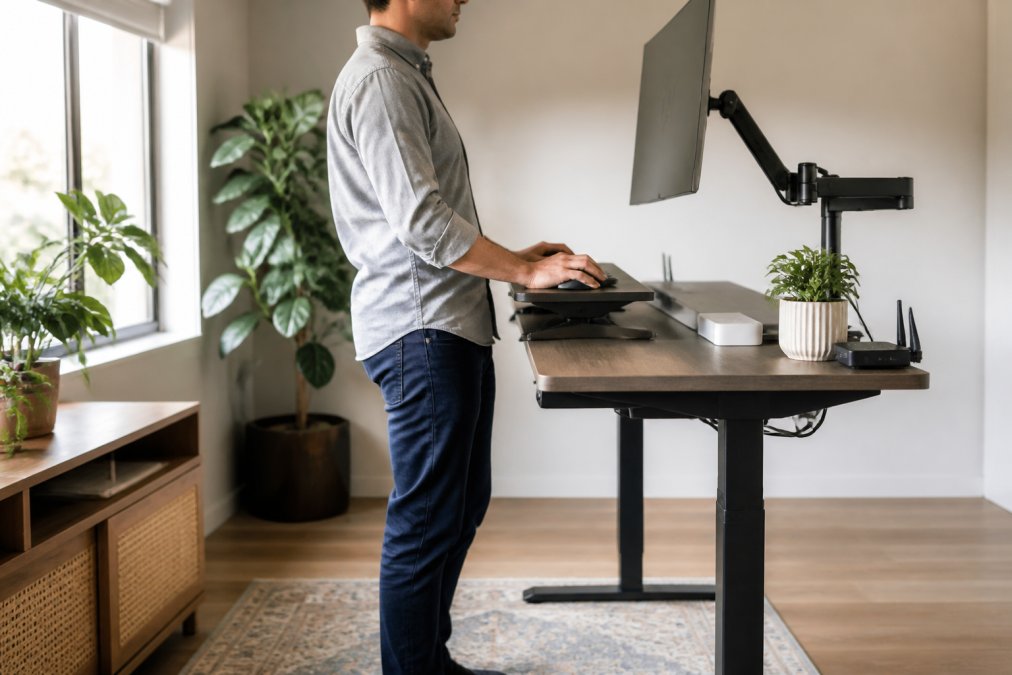
Your monitor height and distance determine whether you're looking slightly down (correct) or craning your neck (damaging). Most people set monitors too low, forcing sustained neck flexion that creates pain over weeks and months.
The ASUS ZenScreen MB16QHG Portable Monitor solves a specific problem: extending your screen real estate without the bulk of a traditional second monitor. The 16-inch FHD+ IPS display connects via Mini-HDMI or USB-C and works with most laptops without additional adapters. The ergonomic kickstand positions the screen at proper viewing height.
Where it excels: portability. If you work from multiple locations, a portable monitor travels better than a traditional 24-inch display. For stationary home office setups, a traditional monitor makes more sense. For mobile workers, the ASUS delivers the productivity boost of a second screen without the desk footprint.
Video Conferencing Gear You Can Rely On
Your video conferencing setup determines how others perceive you on calls. Poor lighting, unclear audio, or a pixelated video feed undermines your professionalism regardless of what you're actually saying.
The Logitech Brio 4K Ultra HD Webcam delivers video quality that makes you look professional in any lighting condition. The 4K resolution at 30fps or 1080p at 60fps provides clarity that matters in detailed presentations. RightLight 3 with HDR technology automatically adjusts to varying lighting. The dual integrated omnidirectional microphones with noise-cancelling technology pick up your voice clearly while suppressing background noise.
Both external cameras outperform the built-in webcams on most laptops by a significant margin. The investment in external video gear pays off every time you're on camera.
Connectivity and Power: Docking Stations and Charging
Remote workers juggle multiple devices and peripherals. A docking station consolidates connections and charging into a single connection point.
USB Docking Stations and Thunderbolt Hubs
The Anker Nano 13-in-1 Laptop Docking Station expands your laptop's connectivity dramatically. The 13 diverse ports include USB-A, USB-C, HDMI, DisplayPort, and Ethernet. It supports triple external monitors with up to 4K resolution at 60Hz. The 10 Gbps data transfer rate handles file movement without bottlenecks.
The CalDigit TS4 Thunderbolt 4 Dock represents the premium tier with 18 ports and 98W power delivery that recharges most laptops while you work. The tradeoff: it's significantly more expensive and requires Thunderbolt 4 compatibility.
Portable Power Solutions for Mobile Workers
The BioLite Charge 100 Max Power Bank addresses a real problem: your laptop's battery won't last through a full workday plus travel time. The 25,000 mAh capacity charges most laptops to full from zero. The two USB-C PD ports delivering up to 100W mean you're not choosing between charging your laptop and your phone. The limitation is bulk, but for anyone spending significant time away from wall outlets, the capacity justifies the size.
How to Organize a Remote Work Desk for Maximum Efficiency
A disorganized desk becomes a cognitive burden. Every time you reach for something and it's not where you expect, you lose focus.
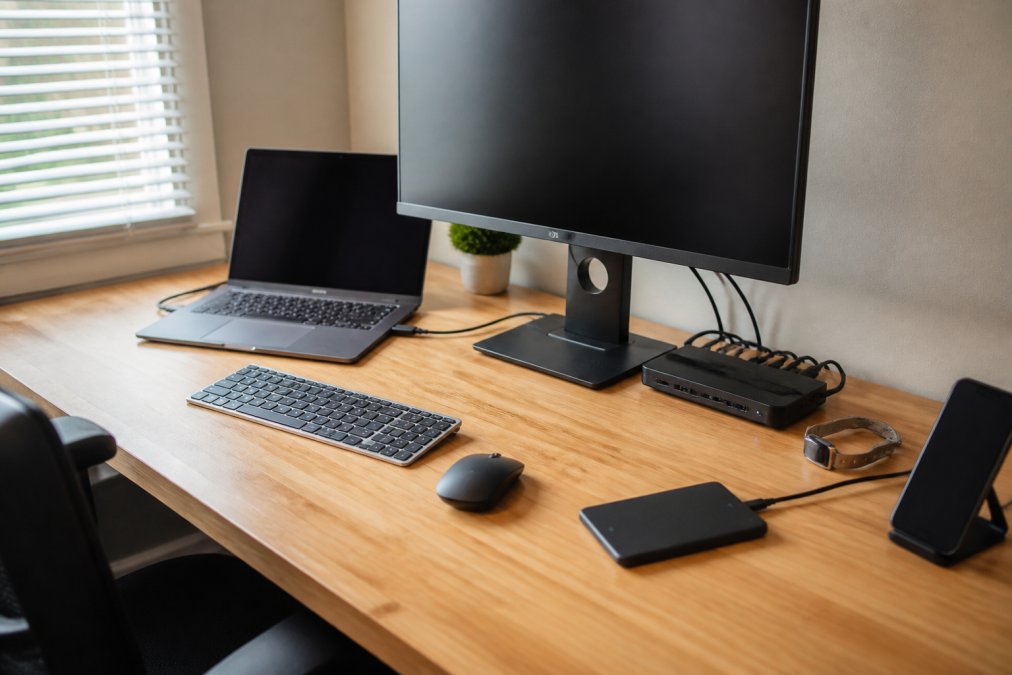
Start with cable management. Use cable clips, sleeves, or ties to bundle cables together and route them behind your desk. Label each cable at both ends so you know what connects where without tracing it back.
Organize your peripherals by frequency of use. Your keyboard and mouse live closest to your hands. Headphones hang on a stand within arm's reach. Less-frequently-used items go into a drawer or storage box. Use vertical space with monitor arms and shelves to eliminate visual clutter while keeping essentials accessible.
Lighting matters more than most people realize. Ambient overhead lighting creates shadows and glare. Add a desk lamp positioned to illuminate your work surface without creating glare on your monitor. The combination of ambient and task lighting reduces eye strain.
Durability and Long-Term Value: What Lasts
Cheap accessories fail predictably. A $15 USB cable works for three months, then the connection becomes intermittent. The real cost isn't the replacement purchase, it's the time spent troubleshooting and the frustration of failed calls.
Quality accessories cost more upfront because they're built to last. Look at the warranty. Reputable manufacturers stand behind their products with multi-year warranties. Read reviews from people who've owned the gear for extended periods to identify whether accessories maintain performance or deteriorate.
The accessories recommended throughout this guide are built to last because they're used by professionals who can't afford downtime.
Budget vs. Premium: Finding Your Sweet Spot
Not every accessory requires premium pricing.
Invest more in:
- Headphones and microphones (you use these constantly, and audio quality affects how others perceive you)
- Keyboards and mice (ergonomic quality prevents long-term physical strain)
- Monitors (you stare at this for hours daily)
- Docking stations (connectivity failures disrupt your entire workflow)
Mid-tier is sufficient for:
- Webcams (1080p quality is adequate for most video calls)
- Portable monitors (secondary screens don't need premium specs)
- Power banks (capacity and charge speed matter; brand prestige doesn't)
Budget options work fine for:
- Cable management supplies (clips and sleeves are commodity items)
- Desk lamps (basic lighting is basic lighting)
- Monitor stands (simple stands perform identically to expensive ones)
Spend aggressively on items you use constantly or that affect your physical health. Spend moderately on items that enhance productivity but aren't critical. Save money on commodity items where quality differences are negligible.
Quick Comparison Table
| Category | Top Recommendation | Key Strength | Best For |
|---|---|---|---|
| Noise-Canceling Headphones | Sony WH-1000XM6 | Industry-leading noise cancellation | Remote workers on frequent calls |
| Keyboard | Logitech MX Keys S | Low-strain design, multi-device connectivity | Professionals typing for extended periods |
| Webcam | Logitech Brio 4K | Superior video quality in any lighting | Client-facing work or presentations |
| Docking Station | Anker Nano 13-in-1 | 13 ports, triple monitor support, portable | Mobile workers needing comprehensive connectivity |
| Power Bank | BioLite Charge 100 Max | 100W delivery, charges laptops fully | Digital nomads and frequent travelers |
| Portable Monitor | ASUS ZenScreen MB16QHG | Lightweight, easy setup, proper ergonomics | Workers moving between locations |
Building a reliable remote work setup isn't about buying the most expensive gear. It's about choosing accessories that solve real problems and perform consistently. The Techie Den is your premier destination for high-quality gadgets and essential digital accessories designed to elevate your lifestyle. We offer a curated selection of products ranging from immersive gaming consoles and precision-engineered gaming mice to versatile charging solutions and audio equipment. Whether you are looking to upgrade your office setup or enhance your gaming experience, our collection delivers the performance and reliability you need to stay connected and entertained. Start with the accessories that matter most to your workflow, then expand as your needs evolve.
Frequently Asked Questions
What are the essential tech accessories for a home office?
The foundation includes a quality webcam for video conferencing, noise-canceling headphones for clear audio and focus, an ergonomic keyboard and mouse, a docking station for connectivity, and proper lighting. If you multitask or use multiple monitors, a portable display or docking hub becomes essential. Your specific needs depend on your role, developers may prioritize connectivity, while sales professionals need excellent video conferencing gear. Start with headphones and a webcam, then add ergonomic peripherals and connectivity solutions based on your workflow.
How can I improve my remote work setup on a budget?
Prioritize high-impact, affordable items first: a basic webcam ($50-100), a wired keyboard and mouse combo, and cable management solutions. Noise-canceling headphones deliver immediate productivity gains and are available at mid-range prices. For connectivity, a multi-port USB hub costs less than a full docking station but solves most cable issues. Skip premium brands initially, many mid-tier accessories offer solid reliability. Upgrade to ergonomic equipment gradually as your budget allows, focusing on items you use for 8+ hours daily.
What ergonomic tech accessories are best for long work hours?
Invest in an adjustable keyboard with proper key travel and a mouse that supports your grip style, these reduce wrist strain during extended typing. A monitor stand or portable display positions your screen at eye level, preventing neck strain. Ergonomic home office equipment like adjustable stands and proper lighting reduce fatigue. Headphones with padded ear cups and a lightweight design prevent ear and neck discomfort. A desk lamp with adjustable brightness minimizes eye strain. These accessories directly impact comfort during 8-hour workdays and reduce long-term injury risk.
Do I need a docking station for my remote work setup?
A docking station becomes essential if you use multiple peripherals, external monitors, or frequently move between locations. It consolidates connections into one plug, eliminating cable clutter and reducing setup time. For stationary home offices with few devices, a basic USB hub may suffice. If you travel or work from different spaces, a compact portable dock adds flexibility. Thunderbolt docks offer faster data transfer and higher power delivery, while USB-C docks provide budget-friendly alternatives. Evaluate your connectivity needs, if you're constantly plugging and unplugging cables, a dock saves time and reduces connector wear.
How do I choose the right webcam for remote meetings?
Prioritize 1080p resolution at 60fps for clear, smooth video in video conferencing. Check for adaptive light sensors or HDR technology if you work in varying lighting conditions. A built-in microphone helps, but external headphones with a microphone array provide better audio quality. Field of view matters, wider angles work for group calls, narrower for one-on-one meetings. Test low-light performance if your workspace lacks natural light. For professional presentations or client-facing roles, 4K webcams justify the investment. For standard remote work, a reliable 1080p option delivers excellent results without premium pricing.
This article was written using GrandRanker


