

Quick Summary
Gaming PC maintenance means keeping the machine clean, cool and up to date so it runs well for years. Dust blocks airflow and makes components run hotter, so regular cleaning, temperature checks, driver and storage upkeep, and a simple schedule protect performance and hardware life.
- Dust on fans and heatsinks forces components to run hotter, which shortens their life.
- Blow out fans and heatsinks with compressed air in short bursts, holding fans still.
- Establish a temperature baseline under sustained load and compare it after each cleaning.
- Watch for steady-state CPU temperatures rising 8 to 10 degrees Celsius above your baseline.
- Clean intake filters monthly and deep-clean the interior every three to six months.
Table of Contents
- Why Gaming PC Maintenance Matters for Longevity
- Tools Needed for Gaming PC Maintenance
- Gaming PC Cleaning and Dust Removal, Step by Step
- Gaming PC Temperature and Airflow Checks
- Software, Driver, and Storage Upkeep
- Gaming PC Maintenance Checklist and Schedule
- How Long a Gaming PC Lasts and Troubleshooting Common Problems
- Start Your Maintenance Routine This Week
- Frequently Asked Questions
Why Gaming PC Maintenance Matters for Longevity
Last Updated: November 16, 2026
A gaming PC that runs hot, gathers dust and skips updates will slow down long before its parts wear out. A gaming PC that is neglected often loses performance even when the machine itself is fine.
Dust is the usual culprit. It settles on fans, heatsinks and filters, forcing components to run hotter just to hold their clock speeds.
The good news is that most of this work takes minutes, not hours.
Tools Needed for Gaming PC Maintenance
You do not need a workshop to maintain a gaming PC. A small kit covers nearly every task:
- Compressed air or a electric duster for blowing out dust from fans and heatsinks
- Microfiber cloths for wiping case panels and the exterior
- Soft brush (a clean paintbrush works) for stubborn dust on fins and grills
Keep your tools in a dedicated spot. A desk with built-in CPU storage keeps the PC accessible and the workspace tidy, which makes regular upkeep easier to stick with. You can browse a wooden table with CPU storage shelf and side bag to see one in person.
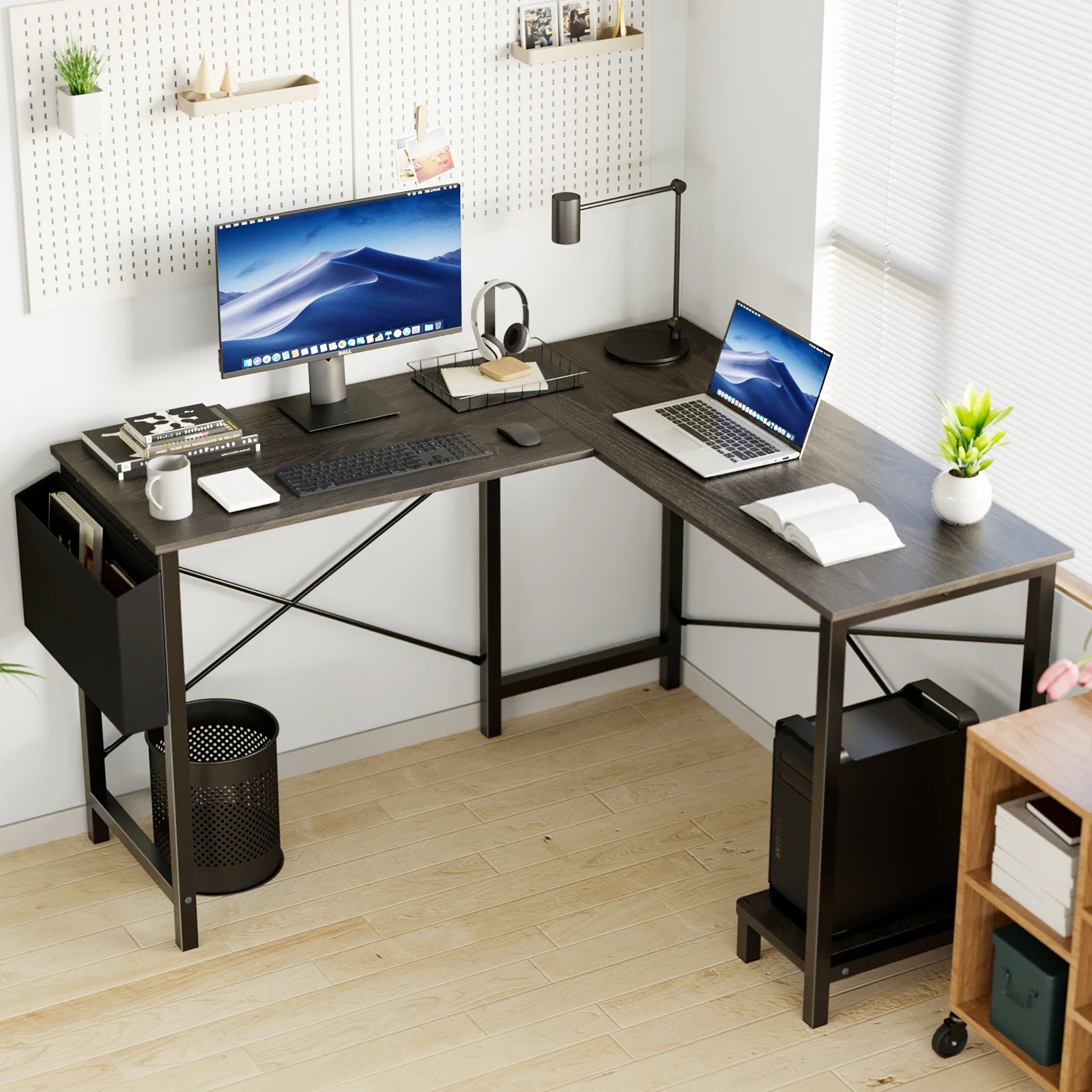
Here is a quick reference for the basic kit that covers nearly every maintenance task.
| Tool | Used for | Note |
|---|---|---|
| Compressed air or electric duster | Blowing dust from fans and heatsinks | Work in short bursts |
| Microfiber cloths | Wiping case panels and exterior | Use a dry cloth |
| Soft brush | Stubborn dust on fins and grills | A clean paintbrush works |
| Phillips screwdriver | Opening the case and removing panels | Remove fan or panel screws |
| Thermal monitoring software | Tracking CPU and GPU temperatures | Monitors temps over time |
| Anti-static wrist strap | Working inside the case safely | Protects against static |
Gaming PC Cleaning and Dust Removal, Step by Step
Power down the PC, unplug it from the wall and press the power button briefly to drain residual charge. Then follow these steps:
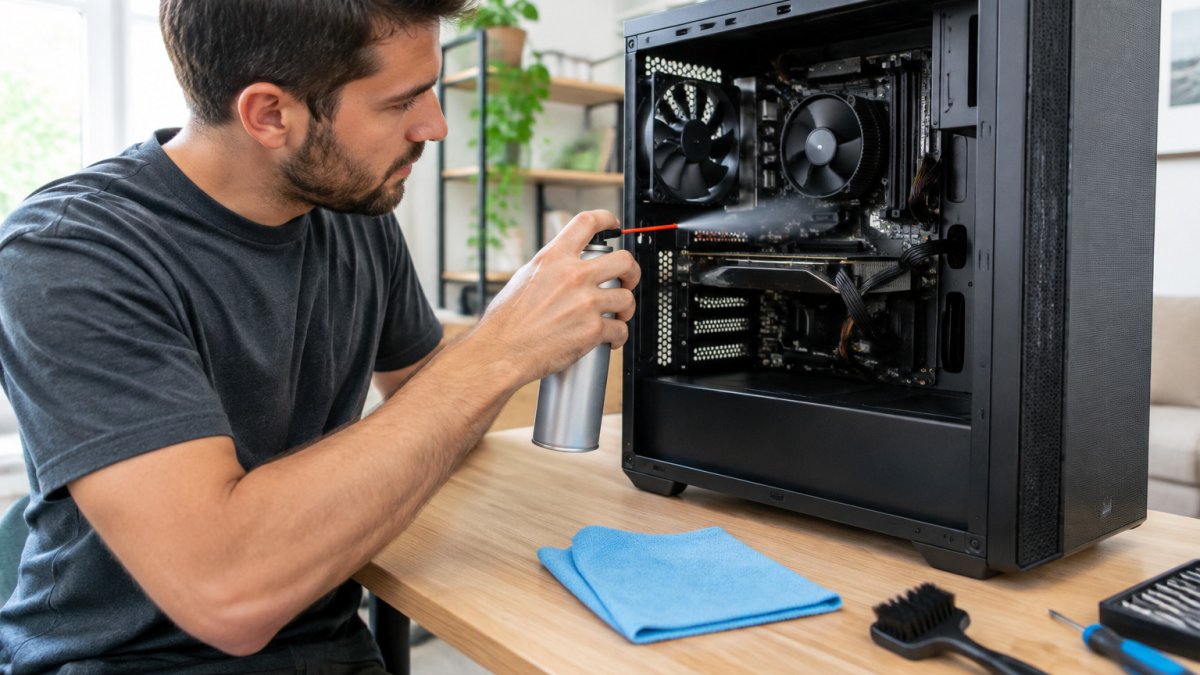
- Open the case. Remove the side panel and set the PC on a stable, non-carpeted surface.
- Dust the exterior and filters. Remove any intake filters and wash them with water, then let them dry completely before reinstalling.
- Blow out the fans and heatsinks. Hold fans still with a finger or a zip tie while blowing, since spinning fans can be damaged. Work in short bursts, keeping the can upright.
- Clean the GPU. Use short bursts through the fins and fan grills, and avoid tilting the can, which can spray liquid propellant.
- Wipe down the case. A dry microfiber cloth removes the residue that compressed air loosens.
- Check cable connections. Reseat loose cables, especially power cables to the GPU and fans.
A common mistake is cleaning with a vacuum. Vacuum hoses generate static that can damage components, so stick with compressed air and a brush.
Gaming PC Temperature and Airflow Checks
Dust cleaning only helps if airflow is good to begin with. Treat this section as a diagnostic routine you can run in about ten minutes, not a vague reminder to 'watch temps.' For a quieter, well-cooled build from the start, see how to build a silent gaming PC in seven steps.
Establish a baseline first. Install a monitoring tool that logs CPU and GPU temperatures over time, HWiNFO, MSI Afterburner, or the monitoring tab in AMD Adrenalin and NVIDIA App all work.
Diagnose in order. When temperatures are high, work from cheapest to most invasive:
- Confirm the reading. Cross-check with a second monitoring tool so a sensor glitch does not send you chasing a problem that is not there.
- Check fan behavior. Are case, CPU, and GPU fans actually spinning up under load? A fan stuck at low RPM or not spinning at all points to a header, cable, or fan failure.
- Inspect airflow direction. Intake fans should pull cool air in at the front and bottom; exhaust fans should push warm air out the back and top. A reversed fan or two intakes fighting each other creates dead zones that no amount of cleaning fixes.
- Clear obstructions. Cable clutter, a GPU sagging against a drive cage, or a filter packed with dust all choke airflow. Route cables behind the motherboard tray and confirm every intake filter is clean.
- Check cooler seating. If CPU temperatures are high but the heatsink is clean and the fan is running, the cooler may have shifted or the mounting pressure may be uneven. Reseat it before assuming the paste has failed.
Read noise as an early warning. A fan that suddenly grows louder, rattles, or ramps up at idle often signals dust buildup or a failing bearing.
Know when ambient conditions are the cause. A room that runs warm in summer will push every temperature up.
Watch out: do not judge cooling by a single quick reading at idle.
Software, Driver, and Storage Upkeep
Hardware is only half the picture. Keep your graphics and device drivers current, since manufacturers regularly release updates that improve stability and performance in new games.
Storage health matters too. Run a drive health check periodically, remove unused large files and uninstall games you no longer play. A nearly full SSD can slow down performance. Back up important files on a regular schedule, whether to an external drive or cloud storage, so a failed drive does not mean lost saves and documents.
Gaming PC Maintenance Checklist and Schedule
A schedule keeps maintenance from slipping, but a vague list of intervals is easy to ignore. Use this task-by-task calendar instead, and adjust the frequency to your environment, pets, carpeting, smoking, and a dusty room all mean more frequent cleaning.
Weekly (5 minutes)
- Glance at CPU and GPU temperatures during a gaming session and compare them to your baseline.
- Listen for new fan noise, rattles, or a fan ramping up at idle.
- Confirm the case intake and exhaust vents are not blocked by a wall, curtain, or clutter.
Monthly (15-20 minutes)
- Remove and clean intake filters, rinse washable filters with water and let them dry completely before reinstalling; replace disposable filters.
- Wipe down the exterior panels, top vents, and front bezel with a dry microfiber cloth.
- Clean the keyboard and mouse: shake out debris, wipe keycaps and the mouse shell, and check that no crumbs or dust are blocking vents.
Every three to six months (30-45 minutes)
- Power down, unplug, and open the case. Blow out fans, heatsinks, the GPU, and the power supply intake with short bursts of compressed air, holding fans still while you do it.
- Reseat loose cables, especially GPU power cables and fan headers.
- Run a drive health check and confirm your backups are completing.
Every six to twelve months
- Update graphics drivers and operating system updates on a deliberate schedule rather than the day a release appears.
- Run a malware scan and review browser extensions and account permissions.
- Check that surge protection is working, most surge protectors have an indicator light that shows when protection has expired, and a unit that has absorbed a major surge should be replaced.
Annually (or when temperatures creep up)
- Revisit thermal paste only if your baseline temperatures have risen and cleaning and fan checks did not fix it. Repasting is not routine maintenance, and a quality paste often lasts several years before it needs attention.
- If you run a liquid-cooling loop, check for pump noise and any signs of leakage or tubing wear. Consult the manufacturer's guidance before opening or topping off any cooling loop.
- Do a full system backup and verify you can restore from it.
Environment and power checks (ongoing)
- Keep the PC on a hard, stable surface rather than carpet, and leave clearance around intake and exhaust vents.
- Plug the PC and monitor into a surge protector or UPS rather than straight into the wall, and replace the protector when its indicator shows protection has lapsed.
- Keep the room within a normal comfortable humidity range; very dry air increases static risk and very humid air encourages corrosion.
Watch out: do not stack tasks into one marathon session. Spreading them across the calendar is what makes the routine stick, and a missed month is far less damaging than skipping a full year of cleaning.
How Long a Gaming PC Lasts and Troubleshooting Common Problems
With consistent maintenance, a well-built gaming PC can stay useful for many years, though exact lifespan depends on the components and how hard you push them.
Frame drops or stuttering often trace back to overheating, a full drive or outdated drivers. For a deeper walkthrough, see how to troubleshoot gaming PC frame drops.
Random crashes can point to overheating, unstable overclocks or failing RAM. Reset any overclock to default settings and run a memory test to narrow it down.
Loud fans usually mean dust or a failing fan. Clean the fans first; replace any that still rattle or grind.
If problems persist after these checks, consult the manufacturer's support resources or a qualified technician before attempting deeper repairs. If the trouble is a headset that won't pair, fix a gaming headset that won't connect to your PC covers the steps.
Start Your Maintenance Routine This Week
Pick one task from the schedule above and do it this week: clean the intake filters, check your temperatures during your next session, or set a calendar reminder for your first full cleaning.
Ready to keep your setup running smoothly? Explore The Techie Den's collection of gaming peripherals, charging solutions and desk accessories to build a workspace that is easy to maintain.
Frequently Asked Questions
How many years should a gaming PC last?
A well-maintained gaming PC often remains useful for roughly five to seven years, though lifespan depends heavily on how it is used and cooled. Components such as the power supply, fans, and storage drives tend to wear out first, while the CPU and motherboard can last longer if temperatures stay in check. Regular dust removal, stable airflow, and timely driver updates all help a system keep performing well for longer. Upgrading individual parts like the GPU or RAM can extend the usable life of the whole machine without a full rebuild.
How often should I clean my gaming PC?
Most gaming PCs benefit from a light dust check every month and a thorough cleaning every three to six months. Homes with pets, carpeting, or heavy dust may need cleaning more often, since dust clogs filters and heatsinks and raises operating temperatures. Use compressed air to clear fans, radiators, and filters, holding fans still while you spin them to avoid damage. A consistent gaming PC maintenance checklist makes this routine easy to keep.
How do I clean a gaming PC safely?
Power the system down, unplug it from the wall, and press the power button to drain residual charge before opening the case. Work in a well-ventilated area and use short bursts of compressed air, keeping the can upright to avoid spraying liquid propellant. Wipe painted surfaces with a dry microfiber cloth and avoid liquids near the motherboard and components. Keep the case fans from spinning freely with compressed air, since the force can damage their bearings.
How can I keep my gaming PC cool and healthy?
Keep at least a few inches of clearance around the case intake and exhaust, and avoid placing the PC inside a tight enclosure or on carpet that blocks airflow. Check CPU and GPU temperatures during demanding games with a monitoring tool, and investigate sustained readings that climb into the danger zone. Make sure case fans are oriented to create positive or balanced pressure, and replace dusty filters regularly. Consider reapplying thermal paste on older CPUs if temperatures keep rising after cleaning.
Is it bad to leave a gaming PC on 24/7?
Leaving a gaming PC running around the clock is not automatically harmful, but it adds continuous heat, fan wear, and power draw that shorten component life over time. Sleep or hibernate modes reduce wear and electricity use when you are away for extended periods. If you need constant uptime for downloads or a server role, make sure the cooling is clean and the system is on a surge protector or UPS.
What software maintenance does a gaming PC need?
Keep the operating system and graphics drivers updated, but install driver updates from NVIDIA, AMD, or Intel rather than unverified third-party sites. Remove unused games and programs, check startup applications, and run storage health tools to monitor SSD and hard drive condition. Back up important files regularly to an external drive or cloud service so a failed drive does not mean lost data. Periodic malware scans and checking for unnecessary background processes also keep the system responsive.
How can I prolong my PC's lifespan?
Combine routine cleaning, stable temperatures, and clean power with sensible software habits. Protect the system with a surge protector or uninterruptible power supply, and keep it in a cool, dry room away from direct sunlight. Avoid running the system at high loads with blocked vents, and replace failing fans or a worn power supply before they cause damage. Upgrading the parts most likely to bottleneck, such as RAM or storage, can keep the build relevant without replacing everything.


