

Table of Contents
- Quick Diagnosis: Identify Your Connection Type
- Gaming Headset Not Detected by PC: Hardware Checks
- USB Headset Not Connecting to PC: Windows Recognition
- Bluetooth Gaming Headset Not Pairing with PC: Wireless Troubleshooting
- Gaming Headset Connected but No Sound: Audio Output Fixes
- Troubleshoot Microphone Input Separately
- When to Update Firmware and Clean Connectors
- Frequently Asked Questions
Last Updated: October 16, 2026
Quick Diagnosis: Identify Your Connection Type
Your gaming headset not connecting to PC depends on how it plugs in: USB, Bluetooth, or a 3.5 mm audio jack. The fix changes with your connection type.
Three main connection types exist:
- USB headsets (plug directly into a USB port)
- Bluetooth headsets (wireless pairing with your PC)
- 3.5 mm jack headsets (plug into your audio port)
Knowing which one you own lets you skip irrelevant troubleshooting steps.
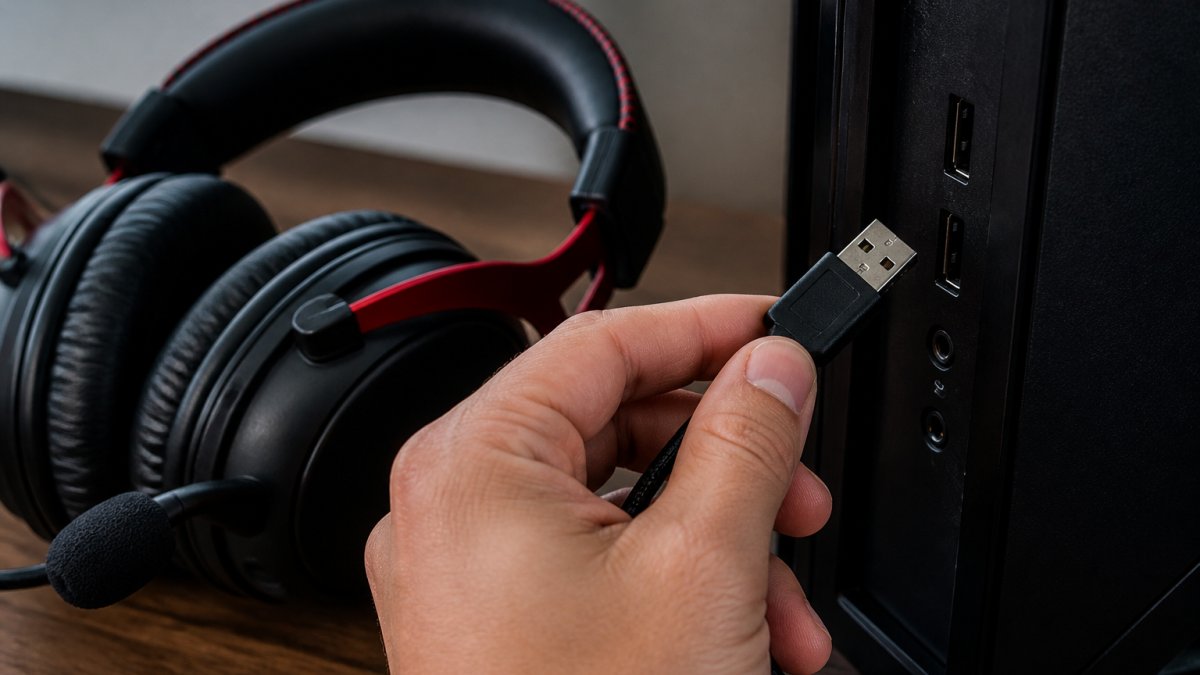
Gaming Headset Not Detected by PC: Hardware Checks
A gaming headset not detected by Windows usually means a loose, damaged, or wrong-port connection.
Inspect the cable, connector, and USB port
Bend the cable near the connector; crackling or cutouts mean the internal wire is likely damaged.
Check your USB port or audio jack for:
- Bent or broken pins inside the port
- Debris, dust, or lint blocking the connection
- Discoloration or corrosion on the metal contacts
Clean the connector with a dry, lint-free cloth, never water or liquids, which cause corrosion. If it wobbles when inserted, the cable may be failing.
Try a different USB port or audio jack
Plug your gaming headset into a different USB port, ports can fail individually. On a 3.5 mm jack, try the other audio port; front and rear ports often behave differently.
Try this sequence:
- Unplug from the current port
- Wait 10 seconds
- Plug into a different port
Restart your PC and reconnect
A full shutdown clears temporary glitches, so skip sleep mode. After restart, plug in your gaming headset and wait 30 seconds while Windows re-scans and installs basic drivers.
USB Headset Not Connecting to PC: Windows Recognition
Once the cable and port work, Windows must recognize your USB headset as an audio device. If it doesn't appear in sound settings, the issue is software-level.
Check whether the headset is detected by Windows
If you see it there: right-click it, select "Update driver," and choose "Search automatically for updated driver software."
If you don't see it: your PC isn't recognizing the hardware, return to the hardware checks, try a different USB port, and restart Windows.
A yellow exclamation mark means the driver is corrupted or missing, which is fixable.
Update or reinstall audio drivers
Outdated audio drivers cause gaming headset not connecting issues constantly, and Windows Update doesn't always grab the latest.
If that doesn't work: uninstall the driver completely from Device Manager, restart so Windows reinstalls a basic driver, then install the manufacturer's latest driver. Reinstalling forces Windows to recognize your USB headset from scratch and fixes most detection problems.
Bluetooth Gaming Headset Not Pairing with PC: Wireless Troubleshooting
Wireless headsets fail for two reasons depending on whether they use Bluetooth or a 2.4 GHz USB dongle. Bluetooth problems are almost always pairing-state or Windows Bluetooth-stack issues; dongle problems are almost always receiver placement, interference, or a lost pairing.
Path A: Bluetooth headset will not pair or connect
Bluetooth pairing is a two-sided handshake: Windows must see the headset in pairing mode, and the headset must accept the PC.
Step 3: Verify the Windows Bluetooth adapter and services. In Device Manager, expand Bluetooth.
Step 5: Try a USB Bluetooth adapter if the PC adapter is weak. Many desktops ship with weak or no Bluetooth.
Path B: 2.4 GHz wireless dongle will not connect
A 2.4 GHz dongle is not Bluetooth. The dongle and headset share a private pairing, so the headset never appears in the Windows Bluetooth list.
Step 1: Place the dongle correctly. Plug it into a rear desktop USB port or directly into the laptop, not a hub, monitor, or extension cable.
Step 3: Test the dongle in a different USB port and on another device. Prefer USB 2.0 for older headsets, since some 2.4 GHz receivers are less stable on USB 3.x controllers.
Quick wireless decision check
- Headset appears in Windows Bluetooth settings but will not connect: Bluetooth path, clear the stale pairing and check the adapter.
- Headset never appears in Bluetooth settings and has a USB dongle: dongle path, re-pair the headset to the receiver.
- Headset connects then drops: interference or power management, move the dongle or disable adapter power saving.
Gaming Headset Connected but No Sound: Audio Output Fixes
Your headset shows up in Windows but you hear nothing, an audio routing problem where Windows sends sound to the wrong device.
Select the correct audio output device in Windows
Right-click the speaker icon in your taskbar and select "Open Volume mixer." Find your gaming headset in the list and make sure the dropdown sets it as your default device.
To set it as default: go to Settings > Sound, scroll to "Advanced," and under "Output" select your gaming headset from the dropdown. It should now receive all system audio.
If your headset doesn't appear in the output list, Windows still isn't recognizing it properly, go back to the USB or Bluetooth troubleshooting sections above.
Check Windows sound settings and volume levels
Open Settings > Sound and check the volume slider, if it's down, slide it to at least 50%. In "App volume and device preferences," set your gaming headset as the output for any app routing audio elsewhere. Also check for a physical inline mute switch, the easiest thing to miss.
Route audio correctly in games and chat apps
Many games and chat apps have their own audio settings. In Discord, TeamSpeak, Valorant, and others, open Settings > Audio, select your gaming headset as the output device, save, and restart the app.
Common apps that need this:
- Discord
- Valorant
- Counter-Strike 2
If a game defaults to your PC speakers, change it manually each launch, since some games don't remember your choice between sessions.
Troubleshoot Microphone Input Separately
Your headset's microphone is a separate device from the speaker and is controlled independently in Windows.
Open Settings > Sound > Advanced > Volume mixer and scroll to "Input devices." Your gaming headset microphone should appear here.
If the level doesn't move, the microphone cable might be damaged or disconnected inside the headset. This requires repair or replacement.
When to Update Firmware and Clean Connectors
Firmware and dirty connectors are the two causes people skip because they aren't obvious in Windows. Here's how to decide whether either is actually your problem.
Decide whether firmware is the likely cause
Firmware is the software inside the headset and, for wireless models, the dongle. It controls pairing, power management, and how the headset identifies itself to Windows. It's a likely culprit when:
- The headset worked before and stopped after a Windows update or after pairing with a different device.
- The headset pairs but drops the connection every few minutes.
- The dongle LED blinks instead of staying solid after a re-pair attempt.
Firmware is unlikely to be the cause when the headset has never been detected on any PC, when the cable or port is physically damaged, or when it works perfectly on another device, return to the hardware checks.
How to update firmware safely:
- Download the firmware updater for your exact model from the manufacturer's support page, never third-party sites.
- Connect by USB as the updater instructs, usually the dongle plugged in with the headset connected, or the headset via USB cable.
- Keep the PC awake and don't unplug during the update; a failed update can leave the headset in recovery mode requiring a second run.
- After the update, replug the headset and re-pair the dongle if pairing was reset.
Clean connectors without damaging them
Dust, lint, and oxidation on a USB connector or 3.5 mm plug cause intermittent detection that looks like a software problem. Clean only when you see debris or the headset cuts out as the cable moves.
- Use a dry, lint-free cloth or dry cotton swab on the metal contacts. Avoid water, alcohol, or contact cleaner unless the manufacturer approves it, since liquids can wick into the connector and corrode the contacts.
- For a USB-A port, gently lift lint from the bottom with a wooden toothpick, then blow out the debris with short bursts of canned air held upright.
- For a 3.5 mm jack, inspect the port with a flashlight for a bent contact or broken plug tip. A tip snapped off inside the jack requires port replacement, not cleaning.
Green or white corrosion means the plating is already damaged. Cleaning may restore contact briefly, but replace the cable or headset for a reliable connection.
Hardware-versus-software test matrix
Use this matrix before spending money on a replacement. Each row isolates one variable.
| Test | What it isolates | If it passes | If it fails |
|---|---|---|---|
| Headset on a second device (phone, console, another PC) | Headset hardware | Headset is fine; fault is in the PC | Headset or its cable is faulty |
| Different cable (if detachable) | Cable | Cable was the fault | Headset connector or PC port is the fault |
| Different USB port or audio jack | PC port | Original port is faulty | Port is fine; look at drivers or settings |
| Different USB port type (USB 2.0 vs 3.x) | USB controller compatibility | Controller or driver issue | Port type is not the cause |
| Dongle on a second PC | Dongle and receiver pairing | Dongle is fine; PC USB is the fault | Dongle or its pairing is the fault |
| Device Manager shows the headset | Windows recognition | Move to audio routing and app settings | Return to hardware and driver checks |
Run the rows in order. The first failing row tells you which component to replace or which software layer to fix, preventing the common mistake of replacing a working headset because Windows was routing audio to the monitor speakers.
Frequently Asked Questions
Why is my PC not detecting my gaming headset?
Your PC may not detect a gaming headset for three main reasons: a loose or faulty connection, an outdated or missing audio driver, or incorrect Windows device settings. Start by checking that the USB cable or wireless receiver is firmly plugged in, try a different USB port, and restart your PC. If Windows still doesn't recognize the headset, update your audio drivers through Device Manager or the headset manufacturer's website. If the headset appears in Device Manager but not in Sound settings, manually select it as your default audio output device.
How do I fix a USB headset not connecting to PC?
First, inspect the USB connector and cable for damage, then plug it into a different USB 2.0 or 3.0 port on your PC. Restart your computer and check Device Manager to confirm Windows recognizes the headset as an audio input device. If it appears there but you hear no sound, open Sound settings and select the headset as your default audio output device. If Device Manager shows no device, reinstall the audio driver by downloading it from the manufacturer's support page or updating Windows drivers automatically.
Why won't my Bluetooth gaming headset pair with my PC?
Bluetooth pairing issues often stem from interference, outdated firmware, or incorrect pairing mode. Reset the headset to factory settings according to the manufacturer's instructions, then place it in pairing mode. On your PC, open Bluetooth settings, forget any old pairings of that headset, and search for it again. If you're using a 2.4 GHz wireless dongle instead of Bluetooth, ensure it's plugged into a USB port away from other wireless devices, and check that the headset is in range and charged. Update the headset firmware if the manufacturer provides a software utility.
What do I do if my gaming headset is connected but has no sound?
When a gaming headset is connected but produces no sound, the issue is typically a Windows audio routing problem, not a hardware failure. Open Sound settings and confirm the headset is set as the default audio output device. Check that the volume slider isn't muted or turned all the way down. If you're in a game or chat app like Discord, verify that the app's audio output is also routed to the headset in that application's settings. Test sound in another app to isolate whether the problem is system-wide or app-specific.


