

Last Updated: October 27, 2026
Quick Summary
Frame drops usually come from a small set of causes you can find yourself: heat-driven thermal throttling, RAM or storage bottlenecks, outdated drivers, or background apps. Monitor frame time and 1% lows, then change one setting at a time and retest against the same baseline route.
- Watch the 1% low and frame-time graph, not just average FPS, to spot stutter.
- Check GPU and CPU temperatures for thermal throttling when drops appear after a few minutes.
- Enable XMP or EXPO and run RAM in dual-channel mode for better memory bandwidth.
- Install games on an SSD, since hard drives cause stutter when loading new areas.
- Change one thing at a time and keep only the changes that improve your numbers.
Table of Contents
- Identify Whether You Have Stutter, Low FPS, or Frame-Time Spikes
- How to Monitor FPS and Frame Time
- Why FPS Drops After a Few Minutes of Gaming
- Check GPU and CPU Temperatures for Thermal Throttling
- Rule Out System Bottlenecks: RAM, Storage, Drivers, and Background Apps
- How to Fix FPS Drops in Games, One Change at a Time
- Your Next Step: Lock In a Stable Baseline and Re-Test
- Frequently Asked Questions
Your game ran smoothly ten minutes ago, and now the picture stutters every time you turn the camera. That's a frame drop, one of the most common complaints gamers have about their PC. The good news: most frame drops come from a small set of causes you can find and fix yourself. This guide walks through the causes in a clear order, so you can change one thing at a time and see what helped.
Frame drops are a sudden fall in the number of frames your PC draws each second. Frames per second, or FPS, measures how smooth the picture looks: a steady 60 FPS feels fluid, while a drop to 25 FPS feels choppy.
Here's the key idea: change one setting at a time, test, and write down what happened. If your PC is ruled out, you can also browse a dedicated retro handheld for lighter, stutter-free gaming.
Identify Whether You Have Stutter, Low FPS, or Frame-Time Spikes
Not every slowdown is the same problem. Before you change anything, figure out which type you're dealing with.
- Low average FPS: The game runs slowly all the time. Your frame rate sits well below what you expect across the whole session.
- Stutter: The average FPS looks fine, but the picture jerks or hitches. This usually points to frame-time spikes.
- Frame-time spikes: Individual frames take much longer to draw than the ones around them, so the motion stops and starts even when the average looks good.
Here's a quick way to sort it out:
- If the number is low the whole time, check your settings and hardware first.
- If the number looks fine but the motion feels rough, look at frame times.
- If the drops happen at specific moments, like loading a new area or opening a menu, check storage and shader compilation.
Frame-time spikes are the trickiest to spot by eye, so the next section covers how to measure them.
How to Monitor FPS and Frame Time
Average FPS alone hides the problem. A game can average 90 FPS and still feel terrible because a handful of frames take 40 milliseconds or more. To troubleshoot frame drops, you need the frame-time graph and the 1% low, not just the big number in the corner.
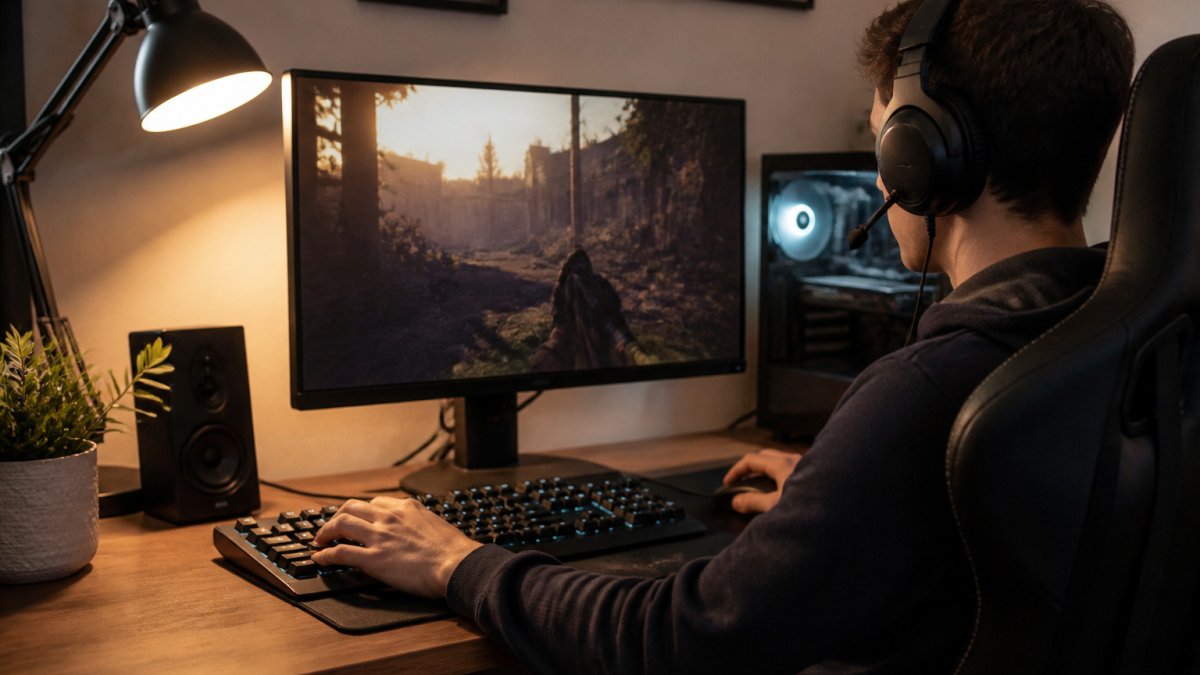
Set up an overlay that shows frame time and 1% lows
- Choose one overlay and stick with it for the whole session. GPU vendor overlays (NVIDIA GeForce Experience, AMD Software: Adrenalin Edition) are the least intrusive. For deeper logging, MSI Afterburner with RivaTuner Statistics Server (RTSS) is the common choice because it can log to a file.
- Enable the right metrics. Turn on current FPS, frame time in milliseconds, 1% low FPS, GPU and CPU temperature, and GPU and CPU clock. If supported, add GPU utilization and VRAM usage.
- Set a frame-time graph, not just a number. RTSS and most vendor overlays can draw a rolling graph. Spikes that look like thin vertical lines are the stutter you feel.
- Cap the frame rate for consistent testing. An uncapped frame rate swings wildly and makes comparisons meaningless. Use the game's or GPU driver's limiter to hold a steady target, such as 60 or 120 FPS.
Read the numbers correctly
- Average FPS tells you the overall speed. It is the least useful number for diagnosing stutter.
- 1% low FPS is the average of your slowest 1% of frames. If your average is 100 FPS but your 1% low is 30 FPS, you have stutter even though the game looks fast on paper.
- Frame time in milliseconds is the inverse of FPS: 16.7 ms equals 60 FPS, 33.3 ms equals 30 FPS. A single frame that jumps from 16 ms to 50 ms is a visible hitch.
Build a repeatable baseline
You cannot compare fixes without a baseline. Do this once, before changing anything:
- Pick a fixed route through the game, the same spawn point, camera turns, and 5 minutes of play. Write it down.
- Keep the same graphics preset, resolution, and frame-rate cap for every test.
- Play the route for at least 5 minutes so the sample includes calm and busy moments.
- Record the average FPS, the 1% low, the highest frame time, and approximate timestamps of any spikes.
- Note GPU and CPU temperatures and clocks at the end of the run.
Use the numbers to confirm a fix
After each single change, replay the same route with the same cap and compare:
- If the 1% low rises and the spike count falls, the change helped. Keep it.
- If the average rises but the 1% low does not, you improved raw speed but not smoothness. The stutter cause is still there.
- If nothing changes, revert the change so you do not stack untested tweaks.
This is the difference between guessing and troubleshooting: the overlay tells you whether the next section's fixes actually worked.
Why FPS Drops After a Few Minutes of Gaming
Does your game start fine and then fall apart after 10 or 20 minutes? That pattern usually points to heat or a process that builds up over time.
Common causes include:
- Heat buildup: The GPU or CPU gets hot and slows itself down to protect the chip. This is called thermal throttling.
- Background programs: Browsers, launchers, and chat apps can grow their memory use over a long session.
- Memory pressure: When RAM fills up, Windows moves data to slower storage, which causes hitches.
To test, play until the drops start, then watch temperatures and memory use at that moment. If clock speed falls as temperature rises, you've found your culprit.
Check GPU and CPU Temperatures for Thermal Throttling
Heat is one of the most common reasons a gaming PC slows down mid-session. Your hardware monitoring tool shows temperatures and clock speeds in real time.
Here's what to check:
- GPU temperature: Many graphics cards run well under the high 80s Celsius. Check your card's specifications for its official maximum.
- CPU temperature: Watch how hot the processor gets under load and whether it stays high.
- Clock speeds: If the clock drops while the temperature climbs, the chip is throttling.
If temperatures are high, try these fixes one at a time:
- Clean dust from case fans, filters, and heatsinks.
- Make sure intake and exhaust fans move air through the case.
- Check that the CPU cooler is seated correctly.
Watch out: Don't open a PC and poke at the cooler while the machine is on. Power down first and let the parts cool.
Rule Out System Bottlenecks: RAM, Storage, Drivers, and Background Apps
If heat is not the cause, the next suspects are the parts that feed the GPU. Each can cause a specific kind of frame drop and can be tested in isolation. Change one thing, replay your baseline route, and compare the 1% low and frame-time graph before moving on.
RAM configuration and capacity
Memory problems usually show up as stutter and hitches rather than a low average FPS.
- Dual-channel mode. Two sticks in the correct paired slots (usually the second and fourth on a four-slot board; check your manual) roughly double the memory bandwidth the CPU can use. A single stick or mismatched pair can cost noticeable performance in CPU-heavy games.
- Rated speed and XMP/EXPO. Many kits ship at a slow default until you enable the memory profile in BIOS or UEFI. Confirm the reported speed in Task Manager or BIOS matches the kit's rating. If enabling it causes crashes or boot failures, revert it, an unstable profile is worse than a slow one.
- Capacity pressure. Watch committed memory in Task Manager during play. If it sits near your installed capacity, Windows starts paging to storage, which produces hitches. Closing background apps or adding RAM addresses this.
Storage bottlenecks
Storage causes stutter when the game needs data faster than the drive can deliver it, most visibly when loading a new area, opening a menu, or streaming textures.
- Install games on an SSD. A hard drive's random-read speed is far lower than an SSD's, and open-world games stream assets constantly. Moving a game from a hard drive to an SSD is one of the most reliable stutter fixes.
- Leave free space. A drive that is nearly full has less room for wear leveling and caching, and some SSDs slow down noticeably. Keep a comfortable margin free.
- Watch disk usage during a spike. If Task Manager shows disk activity pegged at 100% at the exact moment the frame time spikes, storage is your bottleneck.
Graphics drivers
- Update to the latest stable driver from your GPU maker, using the vendor's clean-install option.
- If drops began right after a driver update, roll back and retest. A clean install with the vendor's removal tool rules out a corrupted install.
- Avoid stacking third-party driver updaters on top of vendor software; they can install mismatched components.
Background apps and startup programs
- Close browsers, launchers, chat apps, and recording or streaming tools you are not using. A browser with many tabs can hold significant memory and wake the CPU periodically.
- In Task Manager's Startup tab, disable programs you do not need at login, then reboot and retest.
- Look for overlays from multiple sources (launchers, chat apps, capture tools) fighting over the same rendering path. Keep one overlay active while testing.
Shader compilation
Many modern games build shader caches the first time they encounter an effect, which causes stutter that fades as the cache fills. This is expected on a first run and is not a hardware fault.
- Let the game finish any shader pre-compilation step it offers before you judge performance.
- If the game has a shader cache option, avoid clearing it repeatedly, you will reintroduce the stutter.
- If stutter persists long after the cache should be warm, that points back to storage speed or driver issues rather than shader compilation.
The table below sums up the most common bottlenecks, the symptom each one causes, and the fix the article recommends.
| Bottleneck | Symptom | Fix |
|---|---|---|
| RAM not in dual-channel | Hitches in CPU-heavy games | Use the correct paired slots |
| RAM running at slow default speed | Lower memory bandwidth | Enable XMP/EXPO and confirm speed |
| Memory nearly full | Paging causes hitches | Close background apps or add RAM |
| Game on a hard drive | Stutter when loading new areas | Install games on an SSD |
| Drive nearly full | Slower SSD performance | Keep a comfortable free-space margin |
| Disk pegged at 100% during spikes | Frame-time spikes | Replace or upgrade the storage bottleneck |
| Recent driver update | Drops that began after updating | Clean-install or roll back and retest |
| Startup programs and browser tabs | Periodic CPU and memory use | Disable unneeded startup apps and close tabs |
How to Fix FPS Drops in Games, One Change at a Time
Once you've found the likely cause, test your fixes in this order. Change one setting, play the same scene, and compare your numbers to your baseline.
- Check the system requirements. Make sure your PC meets the game's minimum and recommended specs. If you're below the minimum, lowering settings will only help so much.
- Lower in-game graphics settings. Start with the heaviest options, such as shadows, ambient occlusion, and ray tracing. Then try a lower resolution.
- Turn off fullscreen optimizations. In the game's executable properties, look for this option under the compatibility tab. It sometimes fixes stutter on certain systems.
- Check Windows and game updates. Patches often fix performance bugs.
- Scan for malware. Unwanted software can use resources in the background. Run a scan with your preferred security tool.
- Check power settings. Set Windows to a high-performance or balanced profile, and make sure your power supply is strong enough for your hardware.
- Test BIOS and overclock settings carefully. Return any overclock to stock first. If you want to undervolt, make small changes and test thoroughly, since unstable settings can cause crashes.
After each change, record your average FPS, 1% lows, and temperatures. Keep the change only if the numbers improve.
Your Next Step: Lock In a Stable Baseline and Re-Test
You've made the changes. Now confirm they stuck:
- Save the settings that worked, including driver version, graphics preset, and any BIOS changes.
- Re-test the same scene you used at the start.
- Play for at least 30 minutes to check for drops that show up later.
If you still see frame drops, go back to the diagnosis step. Stutter, low FPS, and frame-time spikes each point to different fixes, so the right next move depends on what your numbers show.
Frequently Asked Questions
How do I fix FPS drops while gaming?
Start by identifying the type of drop: a steady low frame rate, short stutters, or sudden spikes in frame time. Monitor FPS and frame time with an overlay tool while you play, then change one setting at a time. Lower resolution or graphics presets, close background applications, update your graphics driver, and confirm your temperatures stay in a safe range. Re-test after each change so you know which fix made the difference.
Is 0.1% FPS important?
The 0.1% low measures the frame rate during the slowest 0.1% of frames, which captures the worst stutters that average FPS hides. Two systems can both average 100 FPS while one feels much rougher because of frequent spikes. Track 1% and 0.1% lows alongside average FPS to judge how smooth a game actually feels, not just how fast it runs on paper.
Can RAM cause FPS drops?
Yes. If your system runs out of memory or uses slower-than-expected RAM configurations, games can stutter when they load assets. Check memory usage in Task Manager while gaming, confirm your RAM runs at its rated speed in BIOS, and make sure dual-channel mode is active. Closing memory-hungry background applications is often the quickest test.
Why do FPS drops happen after playing for a few minutes?
Gradual drops after several minutes usually point to heat. As the CPU or GPU warms up, it can reduce clock speeds to protect itself, a behavior called thermal throttling. Check temperatures during a long session, clean dust from fans and filters, and make sure airflow in the case is unobstructed. If temperatures are high, the fix is cooling, not game settings.


