

Last Updated: October 29, 2026
Quick Summary
The best dual monitor setup for gaming and streaming uses a 27 to 32 inch primary gaming monitor, with refresh rate weighted above resolution, and a modest 24 inch secondary screen for OBS, chat, and browsing. Connect the primary with DisplayPort, configure Windows to extend rather than duplicate, and test GPU and VRAM load before going live.
- Use 27 to 32 inches for the primary gaming monitor and 24 to 27 inches for the secondary screen.
- Connect the primary monitor with DisplayPort 1.4, since it supports high refresh rates.
- Choose Extend these displays in Windows, not Duplicate, so each screen has its own resolution.
- Use Game Capture for the game source and keep the OBS preview on the secondary display.
- Test GPU utilization and VRAM with the stream running before buying, since a second screen adds load.
Table of Contents
- What a Dual Monitor Setup Gives You for Gaming and Streaming
- Choosing the Right Monitor Size and Resolution
- Vertical vs Horizontal Monitor for Streaming
- Connecting Your Monitors: Cable Types and Graphics Card Requirements
- How to Configure Dual Monitors for OBS
- Mounting, Desk Space and the Best Monitor Arm for Dual Setup
- Booking Your Setup Upgrade: Where to Start With The Techie Den
- Frequently Asked Questions
Setting up two monitors for gaming and streaming is one of the most practical upgrades you can make, and it's also one of the easiest to get wrong. This guide walks you through choosing the right screens, connecting them properly, and configuring them so your game and your stream stay out of each other's way. Most dual setups fail not because of the hardware but because of decisions made in the first ten minutes.
What a Dual Monitor Setup Gives You for Gaming and Streaming
A dual monitor setup separates the game from everything else. One screen runs the game at full resolution and refresh rate, while the second handles your OBS scenes, chat, alerts, and browser. That separation is the whole point.
Two screens also change how you move through your day. Reference documents, Discord, and music sit where your eyes can reach them without alt-tabbing out of a match. For many setups the second screen earns its place within the first week.
The trade-off is cost and desk space, which the sections below address directly.
Choosing the Right Monitor Size and Resolution
Many guides suggest a sweet spot for gaming at 27 to 32 inches, and 24 to 27 inches for secondary productivity and streaming tasks. For a deeper comparison of display choices for gaming versus productivity, see multi-monitor display setup options.
Resolution follows size. For competitive play, the refresh rate deserves more weight than resolution. Many builders favor 1440p with 144Hz or higher as the balance point between visual fidelity and frame delivery.
Keep the second screen modest. A 24-inch panel is usually enough for chat and OBS previews, and it keeps your total desk footprint under control.
Vertical vs Horizontal Monitor for Streaming
Orientation is the decision most guides skip. A horizontal (landscape) second monitor suits browsing, dashboards, and wide OBS layouts. A vertical (portrait) monitor shines for chat feeds, which scroll naturally in a tall column and show more messages at once.
If your stream layout depends on a tall chat window, rotating your second screen to portrait can be a real improvement. If you pull up long documents or guides, landscape remains the better choice.
Connecting Your Monitors: Cable Types and Graphics Card Requirements
Your cables and GPU determine what your dual setup can actually do, so check both before buying. This is also where most guides stop short: they tell you which cable to use but not what the second screen costs you in frames. For a gaming-and-streaming rig, that cost is the number that matters.
Cable types and what each one actually supports
- DisplayPort is the standard for high refresh rates and is the output you want feeding your primary gaming monitor. DisplayPort 1.4 carries 1440p at high refresh and supports Display Stream Compression (DSC), which lets a single cable drive 4K at refresh rates above 120Hz on cards that support it. Multi-Stream Transport (MST) can daisy-chain a second monitor from one output on supported hardware, but the hub monitor must support MST and the total bandwidth is shared.
- HDMI works fine for a secondary chat/OBS panel, but version matters. HDMI 2.0 tops out around 1440p at 144Hz or 4K at 60Hz; HDMI 2.1 raises that ceiling substantially. If your secondary screen is 1080p60, any recent HDMI port is enough.
- USB-C carries video only when the port is labeled with DisplayPort Alt Mode or Thunderbolt. A USB-C port that only does data and charging will not drive a monitor, so confirm the spec sheet before you plan around it.
The GPU cost of a second monitor while streaming
Running a second display is not free. The GPU has to composite and scan out both screens every frame, and that work happens alongside rendering the game and, if you use it, the GPU's hardware encoder. Three effects stack up:
- Idle desktop load. A second monitor at high resolution and refresh keeps the GPU's memory clock and display engine busier than a single screen. On some cards this alone trims a few percent off peak frame rate in CPU-bound games.
- Mixed refresh rates. Running a 240Hz primary next to a 60Hz secondary can cause stutter or frame-pacing oddities on the primary in some driver and Windows configurations. Matching refresh rates, or at least keeping the secondary modest, reduces the risk.
- Encoder contention. Hardware encoding (NVENC on GeForce cards, AMF on Radeon, Quick Sync on Intel) offloads stream encoding from the CPU, but it still uses GPU resources. A second display plus a 1080p60 encode is a real load; a second display plus a 1440p60 or 4K encode is heavier still.
VRAM is the quieter issue. A second monitor at 1440p or 4K consumes framebuffer memory for its desktop composition, and games at high texture settings already sit close to the limit on 8GB cards. If you see texture pop-in or stutter that appears only when the second screen is connected, VRAM pressure is a likely cause.
Matching your card to the setup
A practical rule most builders converge on: budget GPU headroom for the second display and the encoder before you budget for the game's settings. If your card is already near its limit at your target resolution and refresh, adding a high-resolution secondary screen and a live encode will push it over.
Tidy cable routing matters too. Use a cable sleeve or clips along the desk edge, and leave slack behind the monitor arm so an adjustment doesn't pull a connector loose during a match.
The table below summarises which cables and ports suit a dual monitor setup and what each one supports.
| Connection | Best for | Key limit |
|---|---|---|
| DisplayPort 1.4 | Primary gaming monitor | DSC enables 4K above 120Hz |
| HDMI 2.0 | Secondary chat or OBS panel | Around 1440p at 144Hz |
| HDMI 2.1 | High-refresh secondary | Higher ceiling than HDMI 2.0 |
| USB-C | Video output | Needs DisplayPort Alt Mode or Thunderbolt |
| Passive adapter | Simple connections | Cannot exceed source port output |
How to Configure Dual Monitors for OBS
Configuration is where many streamers lose performance without noticing. The goal is simple: the game gets the primary display and as much GPU time as possible, OBS gets the secondary display, and neither fights the other for pixels or refresh. Here is the sequence that gets you there.
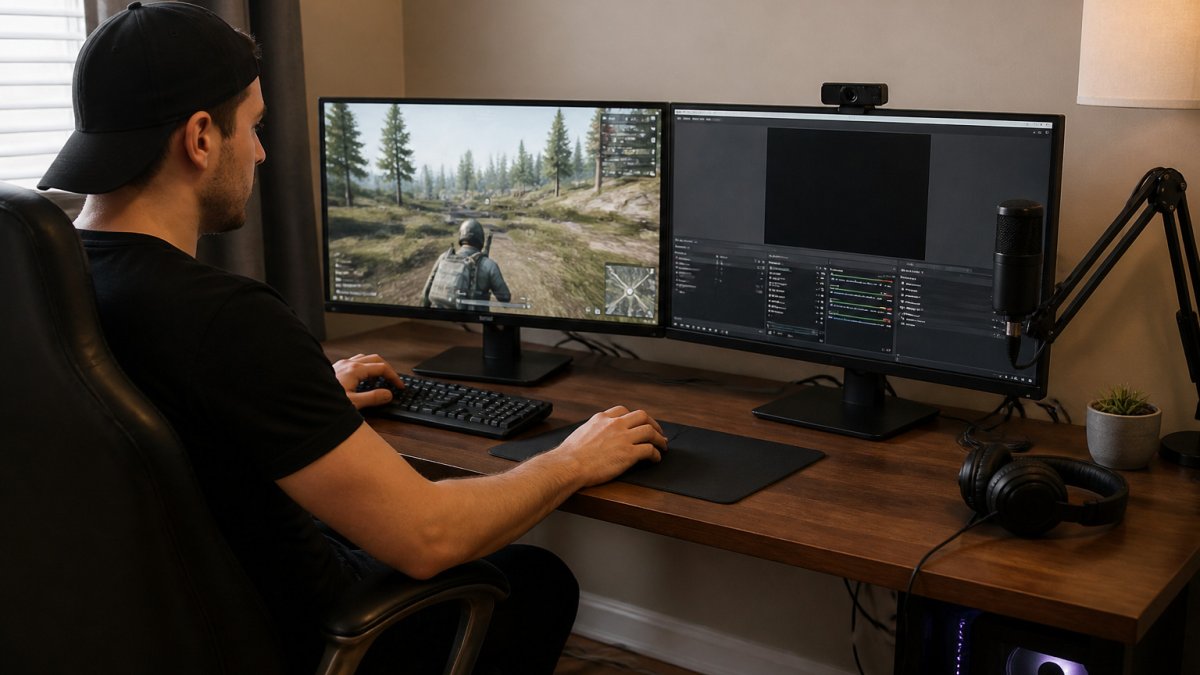
Step 1: Set up displays in Windows
Open Settings > System > Display and confirm the primary monitor is the one you game on. Set each display's resolution and refresh rate to its native values under Advanced display settings. If the two screens have different refresh rates, decide deliberately: matching them reduces the chance of stutter on the primary, and capping the secondary at 60Hz is a common compromise that costs little for chat and previews.
Use Extend these displays, not Duplicate, since Duplicate forces both screens to the same resolution and refresh.
Step 2: Choose the right capture method in OBS
This is the decision that most affects performance:
- Game Capture hooks the game's rendering directly and is the lightest option for full-screen or borderless games. Use it for your primary game source.
- Display Capture grabs the entire primary monitor. It is convenient but heavier, and it will capture anything that appears on that screen, including notifications, overlays, and your cursor. Avoid it for the game source if Game Capture works.
- Window Capture is useful for windowed games or specific applications, but some games render a black frame with it depending on their graphics API.
Put your OBS preview, scene list, and audio mixer on the secondary display. Keep the preview off the primary screen so OBS is not compositing over the game's output.
Step 3: Tune encoder and output settings
Match your encoder to your hardware: NVENC for GeForce, AMF for Radeon, Quick Sync for Intel, or x264 on the CPU if you have cores to spare. For most gaming-plus-streaming setups, the GPU encoder is the right default because it leaves the CPU free for the game. Set your output resolution and bitrate to what your upload can sustain, and test with a short local recording before going live.
Step 4: Handle sync and color across mismatched monitors
Two different panels rarely look identical out of the box, and mismatched sync technologies add another wrinkle:
- G-Sync and FreeSync work per-display. A G-Sync primary and a FreeSync secondary will not share a sync mode; each runs its own. If the secondary is a plain 60Hz panel, disable variable refresh on it and let the primary handle sync alone.
- Color matching. Use your monitor's OSD to bring brightness, contrast, and color temperature close between panels, then fine-tune with the operating system's color calibration tool. For streamers, the more important target is that the game looks correct on the primary screen and in the captured output, calibrate the primary first, then match the secondary to it for your own comfort.
- HDR. Do not mix HDR on one display and SDR on the other if you can avoid it; Windows handles per-display HDR, but capture and preview can look wrong when the two disagree.
Step 5: Test before you go live
Run a short recording with the game running and OBS on the secondary screen. Check that the game stays smooth, the stream holds its bitrate, the secondary shows the layout you expect, and no notifications leak onto the primary display. Expect a learning curve, your first configuration rarely survives your first real session without adjustment, so budget an hour to tune it rather than assuming it will work out of the box.
Mounting, Desk Space and the Best Monitor Arm for Dual Setup
Ergonomics decides whether a dual setup stays comfortable through long sessions. For a step-by-step guide to building an ergonomic gaming desk layout for two screens, walk through each stage of the setup.
For mounting, a dual monitor arm is usually better than two separate stands. It frees desk space, lets you set the height and angle of each screen independently, and keeps the top edge of your primary display near eye level. Check that the arm uses a VESA mount that matches your monitors and that its weight rating covers both panels with headroom.
Horizontal dual-monitor setups have a practical ceiling. Larger panels in side-by-side configurations force you to turn your head too far to see the edges, so a practical ceiling is roughly 32 inches per display.
Booking Your Setup Upgrade: Where to Start With The Techie Den
If you're ready to build this out, start with the monitor you'll spend the most time in front of, then add the second screen, arm, and cables around it. The Techie Den carries gaming peripherals, charging solutions, and accessories that can fit into a streaming desk.
Once you've decided on your primary monitor, work through the size, cable, and mounting checks above, then move to configuration.
Frequently Asked Questions
Do you need two monitors for streaming?
Not strictly, but two monitors make streaming far easier. One screen can carry the game or application while the other shows OBS Studio, chat, alerts and scene controls. Without a second display you either stream blind or constantly switch windows, which can drop frames and cause mistakes on air. A second monitor does not require a powerful GPU of its own, though the graphics card still needs enough headroom to run the game and the encoder at the same time.
What is the best monitor size for a dual setup?
For gaming, most players find 27 to 32 inches comfortable for the primary display. For a secondary streaming or productivity screen, 24 to 27 inches is usually sufficient. Keep the two displays matched in size and height where possible so your eyes and neck do not work harder when moving between them. Check that your desk depth can accommodate the monitors, webcam and mic boom; a depth of roughly 70 to 75 cm (about 27.5 to 29.5 inches) is a common rule of thumb for dual-monitor setups.
What cables do I need for a dual monitor setup?
The cable you need depends on your graphics card and monitors. DisplayPort supports high refresh rates and is preferred for gaming, while HDMI is common on TVs and some monitors. USB-C with DisplayPort Alt Mode can carry video and power over one cable on compatible laptops. Confirm your GPU has enough outputs for both displays, and choose cables rated for the resolution and refresh rate you plan to run, such as a DisplayPort cable for 240Hz at 1440p or 4K.
Does a dual monitor setup affect gaming performance?
A second monitor does not automatically slow a game, but the extra display load and any streaming software running on the same GPU can reduce frame rates. Use your main game display at its native refresh rate, lower in-game settings if needed, and enable hardware-accelerated encoding in OBS so the encoder uses the GPU's dedicated video engine. Monitor mismatches in refresh rate can also cause tearing, so enabling adaptive sync on compatible displays helps keep the picture smooth.


