

Table of Contents
- Step 1: Choose the Right Desk Height and Layout
- Step 2: Adjust Your Chair for Proper Lumbar Support
- Step 3: Position Your Monitor Height for Gaming Ergonomics
- Step 4: Align Your Keyboard and Mouse for Neutral Wrist Position
- Step 5: How to Prevent Wrist Pain While Gaming
- Step 6: Use an Ergonomic Desk Height Calculator and Fine-Tune
- Step 7: Implement Micro-Breaks and Dynamic Movement Routines
- Frequently Asked Questions
Last Updated: September 29, 2026
Step 1: Choose the Right Desk Height and Layout
The foundation of an ergonomic gaming desk starts with height. Your desk surface should sit at a level where your elbows rest at approximately 90 degrees when your arms hang naturally at your sides. Most standard desks measure 28 to 30 inches tall, which works for people of average height, but your specific proportions matter more than industry averages.
Measure from the floor to your elbow while standing with arms relaxed. That measurement is your target desk height. If you're taller or shorter than average, an adjustable desk gives you flexibility to dial in the exact position. The L-shaped layout from The Techie Den's Wooden Table with CPU Storage Shelf & Side Bag ($79.99) separates gaming and work zones, letting you transition between activities without repositioning your entire setup. The 50-inch desktop capacity handles dual monitors, laptops, and peripherals while the CPU storage shelf frees up legroom.

Desk depth matters too. A depth of 24 to 30 inches gives you enough space to position your monitor at arm's length without cramping. Shallow desks force monitors closer, which strains your neck and eyes. Deep desks can push your keyboard too far away, creating awkward reaching angles that tire your shoulders and wrists.
Step 2: Adjust Your Chair for Proper Lumbar Support
Your chair is where posture lives or dies. An ergonomic gaming chair with adjustable lumbar support prevents the lower back strain that builds up during long sessions. The lumbar curve of your spine needs active support, slouching flattens this curve and creates pressure on your spinal discs.
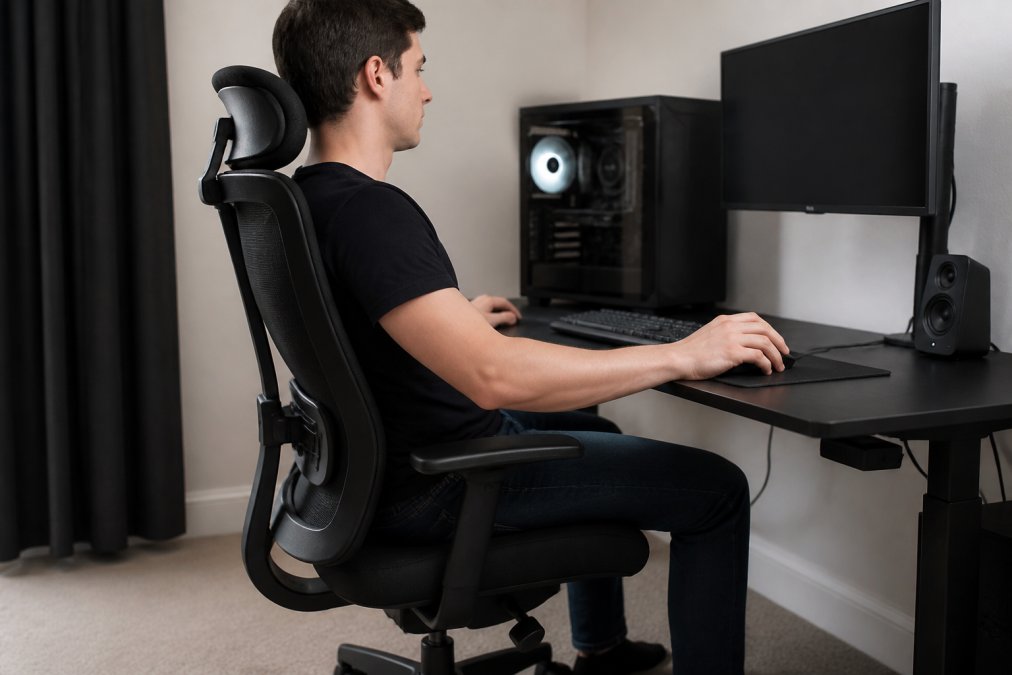
The Techie Den's Ergonomic Chair Adjustable Swivel with Flip-up Armrest ($76.99) features adjustable height (18 to 22 inches) and flip-up armrests that reduce static load on your shoulders. The thick, slightly concave cushion supports your hip curve, and the rocking mode (0 to 45 degrees) lets you shift positions throughout the day. A 275-pound load capacity ensures stability even during intense gaming sessions.

Adjust the seat height so your feet rest flat on the floor with your knees at roughly 90 degrees. If your feet dangle, use a footrest. Your thighs should be parallel to the floor, this distributes weight evenly across your legs and prevents pressure points. The backrest should support the natural curve of your spine without forcing you into an unnatural arch.
Armrests should support your forearms without forcing your shoulders up toward your ears. Many gamers disable armrests during play to allow free mouse movement, then enable them during breaks to reduce shoulder load. The flip-up design on this chair lets you do exactly that without removing the armrests entirely.
Step 3: Position Your Monitor Height for Gaming Ergonomics
Your monitor height determines whether you look down, straight ahead, or up at the screen. The ideal position is eye level or slightly below. When your gaze naturally falls on the monitor, your eyes should land in the upper third of the screen. This keeps your neck in a neutral position without the forward lean that comes from looking down at a low monitor.
Measure the distance from your eyes to the screen when seated in your chair. For most gamers, 20 to 26 inches is comfortable. Closer viewing distances (under 20 inches) increase eye strain and force you to focus harder. Farther distances (over 30 inches) make small text hard to read and reduce your ability to spot details during competitive play.
If your monitor sits too low, use a monitor arm or a simple stand to raise it. Many gaming setups use monitor arms that clamp to the desk, freeing up desk space and letting you adjust height and angle without moving the entire monitor. Position the top of the screen at or slightly below eye level, never above, which forces your head back and strains your neck.
The 90-90-90 alignment principle applies here: your hips, elbows, and knees should all sit at roughly 90 degrees. When your monitor is at the right height, your neck stays neutral, your shoulders relax, and your eyes focus without strain. Peripheral placement of secondary monitors (off to the side, angled inward) reduces the need to turn your head repeatedly.
Step 4: Align Your Keyboard and Mouse for Neutral Wrist Position
Your wrists are the most vulnerable part of your gaming setup. Repetitive strain injury develops slowly, often unnoticed until pain forces you to stop playing. A neutral wrist position, where your wrist sits straight, not bent up, down, or to the side, is the single most important factor in preventing this injury.
Wooden Table with CPU Storage Shelf & →
Your keyboard should sit at the same height as your elbows when your arms hang naturally. This keeps your wrists in a neutral, extended position while typing or using hotkeys. If your keyboard sits too high, you bend your wrists upward (wrist extension), which pinches nerves and tendons. Too low, and you bend them downward, creating the opposite strain.
Your mouse should sit at the same height as your keyboard, on the same surface. Many gamers elevate their mouse pad on a wrist rest or mousepad with built-in padding. This reduces wrist extension and distributes pressure across your forearm instead of concentrating it on a single point. The Mchose A7 V2 Pro Ultra from The Techie Den offers tri-mode connectivity (2.4GHz wireless, Bluetooth, and wired) with a lightweight, ergonomic design that reduces fatigue during extended play. At 42,000 DPI with a responsive sensor, it delivers the precision you need without forcing an unnatural grip.

Your grip should be relaxed, not tense. A tight grip increases forearm tension and makes small wrist movements feel amplified. Many gamers grip their mouse too hard out of habit, especially during competitive moments. Consciously relax your grip, a loose hold improves control and reduces fatigue.
Position your mouse close to your keyboard, within easy reach. Reaching far to the side or forward strains your shoulder and forces your wrist into extension. Keep your input devices in a tight cluster directly in front of you, not spread across the desk.
Step 5: How to Prevent Wrist Pain While Gaming
Wrist pain while gaming signals that your alignment is off, your equipment doesn't fit your hand size, or you're not taking breaks. The three causes map directly to three solutions.
First, audit your alignment against the steps above. If your wrist bends during normal play, your keyboard or mouse is at the wrong height or distance. Adjust one variable at a time and give it a few hours of play before changing something else.
Step 6: Use an Ergonomic Desk Height Calculator and Fine-Tune
An ergonomic desk height calculator takes your height and proportions and recommends specific measurements for desk, chair, and monitor positions. Many calculators ask for your height and inseam length, then output a chart of recommended dimensions. These tools aren't perfect, individual variation is real, but they give you a starting point that's better than guessing.
Step 7: Implement Micro-Breaks and Dynamic Movement Routines
Your ergonomic setup prevents injury, but it doesn't eliminate the need for movement. Sitting, even in perfect posture, creates static load on your muscles and joints. Dynamic movement, changing position, stretching, and moving away from your desk, is essential for long-term health.
Frequently Asked Questions
What is the correct monitor height for a gaming desk?
Your monitor should sit at eye level when you're seated, with the top of the screen at or slightly below horizontal eye position. Place it about 20-26 inches from your face to reduce eye strain and prevent neck flexion. This prevents the spinal discs in your neck from bearing excessive load during long gaming sessions.
How do I use an ergonomic desk height calculator to find my ideal setup?
An ergonomic desk height calculator uses your height and arm length to determine the perfect desk and monitor positions. Measure your height and the distance from your elbow to fingertips while seated, then input these into an online calculator. Most recommend a desk height where your elbows rest at 90 degrees when your arms are at your sides, keeping your forearm parallel to the floor.
What causes wrist pain while gaming, and how do I prevent it?
Wrist pain typically results from repetitive strain injury caused by poor wrist extension and tension. Prevent it by keeping your wrists neutral and straight (not bent up or down) while using your keyboard and mouse. Position your mouse at elbow height, take 5-minute breaks every hour, and perform gentle wrist stretches. A mouse with ergonomic design, like the Mchose A7 V2 Pro Ultra, reduces strain through its lightweight shape.
How often should I take breaks during gaming sessions?
Take a 5-minute micro-break every hour to reduce static load on your muscles and joints. During breaks, stand up, stretch your neck and shoulders, and look away from the screen for at least 20 seconds to prevent eye strain. These short pauses significantly improve musculoskeletal health and help maintain peak performance during extended gaming.


