
Table of Contents
- What You'll Need Before You Start
- How to Connect Bluetooth Headphones to Nintendo Switch Step by Step
- Nintendo Switch Bluetooth Audio Latency Issues Explained
- How to Fix Bluetooth Connection Problems on Switch
- Best Bluetooth Adapters for Nintendo Switch
- Microphone and Voice Chat Limitations with Bluetooth
- Conclusion
- Frequently Asked Questions
Last Updated: September 28, 2026
What You'll Need Before You Start
Learning how to connect bluetooth headphones to nintendo switch 2026 takes about two minutes, but only if your hardware supports it. The original Switch, Switch OLED, and Switch Lite all gained native Bluetooth audio support through a firmware update, so most consoles in use today can pair directly.
Before you start, check that you have:
- A Nintendo Switch running the latest system software
- Bluetooth headphones or earbuds in pairing mode
- The console charged or docked
- A quiet space to test the connection
One thing to know upfront: the Switch only allows two wireless controllers when Bluetooth audio is active. If you play with four Joy-Cons, you will need to choose between audio and extra players.
How to Connect Bluetooth Headphones to Nintendo Switch Step by Step
The full process runs through the system menu, not the game itself.
Pairing Your Headphones Through System Settings
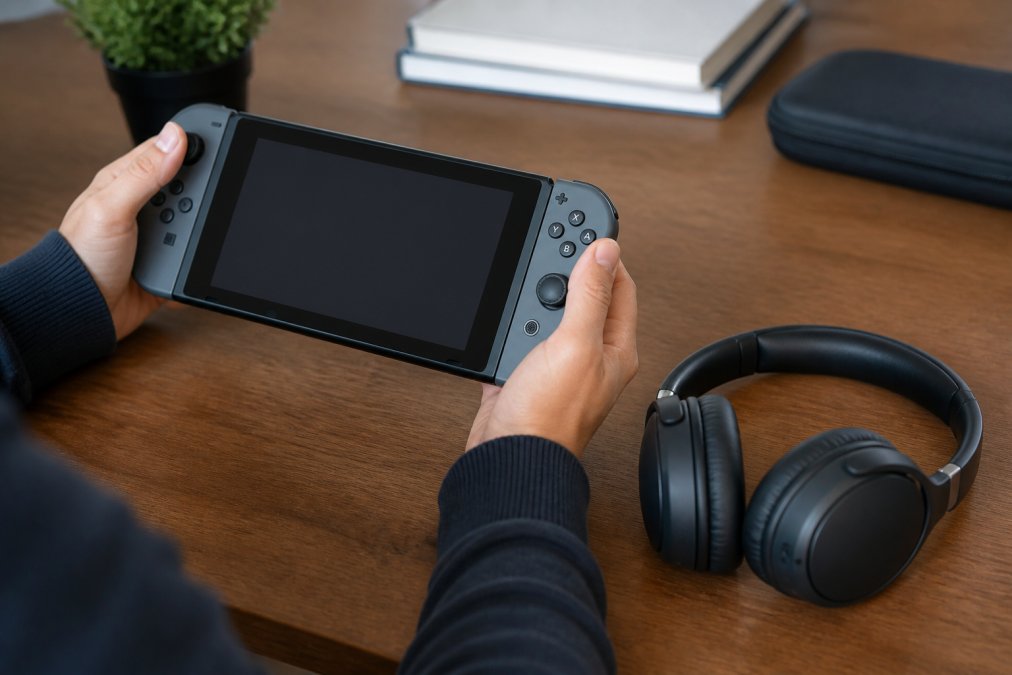
Here is the exact sequence for how to connect bluetooth headphones to nintendo switch 2026 consoles:
- From the home screen, select System Settings (the gear icon).
- Scroll down to Bluetooth Audio in the left menu.
- Select Pair Device. The console begins scanning.
- Put your headphones into pairing mode (usually holding the power button until the LED flashes).
- Wait for your device to appear under "Pair Device."
- Select it. The status changes to "Paired."
Once paired, audio routes automatically. You should hear the Switch menu sounds through your headphones within a few seconds.
Managing Multiple Paired Devices
The Switch saves up to 10 paired audio devices, but only one connects at a time. To switch, open Bluetooth Audio, select your new device, and disconnect the old one first. This matters if you use separate earbuds for travel and a headset at home.
Nintendo Switch Bluetooth Audio Latency Issues Explained
Audio latency is the delay between an on-screen action and the sound you hear. On the Switch, native Bluetooth audio adds a measurable delay, typically in the range most players describe as "a beat behind", because the console uses the standard SBC codec over Bluetooth rather than a low-latency gaming codec. This is not a bug and it is not your headphones failing. It is a limit of how the console negotiates the Bluetooth audio stream.
You will notice it most in:
- Rhythm games where timing is scored
- Fighting games with frame-perfect inputs
- Online shooters where footsteps signal danger
- Platformers with tight jump-and-land audio cues
For casual play, most people adapt within minutes.
The Game Mode / Low Latency Mode Fix Most Guides Skip
This is the single most under-covered angle on the entire topic. Many modern earbuds and headphones ship with a Game Mode or Low Latency Mode, sometimes labeled "Game" in the companion app, sometimes triggered by a triple-tap on one earbud. When enabled, the headset switches to a lower-latency codec profile (often aptX Low Latency, LC3, or a proprietary low-latency mode) and reduces the audio buffer.
Two things to know before you rely on it:
- The Switch has to support the codec for the benefit to apply. The console's native Bluetooth audio stack is conservative. If your earbuds fall back to SBC, Game Mode may reduce lag only slightly. Check your earbud manual or app for which codecs Game Mode actually engages.
- Game Mode usually trades battery life for responsiveness. Expect a modest drop in play time per charge when it is active. That is normal and not a defect.
Why a Transmitter Beats Native Bluetooth for Latency
A dedicated Bluetooth transmitter plugged into the USB-C port or 3.5mm jack bypasses the console's native audio stack entirely. The transmitter handles the codec negotiation, and many support low-latency profiles the console itself will not use. The result is a shorter, more consistent delay, which is why competitive players default to transmitters even when native pairing works fine.
Many players blame their headphones for lag when the cause is the console's Bluetooth audio codec. Switching to a wired connection, enabling Game Mode, or using a dedicated transmitter solves it. Buying new earbuds usually does not.
Bluetooth 5.3 Headphones Ear Hook →
If timing matters, do this in order: (1) enable Game Mode on your earbuds, (2) test in-game, (3) if lag is still unacceptable, move to a transmitter or wired connection. Do not buy new headphones hoping the lag disappears, the bottleneck is the console's codec, not the driver.
How to Fix Bluetooth Connection Problems on Switch
Most connection problems trace back to one of five causes: an uncharged headset, an outdated console firmware version, signal interference, too many paired devices, or the headset auto-connecting to a phone instead of the console. Work through these fixes in order, the sequence matters, because skipping the firmware check wastes time on re-pairing that will not help.
Step 1: Confirm the Console Firmware Is Current
This is the step most guides omit, and it is the most common root cause of "my headphones worked yesterday and now they don't." Native Bluetooth audio support on the Switch arrived through a system firmware update, and later updates have refined pairing stability and the number of supported devices.
- Open System Settings → System → System Update.
- Install any available update, then restart the console.
- Re-test pairing.
Step 2: Rule Out the Headset Side
- Headphones will not appear: Confirm they are in pairing mode and not auto-connected to your phone. Most earbuds reconnect to the last device automatically, turn Bluetooth off on your phone temporarily to force the headset into discoverable mode.
- Headphones appear but will not pair: Forget the device on the Switch (Bluetooth Audio → select device → Unpair), then re-pair from scratch.
- No sound after pairing: Check that the console is not muted and that the headphone volume is up. The Switch routes audio to the headphones automatically once paired, but the headphone's own volume wheel is separate.
Step 3: Address Interference and Range
- Audio cuts out: Move closer to the console and away from routers, microwaves, and metal furniture. Bluetooth and 2.4 GHz Wi-Fi share spectrum, so a crowded wireless environment degrades audio before it degrades anything else.
- Audio drops in docked mode: The console's Bluetooth antenna is inside the unit. If the dock sits behind a TV or inside a cabinet, range shrinks. Reposition the dock or move closer.
Step 4: Manage Paired Devices and Multipoint Confusion
The Switch saves up to 10 paired audio devices, but only one connects at a time. If you have paired earbuds for travel and a headset for home, the console may be holding a connection to the wrong one.
- Open Bluetooth Audio, disconnect the active device, then select the one you want.
- If your earbuds support multipoint (connecting to two source devices at once, like your phone and the Switch), be aware that the Switch does not manage multipoint handoff. Your earbuds decide which source wins. If audio keeps jumping to your phone, disable multipoint in the earbud app or turn off phone Bluetooth during play.
Step 5: The Restart That Clears the Bluetooth Cache
If pairing fails three times in a row, restart the console completely (hold power for 12 seconds, then power on). This clears the Bluetooth cache and fixes most "invisible device" problems faster than repeated re-pairing. If that fails, unpair every audio device in the Bluetooth Audio menu, restart, and pair only the one you need.
When to Update the Headphones Instead
A firmware update on the headphones often fixes stubborn pairing failures, especially on earbuds that shipped before the console's current firmware. Check the manufacturer's app if one exists, most major brands push pairing-compatibility fixes through their companion apps rather than requiring a return or replacement.
Best Bluetooth Adapters for Nintendo Switch
A Bluetooth transmitter plugs into the Switch's USB-C port or 3.5mm jack and handles audio separately from the console. This cuts latency, supports more codecs, and lets you use headphones the Switch cannot pair with natively.
| Adapter Type | Connection | Best For | Latency |
|---|---|---|---|
| USB-C transmitter | USB-C port | Docked and handheld play | Low |
| 3.5mm transmitter | Headphone jack | Older Switch models | Low |
| Dock-based transmitter | TV USB port | Docked-only setups | Low |
| Native Bluetooth | Built-in | Casual handheld play | Higher |
Microphone and Voice Chat Limitations with Bluetooth
The Switch does not support Bluetooth microphones. This catches people off guard. You can hear game audio through wireless earbuds, but your voice chat still needs a separate mic.
Your options for voice chat:
- A wired headset with a built-in mic
- The Nintendo Switch Online mobile app for voice chat
- A USB microphone connected through the dock
Conclusion
Latency and microphone limits are the two walls every Switch owner hits eventually. Native Bluetooth audio is fine for casual play, but serious sessions need a transmitter or a wired setup.
Frequently Asked Questions
Does the Nintendo Switch support Bluetooth audio natively?
Yes. A firmware update added native Bluetooth audio support, so you can pair wireless headphones directly through system settings without an adapter. The Switch supports up to two Bluetooth audio devices at once, but microphone input over Bluetooth is not supported. For the best results, update your console to the latest firmware before pairing.
Why won't my Bluetooth headphones connect to my Nintendo Switch?
Common causes include the headphones being paired to another device, being out of pairing mode, or signal interference from nearby USB 3.0 devices. Turn off Bluetooth on your phone or laptop, put the headphones into pairing mode, then retry the pairing process from the Switch system menu. If problems persist, restart the console and try again.
What is the maximum number of Bluetooth audio devices supported by the Switch?
The Switch allows up to two Bluetooth audio devices to be paired at the same time, which is useful for sharing audio with a friend. However, you cannot pair two Bluetooth audio devices and a wireless controller simultaneously in some configurations, so plan your setup accordingly.
Do I need a Bluetooth adapter for my Nintendo Switch in 2026?
Not necessarily. If your headphones support Bluetooth 5.0 or later and you are on the latest firmware, you can connect them natively. A USB-C Bluetooth transmitter is only needed if you want lower latency, support for a specific audio codec, or if your headphones have connection stability issues with the built-in Bluetooth.


