

Table of Contents
- What Is Gaming Mouse Latency and Why It Matters
- Wired vs. 2.4GHz Wireless: The Core Technology Difference
- Gaming Mouse Polling Rate Explained: From 1000Hz to 8000Hz
- How to Test Mouse Click Latency: Methods and Benchmarks
- Real-World Performance: Synthetic Testing vs. Competitive Play
- Environmental Interference and Signal Stability Factors
- Modern Wireless Gaming Mice: Closing the Latency Gap
- Frequently Asked Questions
Last Updated: September 24, 2026
What Is Gaming Mouse Latency and Why It Matters
Gaming mouse latency is the time delay between when you click your mouse button and when that action registers on your screen. Measured in milliseconds (ms), this input lag can mean the difference between landing a shot and missing it entirely in competitive play.
For casual gamers, a few milliseconds might feel unnoticeable. But in esports, where reaction times are measured in tenths of a second, even 5ms of extra delay can cost you a match. This is why understanding the mechanics behind wired vs wireless gaming mouse latency test results matters, it's not just marketing hype.
We've tracked gaming peripherals for years, and we've seen firsthand how latency impacts player performance. Modern wireless technology has narrowed the gap significantly, but the differences still matter depending on your setup, your game, and your skill level.
Wired vs. 2.4GHz Wireless: The Core Technology Difference
Wired mice connect directly to your PC via USB, eliminating the wireless transmission step entirely. Data travels through the cable instantly, which is why wired connections have traditionally offered the lowest input lag.
2.4GHz wireless mice use a proprietary USB receiver that communicates with the mouse at radio frequencies. The receiver sits in a USB port on your PC, and the mouse sends position and click data wirelessly to that receiver. This adds a transmission step compared to wired, but modern 2.4GHz implementations have minimized the delay so effectively that the practical difference has become negligible for most players.
Bluetooth wireless operates on a different frequency band and typically introduces slightly more latency than 2.4GHz, though newer Bluetooth implementations have improved considerably. The tradeoff is convenience, Bluetooth connects to multiple devices without a dedicated receiver, while 2.4GHz requires that USB dongle.
The critical insight most gamers miss: the wireless protocol matters less than the polling rate and sensor quality. A high-quality 2.4GHz wireless mouse with an 8000Hz polling rate can outperform a wired mouse with a 125Hz polling rate in real-world responsiveness.
Gaming Mouse Polling Rate Explained: From 1000Hz to 8000Hz
The polling rate is how often your mouse reports its position and button state to your PC. A 1000Hz polling rate means the mouse sends data 1,000 times per second, or every 1 millisecond. An 8000Hz polling rate sends data every 0.125 milliseconds.
This is where modern gaming mice have made their biggest leap. For years, 1000Hz was the standard. Today, high-end gaming mice offer 4000Hz, 8000Hz, or even higher polling rates. The practical benefit: smoother cursor movement and faster click registration.
The Polling Rate Performance Curve
The jump from 1000Hz to 4000Hz delivers a noticeable improvement in responsiveness for most players. The difference is measurable in both synthetic tests and subjective feel, cursor tracking becomes noticeably smoother, and click-to-action latency drops by approximately 0.75ms.
However, the jump from 4000Hz to 8000Hz shows diminishing returns. The theoretical latency improvement is only 0.125ms (the difference between 0.25ms and 0.125ms report intervals), which falls below the threshold of human perception for most gamers. In competitive testing, players rarely report a subjective difference between 4000Hz and 8000Hz in actual gameplay.
CPU Overhead and System Resource Cost
This is where the conversation shifts from hardware capability to system efficiency. An 8000Hz polling rate means your CPU must process 8,000 mouse position and button state updates every second. On systems with older or mid-range processors, this creates measurable CPU overhead, typically 2-5% additional CPU utilization depending on your system architecture and USB controller implementation.
For players running competitive games like Counter-Strike 2 or Valorant at high frame rates (240+ fps), that CPU overhead can translate to frame rate loss or increased frame time variance. A system already running at 95% CPU utilization in-game may see frame drops when switching from 4000Hz to 8000Hz polling.
This is why many competitive players actually prefer 4000Hz: it delivers the responsiveness advantage without the system resource penalty. Professional esports players often test both settings in their specific game and hardware configuration before committing to ultra-high polling rates.
Polling Rate vs. Monitor Refresh Rate Alignment
Another practical consideration: your monitor's refresh rate creates a natural ceiling for polling rate utility. A 240Hz monitor displays a new frame every 4.17ms. A mouse polling at 8000Hz (every 0.125ms) generates far more data points than your monitor can display. The excess polling data doesn't translate to visual benefit, it only increases CPU load.
For a 240Hz monitor, 4000Hz polling is typically the practical sweet spot. For a 360Hz monitor, 8000Hz becomes more relevant because the monitor can display more of those position updates. For a 144Hz monitor, 1000Hz polling is often sufficient, and higher rates offer minimal real-world advantage.
Real-World Testing Methodology
When evaluating polling rate impact, competitive gamers should test in their actual game with their actual hardware. Synthetic benchmarks show latency differences, but CPU overhead and frame time variance only appear under real gaming load. A mouse that feels responsive at 8000Hz in a latency test may introduce frame stuttering in a 10-round competitive match on a mid-range system.
Mchose A7 V2 Pro Ultra – Tri‑Mode →
The Mchose A7 V2 Pro Ultra supports adjustable polling rates across its connection modes, allowing you to test 1000Hz, 2000Hz, 4000Hz, and 8000Hz in your specific setup before deciding which rate delivers the best balance of responsiveness and system stability for your hardware.

How to Test Mouse Click Latency: Methods and Benchmarks
Testing mouse latency requires specialized equipment and methodology. Synthetic benchmarks use high-speed cameras (typically 1000+ frames per second) to measure the exact moment a click occurs versus when it registers on screen. This method provides precise, repeatable data.
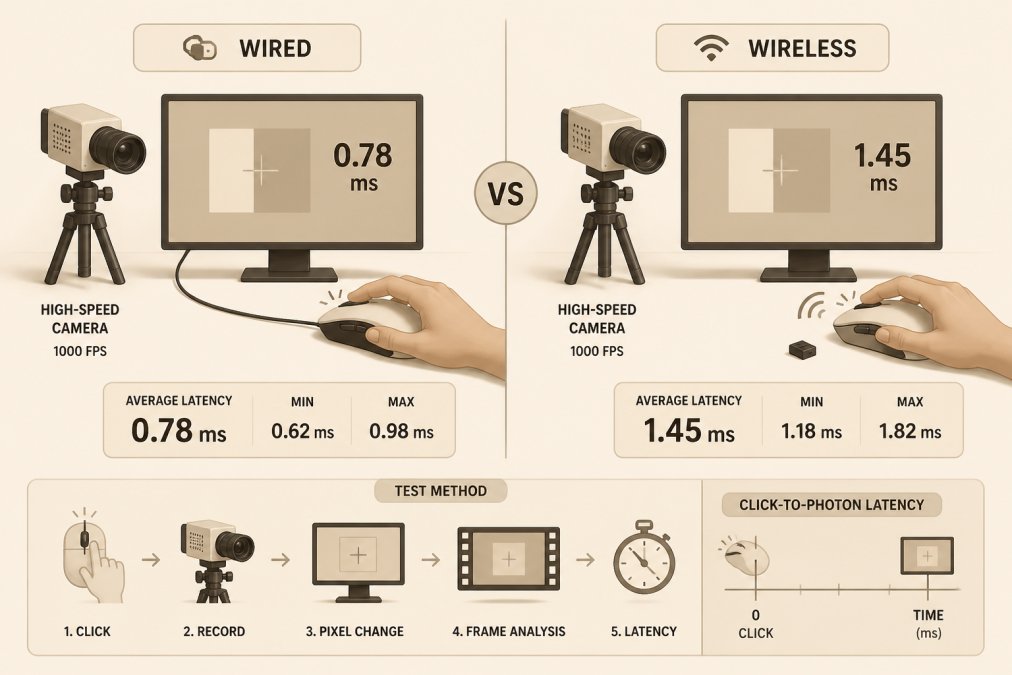
The most common testing approach involves:
- Recording mouse clicks at extremely high frame rates
- Measuring the delay from physical button press to on-screen cursor movement
- Testing multiple clicks to account for variance
- Comparing results across different polling rates and connection types
Real-world testing in actual games provides different insights than synthetic benchmarks. A mouse might show excellent latency in lab conditions but feel different depending on your PC's USB controller, driver optimization, and even your monitor's response time.
Many reviewers publish latency data, but the methodology varies widely. Some test at 240Hz polling, others at 8000Hz. Some measure click-to-photon latency, others measure signal transmission delay. When comparing test results, verify the testing conditions match your intended use case.
Real-World Performance: Synthetic Testing vs. Competitive Play
Synthetic benchmarks tell you the theoretical latency of your mouse. Competitive play reveals whether that latency actually impacts your performance.
A wired mouse might register clicks 1-2ms faster than a wireless alternative in lab testing. In a real match, that difference becomes invisible if your reaction time is 200ms or higher. But if you're in the 80-120ms reaction time range, that 1-2ms gap could matter.
The confounding variables in real-world play are numerous: your monitor's input lag, your PC's USB 3.0 interference patterns, driver optimization, even the surface you're using the mouse on. A perfectly tuned wireless setup often outperforms a poorly configured wired setup.
This is where experience matters. Players who've used both wired and wireless at competitive levels often report that modern wireless feels indistinguishable from wired, provided the wireless mouse has a high polling rate and stable signal. The psychological confidence in using "the pro setup" sometimes matters as much as the hardware itself.
Environmental Interference and Signal Stability Factors
Wireless mice operate in a crowded electromagnetic environment. Your WiFi router, Bluetooth devices, USB 3.0 hubs, and even microwave ovens can interfere with the 2.4GHz band where most gaming mice operate. Understanding how these factors affect real-world latency is critical for diagnosing why a wireless mouse might feel inconsistent.
Measuring Interference Impact
Signal interference doesn't necessarily mean packet loss, modern wireless protocols include error correction. But interference can introduce jitter, which is the variance in latency from one report to the next. A mouse that reports position every 1ms on average but sometimes takes 2ms or 3ms creates a jittery, unpredictable feel that's often more noticeable than a consistently higher baseline latency.
To diagnose interference in your setup, use a WiFi analyzer tool (such as the free WiFi Analyzer app available on most platforms) to identify which 2.4GHz channels your router and neighboring networks occupy.
Receiver Placement and Line-of-Sight Optimization
WiFi Congestion and Real-World Testing
Environmental Factors Beyond Electromagnetic Interference
Modern Wireless Gaming Mice: Closing the Latency Gap
The wireless vs. wired latency debate has largely been settled by engineering. Today's high-end wireless gaming mice operate with latency that's indistinguishable from wired in practical use.
Frequently Asked Questions
Is 1000Hz or 8000Hz polling rate better for gaming?
Higher polling rates reduce input lag by sending more position updates per second. An 8000Hz polling rate sends updates every 0.125ms versus 1ms at 1000Hz. For competitive shooters and fast-paced games, 8000Hz provides a noticeable responsiveness advantage. However, the benefit diminishes above 4000Hz for most players, gains become marginal and depend on your monitor's refresh rate and system performance. If your monitor runs 144Hz, a 1000Hz mouse is sufficient; for 360Hz+ displays, 4000Hz or higher justifies the investment.
What is the actual latency difference between wired and wireless gaming mice?
Modern 2.4GHz wireless gaming mice achieve click-to-photon latency within 1-2ms of wired alternatives when using a USB receiver placed close to the mouse. Wired mice eliminate wireless transmission delay entirely, delivering sub-1ms latency. However, this difference is imperceptible in real-world gaming for most players. The gap narrows further with proprietary wireless protocols and high-polling-rate sensors. Environmental interference, USB 3.0 port placement, and firmware optimization matter more than the wired/wireless choice itself.
Do modern wireless gaming mice have the same response time as wired?
Yes, for practical purposes. High-performance wireless gaming mice like the Mchose A7 V2 Pro Ultra with 2.4GHz connectivity and 8000Hz polling rate deliver response times competitive with wired mice in controlled conditions. The remaining latency difference (typically 1-2ms) falls below human perception thresholds. Professional esports players still prefer wired for guaranteed signal stability and zero packet loss risk, but casual and intermediate gamers experience no meaningful disadvantage with quality wireless hardware.
How does input lag affect competitive gaming performance?
Input lag below 40ms is imperceptible to most gamers; competitive players notice delays above 40-50ms. Click latency (mouse response) contributes only 1-5ms of total system latency, your monitor refresh rate, GPU rendering, and network connection create far larger delays. A 2ms wireless mouse latency is negligible compared to a 144Hz monitor's 6.9ms refresh interval. Focus on overall system optimization: high refresh rate display, stable frame rates, and low network ping matter far more than choosing wired over wireless for competitive advantage.


