

Last Updated: November 5, 2026
Quick Summary
The best wireless gaming mouse for Xbox Series X is the Mchose A7 V2 Pro Ultra at $80.99, because it pairs tri-mode connectivity with a sensor rated to 42,000 DPI. Before buying any wireless gaming mouse, confirm your game supports mouse input, since compatibility depends on each title.
- Plug the 2.4 GHz receiver into a rear USB port for the most stable gaming connection.
- Start around 800 to 1,600 DPI and adjust in-game sensitivity until aiming feels natural.
- A 1,000 Hz polling rate is plenty for console play.
- Bluetooth frees the USB port but adds delay and interference risk compared with 2.4 GHz.
- Restart the game after connecting the mouse, since some titles only scan for input at launch.
Table of Contents
- Best Mouse for Xbox Series X: Quick Comparison and Top Picks
- Best Budget Wireless Gaming Mouse 2026: Value Without Compromise
- Best Wireless Gaming Mouse with Side Buttons for Xbox
- Gaming Mouse for Xbox Series S: What Changes and What Doesn't
- How to Connect a Wireless Mouse to Your Xbox Series X
- Wireless Connectivity, Sensor Performance, and DPI Settings Explained
- Which Xbox Series X Games Actually Support a Mouse
- Add the Mchose A7 V2 Pro Ultra to Your Cart and Start Playing
- Frequently Asked Questions
Best Mouse for Xbox Series X: Quick Comparison and Top Picks
Microsoft's own support documentation confirms a hard truth: a wireless gaming mouse can pair with an Xbox Series X and still fail to control most games, because compatibility depends on whether each title allows keyboard-and-mouse input at all (Microsoft Support on Xbox mouse and keyboard options). That single fact reshapes how you should shop for the best wireless gaming mouse for Xbox Series X.
It doesn't. The mouse is only half the equation.
Below, we break down what actually matters, which settings to change, and how to pick a mouse that earns its place on your desk rather than gathering dust next to the console.
Comparison Table: Specs and Prices at a Glance
| Pick | Connection | Key Spec | Price | Best For |
|---|---|---|---|---|
| Mchose A7 V2 Pro Ultra | 2.4 GHz, Bluetooth, wired | Up to 42,000 DPI, 500 mAh battery | $80.99 | Overall pick |
| Mayflash Magicboots X One Converter | USB adapter | Xbox One / Series X / S support | $71.99 | Fight stick and Hitbox players |
| Haute42 Cosmox Booter X | Wireless adapter | Low-latency Hautepad link | $72.99 | Hautepad controller owners |
How We Evaluated These Picks
Our criteria are narrow on purpose. We look at whether a device solves a real Xbox problem, not whether it wins a spec sheet contest.
- Connection reliability: Does it hold a stable 2.4 GHz link without dropouts?
- Console relevance: Does it address an actual Xbox Series X or Series S limitation?
- Comfort over long sessions: Weight, shape, and grip matter more than DPI bragging rights.
- Value: Does the price match what the hardware delivers?
A high DPI number means nothing if the mouse fights your hand for three hours.
Best Budget Wireless Gaming Mouse 2026: Value Without Compromise
Value does not mean cheap. It means you stop paying for features that never touch your gameplay.
The Mchose A7 V2 Pro Ultra is priced at $80.99.
What most guides miss is that budget shoppers overspend on sensitivity they will never use. A 42,000 DPI sensor is headroom, not a requirement. You will likely game somewhere far below that.
Best for: Players who want one mouse for console and PC. Skip if: You only play controller-native titles and never touch a desk setup.
Best Wireless Gaming Mouse with Side Buttons for Xbox
Side buttons are where console players get real value, because they replace awkward stick clicks and free up your thumbs.
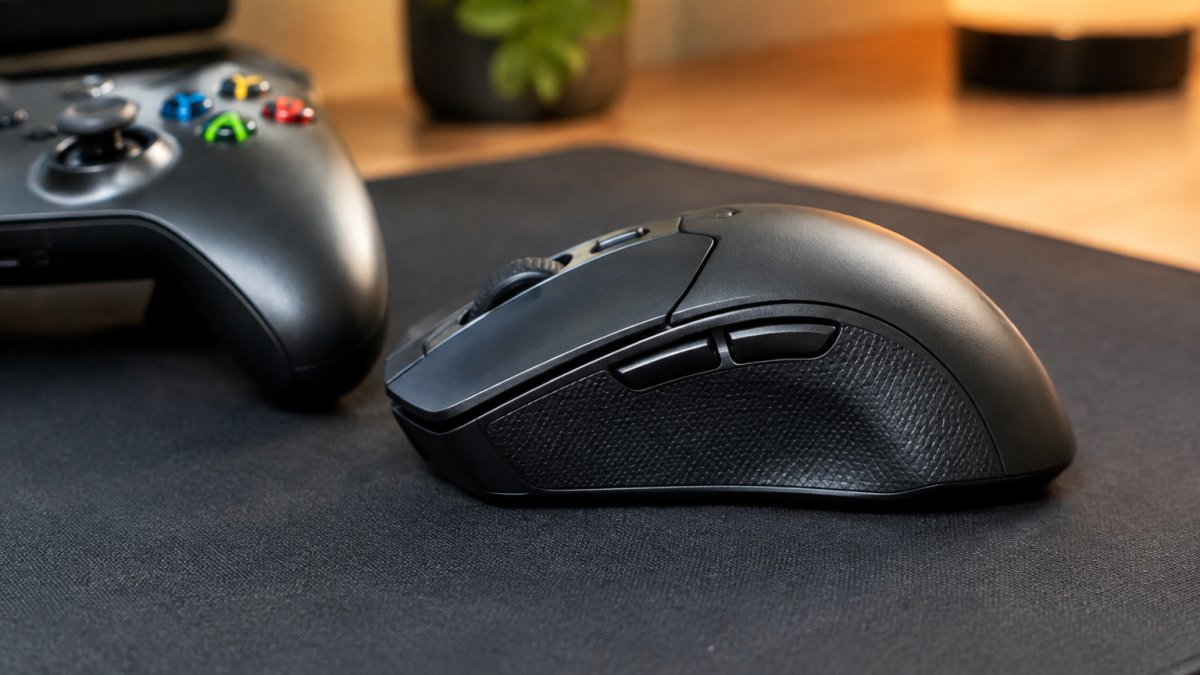
Here is the catch nobody mentions: on Xbox, side button mapping depends on the game. Some titles let you rebind freely. Others lock you into a fixed layout.
A common mistake is buying a 12-button MMO mouse for shooters. Start with two side buttons, learn them, then expand.
Gaming Mouse for Xbox Series S: What Changes and What Doesn't
Nothing about the mouse changes between the Series X and Series S.
If you are building a full keyboard-and-mouse console setup, our guide on connecting a keyboard and mouse to your console walks through the pairing steps for every current system.
How to Connect a Wireless Mouse to Your Xbox Series X
Connecting a wireless mouse to an Xbox Series X takes about two minutes: plug the USB receiver into a rear port, power on the mouse, then enable mouse input in Settings under Devices and Connections. Bluetooth models pair through the same menu without a receiver. The steps are simple; the failures are not, so it helps to know what the console is actually doing at each stage.
Follow these steps:
- Plug the 2.4 GHz receiver into a rear USB port on the console. Rear ports are preferable because they are less likely to be bumped and keep the front port free for a charging cable or headset.
- Turn the mouse on and wait for the connection light to steady. A blinking light usually means the mouse is still searching for its receiver.
- Open Settings, then Devices and Connections, then Accessories.
- Confirm the mouse appears in the device list. If it does not, unplug the receiver, wait a few seconds, and plug it back in.
- Launch a supported game and test movement in the menu first, before you enter a match.
Watch out: a mouse that pairs successfully can still do nothing in-game. Pairing proves the hardware works, not that the title accepts mouse input.
Receiver versus Bluetooth on the Console
The console treats these two connection types differently, and that difference matters more than most buyers expect.
Mchose A7 V2 Pro Ultra – Tri‑Mode Lightweight Wireless Gaming Mouse →
- 2.4 GHz USB receiver: This is the connection to use for gaming. The receiver handles the wireless link itself, so the console sees a standard wired-style mouse and latency stays low. The cost is one occupied USB port.
- Bluetooth: The console can pair a Bluetooth mouse directly, which frees the USB port entirely. The trade-off is added delay and more susceptibility to interference from routers, soundbars, and other wireless devices nearby. It is fine for menus and slower games, less ideal for fast aiming.
- Wired fallback: A tri-mode mouse can switch to a cable when the battery runs low. This is the most reliable option and the one to use while troubleshooting, because it removes the wireless link as a variable.
When the Console Sees the Mouse but the Game Does Not
This is the most common failure, and it is almost never a hardware defect. Work through these checks in order:
- Confirm the game itself supports mouse input, as covered in the compatibility section above.
- Make sure the mouse is set to the correct mode. Many tri-mode mice have a physical switch or button combination to move between 2.4 GHz, Bluetooth, and wired, and it is easy to leave one in the wrong position.
- Check that the receiver is in a port the console is reading. Moving from a front to a rear port, or from a hub to a direct port, resolves a surprising number of cases.
- Restart the game after connecting the mouse. Some titles only scan for input devices at launch.
- Test a second game you know supports mouse input. If the mouse works there, the problem is the first title, not the mouse.
If your mouse needs an adapter to work at all, our roundup of the best Xbox adapter for keyboard and mouse covers which converters handle which devices. For a full desk or couch setup, pair the mouse with a compatible keyboard and, if you are short on ports, a powered USB hub so the receiver and keyboard do not compete for the same connection.
Wireless Connectivity, Sensor Performance, and DPI Settings Explained
Wireless connectivity is the link between your mouse and console, and it decides whether your aim feels instant or mushy. Everything else is secondary.
2.4 GHz vs Bluetooth vs Wired: Which Connection Wins
For gaming, 2.4 GHz through a dedicated receiver wins. It offers the lowest input latency and the most stable link, which is why competitive players still favor dongles over Bluetooth.
Bluetooth is convenient and port-friendly, but it introduces more delay and is more vulnerable to wireless interference from routers and other devices nearby.
Wired is the reference point: zero battery anxiety, zero pairing issues, but a cable dragging across your desk. If you want the full latency comparison, our wired vs wireless latency test results break down the numbers.
DPI, Polling Rate, and Sensitivity for Console Play
DPI controls how far the cursor travels per inch of mouse movement. Polling rate controls how often the mouse reports its position. Higher numbers are not automatically better on a console.
Most Xbox players should start around 800 to 1,600 DPI, then adjust in-game sensitivity until aiming feels natural. A 1,000 Hz polling rate is plenty. If you want to understand how DPI shapes accuracy, read our explainer on how mouse DPI impacts gaming accuracy.
Which Xbox Series X Games Actually Support a Mouse
Game support is the deciding factor, and it is messier than any product page admits.
The practical split is between games that ship with a dedicated keyboard-and-mouse input mode and games that only read a controller.
Here is how support tends to break down by category, based on the patterns most console players report:
- First-person shooters built for cross-play: These are the most likely to include a native mouse mode, because the developer already supports mouse input on other platforms. Look for a dedicated input-device toggle in the settings rather than a single control scheme.
- Strategy, simulation, and builder games: These frequently support mouse input because a controller is a poor fit for cursor-driven menus. If the game shows a cursor in its menus, that is a strong signal.
- Fighting games and arcade titles: Support is rare and usually arrives through a converter or adapter rather than native input, which is why the Mayflash Magicboots X One Converter and Haute42 Cosmox Booter X appear in our comparison table.
- Controller-first action and sports titles: These almost never expose mouse input, even when the console recognizes the mouse as a device.
Watch out: a game can list keyboard-and-mouse support in its store description and still restrict it to certain modes, such as multiplayer only or a specific playlist.
Because support changes with patches, the only reliable method is to test the specific title you play most.
Add the Mchose A7 V2 Pro Ultra to Your Cart and Start Playing
The gap between a frustrating console setup and a great one usually comes down to one honest purchase. The Mchose A7 V2 Pro Ultra is a tri-mode lightweight wireless gaming mouse with a sensor rated to 42,000 DPI and an ergonomic design. It is priced at $80.99.
You can shop the Mchose A7 V2 Pro Ultra and check the full spec sheet before you commit.

Frequently Asked Questions
Will any wireless mouse work with Xbox Series X?
Mice that connect through a USB receiver or a wired connection are the usual options for the Xbox Series X. Game support varies: check the game's settings menu for a mouse option before assuming it works, and keep a controller nearby for menus and unsupported titles.
How do you connect a wireless gaming mouse to an Xbox Series X?
Plug the mouse's USB receiver into one of the USB ports on the back of the console, then turn the mouse on. The console should recognize it within a few seconds. Open a supported game and enable mouse input in its settings. If nothing happens, try a different USB port, recharge the mouse, and confirm the receiver is in 2.4 GHz mode rather than Bluetooth.
Do all Xbox Series X games support a mouse?
No. Support is decided per game by the developer, so a wireless gaming mouse may work perfectly in one first-person shooter and do nothing in another. Mice generally provide functions only in games that allow keyboard-and-mouse input. Before buying, look up your specific titles, and treat any list of compatible games as a starting point rather than a guarantee.
Is a budget wireless gaming mouse good enough for Xbox Series S?
For most players, yes. The Xbox Series S uses the same controller and USB input rules as the Series X, so a budget-friendly wireless mouse with a stable 2.4 GHz connection, a reliable optical sensor, and a comfortable shape covers casual and competitive play. Spend more only if you need extra side buttons, higher DPI ceilings, or longer battery life for marathon sessions.
Your console is ready. Your games may or may not be. Get the mouse that handles everything else, and get started with The Techie Den today.


