

Quick Summary
A high capacity HDD adds cheap, large game storage without rebuilding your PC. Install it in an open 3.5-inch bay, connect a SATA data and power cable, then initialize and format it in Windows Disk Management. Keep your most-played games on an SSD and store the rest on the HDD.
- Modern games can take 100 GB or more each, so a 2TB drive holds roughly 15 to 20 large titles.
- Choose a 7200 RPM drive for faster copying of large game folders; 5400 RPM drives run cooler and quieter.
- Keep 10 to 15 percent of the drive free, since full drives slow down and make updates harder.
- Check your motherboard for free SATA ports, a 3.5-inch bay, and a spare SATA power cable before buying.
- Use Steam's Storage settings to move games to the new drive without reinstalling them.
Table of Contents
- How to Upgrade Your Gaming Setup with a High-Capacity HDD
- Why a High-Capacity HDD Makes Sense for Your Gaming Setup
- Choosing the Right Drive Type and Capacity for Gaming
- Checking Motherboard, Case, and Port Compatibility
- Tools and Steps to Power Down and Install the Drive
- How to Initialize a New Hard Drive in Windows 11
- How to Move Steam Games to a New Drive
- Your Next Step: Pick a Drive and Start Your Upgrade
- Frequently Asked Questions
How to Upgrade Your Gaming Setup with a High-Capacity HDD
Last Updated: November 3, 2026
Why a High-Capacity HDD Makes Sense for Your Gaming Setup
If your gaming library keeps outgrowing your drive, a high capacity HDD is one of the simplest fixes. Ready-made gaming drives let you add room without rebuilding your whole PC. A high-capacity HDD is a hard drive with a large amount of storage, often measured in terabytes (TB), that stores games and files at a lower cost per gigabyte than an SSD.
Here's the trade-off most people feel first. Modern games can take up 100 GB or more each, so a 500 GB drive fills up quickly. Adding a second drive gives you space for the games you play now, while your main drive stays focused on your operating system.
Our recommendation is simple: use a big high capacity HDD for your library and a small SSD for the games you play every day. That split gets you room and speed without paying SSD prices for everything.
Choosing the Right Drive Type and Capacity for Gaming
Start by matching the drive to how you play. A high-capacity HDD is best for storing games you play occasionally, while an SSD suits the titles you launch daily. The mistake is treating this as an all-or-nothing choice; most gaming setups work best with both.
When you shop for a high-capacity HDD, four specs matter more than the marketing on the box:
- Capacity: Measured in terabytes (TB). Modern games often take 100 GB or more each, so a 2TB drive holds roughly 15 to 20 large titles before you factor in updates and save data.
- Rotational speed: 7200 RPM drives generally deliver higher sequential throughput than 5400 RPM drives, which helps when you copy large game folders or install updates. 5400 RPM drives run cooler and quieter and are fine for cold storage.
- Cache: A larger cache (256 MB versus 64 MB, for example) helps the drive buffer small reads and writes. It is not a substitute for an SSD, but it narrows the gap for game asset streaming.
- Workload rating: Consumer desktop drives are rated for a certain number of hours of use per year. A drive rated for continuous operation is a better fit if your PC stays on for long sessions.
For a focused game library, the 12TB Gaming HDD with 86000+ Retro Video Games ($297.99) gives you a large amount of room in one drive. If you want a different option, the Video Game Console 2T HDD 52000+Games ($507.99) includes a video game controller and a pre-installed library.


Quick guide to picking capacity:
- 1TB: A small library of a few favorite games
- 2TB: A solid starting point for most gamers
- 4TB and up: A large library or a collection of retro titles
Keep 10 to 15 percent of the drive free. Full drives slow down and make it harder to install updates.
HDD vs SSD for gaming load times
An SSD loads games faster than an HDD, but the gap matters less for some titles than people expect. Most of the time an SSD wins on load screens, while an HDD is fine for games where you spend hours in the world instead of waiting on loading.
The practical way to decide is cost per terabyte. An HDD typically costs a fraction of what an SSD costs per TB, so the same budget buys far more game storage. A common pattern is to keep the operating system and two or three competitive or open-world titles on the SSD, then park the rest of the library on the HDD.
A common mistake is putting every game on an SSD and running out of space within a month. Use the SSD for your most-played titles and move older games to the HDD. Learn how to build a game collection on a high-capacity HDD, including how to organize titles across drives.
Drive health, noise, heat, and vibration
HDDs have moving parts, so they make some noise and produce more heat than SSDs. Mount the drive in a well-ventilated bay, and keep it away from vibrating fans. Get tips for building a quiet gaming PC if drive noise is a concern. Good airflow in your case helps it last longer.
Most drive makers publish a recommended operating temperature range, and sustained operation near the top of that range shortens life. Monitor drive health with the manufacturer's utility or a tool like CrystalDiskInfo, which reports SMART attributes such as reallocated sectors and temperature.
Back up anything important. Hard drives can fail without warning, so keep a copy of save files and key data somewhere else. A single HDD is storage, not a backup.
Here is a quick summary of how drive capacity maps to the number of games it can hold, from the article's guide.
12TB Gaming HDD with 86000+ Retro Video Games →
| Capacity | Best for |
|---|---|
| 1TB | A small library of a few favorite games |
| 2TB | A solid starting point for most gamers |
| 4TB and up | A large library or a collection of retro titles |
Checking Motherboard, Case, and Port Compatibility
Before you buy, check three things: available SATA ports, open drive bays, and power connectors. Most HDDs use a SATA data cable and a SATA power connector.
Look at your motherboard manual to count the SATA ports. Then check your case for a free 3.5-inch drive bay. If your case has no bay, you can often use a drive cage or an adapter.
Make sure your power supply has a free SATA power cable. If you're short on cables, a cable splitter or a modular power supply can help.
Tools and Steps to Power Down and Install the Drive
You need only a few tools: a Phillips screwdriver, the drive, a SATA data cable, and a SATA power cable. Some cases use thumbscrews or tool-less trays, so check your case manual before you start.
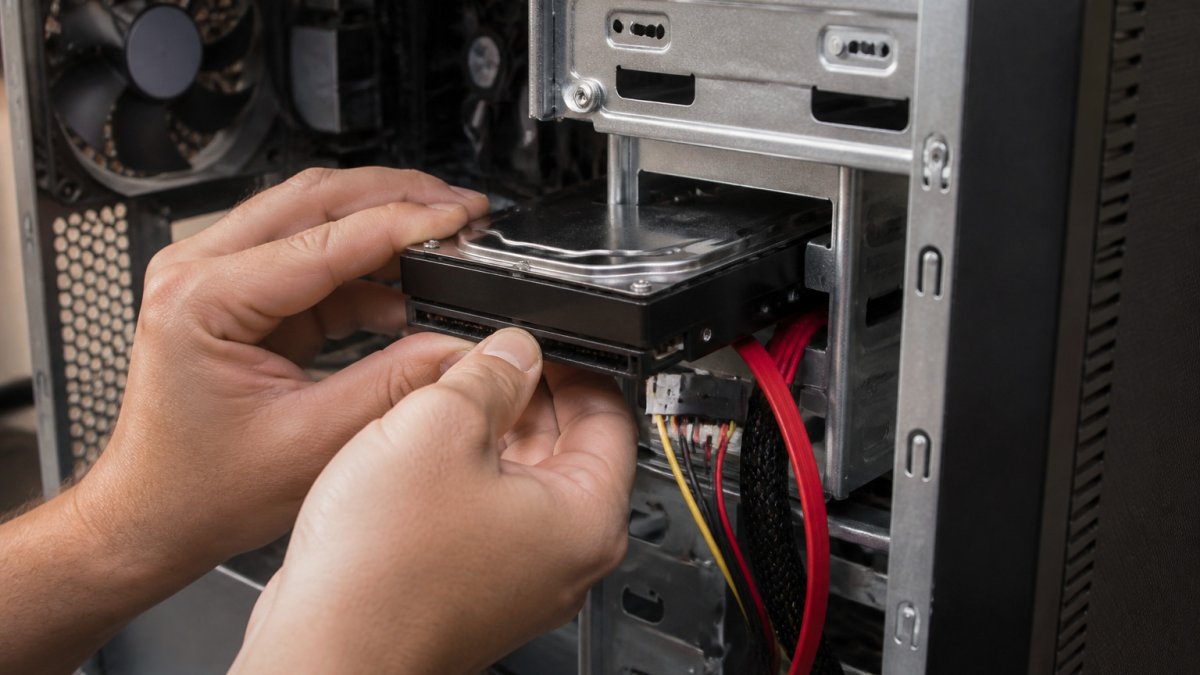
- Shut down the PC completely. Don't just sleep it.
- Unplug the power cable and press the power button to drain residual power.
- Open the side panel and ground yourself by touching the metal case.
- Mount the drive in an open bay and secure it with screws.
- Connect the SATA data cable from the drive to a free SATA port on the motherboard.
- Connect the SATA power cable from the power supply.
- Close the case, plug the PC back in, and power it on.
Verify the drive before you close the case
Before you put the side panel back on, power on the PC and enter the BIOS or UEFI setup. Look for the new drive in the storage or boot device list. If it appears there, the physical connection is good. If it does not appear, power down and reseat both cables at the drive and at the motherboard end; a partially seated SATA data cable is the most common cause of a missing drive.
Watch out: Some motherboards disable SATA ports when an M.2 slot is populated. Check your motherboard manual for shared lanes before you assume a port is dead.
Troubleshooting a drive that does not show up
If the drive is in BIOS but not in Windows, the problem is usually initialization or formatting, covered in the next section. If it is missing from both, work through this checklist:
- Cables: Try a different SATA data cable and a different SATA power connector. Swap the data cable to another port on the motherboard.
- Power: Confirm the power supply cable is fully seated. If you used a splitter, test the drive on a direct cable.
- Port sharing: As above, check whether an M.2 drive or another SATA device shares the port.
- Drive spin-up: Listen for the drive to spin up at power-on. Silence can indicate a dead drive or a power problem.
- BIOS settings: Confirm SATA mode is set to AHCI rather than a legacy mode, and that the port is enabled.
If the drive still does not appear after these steps, test it in another system or with a USB-to-SATA adapter before assuming the drive is faulty.
How to Initialize a New Hard Drive in Windows 11
A new drive won't show up in File Explorer until you initialize and format it. Here's how to do it in Windows 11:
- Right-click the Start button and choose Disk Management.
- Find the new drive. It will show as unallocated.
- Right-click the unallocated space and choose Initialize Disk. Pick GPT for drives larger than 2TB.
- Right-click the new space and choose New Simple Volume.
- Follow the wizard to assign a drive letter and format the drive, usually as NTFS.
Once formatting finishes, the drive appears in File Explorer and is ready for games.
How to Move Steam Games to a New Drive
You don't need to reinstall your games to free up space. Steam can move them for you.
- Open Steam and go to Settings, then Storage.
- Click the drive you want to add, or use Add Drive to select the new one.
- Select the games you want to move, then click Move.
Steam copies each game to the new drive and updates its library. Moving games this way keeps your saves and settings intact. If you notice frame drops after the move, this guide walks through likely causes.
Watch out: Don't move games while they are running, and keep your drive connected during the transfer.
Your Next Step: Pick a Drive and Start Your Upgrade
A high-capacity HDD gives your gaming setup the room it needs, and you can install one in an afternoon. Pick a drive that fits your library, check your ports and bays, and follow the steps above. Shop The Techie Den's gaming drives to find a size that suits your collection.
Frequently Asked Questions
Is a 4TB HDD worth it for a modern gaming PC?
A 4TB HDD is a practical choice for a modern gaming PC when your main goal is storing a large library at a low cost per terabyte. Most people use a high-capacity HDD as a secondary drive for games they play less often, while keeping a faster SSD for the titles they launch daily. A 2TB drive suits a focused library, but a 4TB or larger drive gives room for the big installs that have become common. Check that your case has a free drive bay and that your motherboard has an open SATA port before you buy.
Is a 10000 RPM HDD good for gaming?
A 10,000 RPM hard drive spins faster than the 5,400 or 7,200 RPM drives most people use, so it can load game data somewhat quicker. It is still far slower than a SATA SSD or M.2 NVMe SSD, and 10,000 RPM drives are less common and often run hotter and louder. For most gamers, a large 7,200 RPM drive used for storage paired with an SSD for active games offers better value.
Do I need to format a new hard drive before using it for games?
Yes. A new internal drive usually appears in Windows as unallocated space, so it must be initialized and formatted before Windows can store files on it. You can do this in Disk Management: initialize the disk, create a new simple volume, and format it with the NTFS file system. Once formatted, the drive gets a drive letter and you can install games to it or move existing libraries onto it.
Can I use an external HDD for gaming, or is internal better?
An external HDD works for storing games and playing titles that are not time-sensitive, but it connects through USB and typically loads more slowly than an internal drive. An internal drive connected by SATA is usually the better choice for a primary game library. External drives are useful for backups or for offloading older games you do not play often.


