

Last Updated: November 2, 2026
Quick Summary
A high capacity HDD gives you enough room, usually 4TB or more, to hold a large game library without constant deleting, and it wins on cost per terabyte. Use it as cold storage for your backlog while you play active games from an SSD.
- Modern titles eat 100GB to 150GB each, so twenty games can swallow 3TB.
- A collector needs 4TB or more for 50+ games plus media.
- Check for 7200 RPM and 128MB or more of cache before buying.
- Count your free drive bays first, since many modern cases drop 3.5-inch bays.
- Move a game to the HDD after a month untouched, and back to the SSD before you replay it.
Table of Contents
- Why a High Capacity HDD Still Belongs in Your Gaming Setup
- How Much Storage for PC Games Do You Actually Need?
- SSD vs HDD Gaming FPS: What the Speed Difference Really Means
- Cost Per Terabyte: Why High Capacity HDDs Win on Price
- How to Pick the Best HDD for Gaming in 2026
- External HDD for Gaming: When a Portable Drive Makes Sense
- Setting Up a Hybrid Storage Strategy: SSD for Play, HDD for Archive
- Choosing the Right High Capacity HDD for Your Collection
- Frequently Asked Questions
Why a High Capacity HDD Still Belongs in Your Gaming Setup
A high capacity HDD is a hard disk drive with enough room, usually 4TB or more, to hold a large game library without constant deleting. Here at The Techie Den, we keep coming back to one fact: NZXT's storage guidance recommends 4TB or more for dedicated collectors and content creators. That number matters.
Modern titles eat 100GB to 150GB each. Twenty games can swallow 3TB before you blink.
So why do some builders call mechanical drives obsolete? Because they only look at speed. They ignore price, capacity, and the simple joy of never uninstalling a favorite.
Below, we'll show you exactly how to use both drive types together. But first, here's what most guides get wrong: they frame this as a war. It isn't. It's a budget question.
How Much Storage for PC Games Do You Actually Need?
Start with 2TB if you play casually. Jump to 4TB or more if you collect. The answer depends on your library size, not your ego.
Here's a rough breakdown:
- Casual player: 1TB to 2TB covers 10-15 modern games
- Regular player: 2TB to 4TB covers 25-40 titles
- Collector: 4TB+ for 50+ games plus media
- Content creator: 4TB+ for raw footage and archives
If you want a concrete starting point, our 2TB HDD bundle with 52,000+ games shows what a mid-size library looks like in practice.

Watch out: buying too small means you'll reinstall games monthly. That gets old fast.
SSD vs HDD Gaming FPS: What the Speed Difference Really Means
Frame rates barely change between drive types. Load times do. That's the honest answer, and it's also where most guides stop. The useful version explains why.
A modern game streams assets constantly, textures, audio, level geometry, as you move through a world. An SSD answers those requests in microseconds because it has no moving parts; a mechanical HDD has to physically move a read head to the right track and wait for the platter to spin under it. That mechanical seek is measured in milliseconds, and it's why an HDD feels slow even when its sequential transfer rate looks respectable on the box.
The metric that matters for gaming is random read performance, usually expressed as IOPS (input/output operations per second). Mechanical drives deliver far fewer random-read operations per second than solid-state drives, and that gap is what you feel during load screens. That gap, not the big sequential number printed on the drive, is what you feel when a load screen drags or a texture pops in late.
Once you're in the game, your GPU and CPU drive the frame rate, not the drive. A 60 FPS target on a mid-range GPU doesn't care whether the game lives on spinning rust or flash. What changes is everything around the frame: load times, fast travel, level transitions, and the stutter that shows up when the engine can't stream assets fast enough.
That stutter is worth calling out separately. Hitching from slow storage feels worse than a slightly lower average frame rate, because it's unpredictable. If you notice it, work through our guide on how to troubleshoot gaming PC frame drops before blaming the drive.
DirectStorage changes the calculus. Microsoft's DirectStorage API, available on Windows, lets games stream assets from an NVMe drive directly to the GPU with far less CPU overhead. Titles built around it, and an increasing number are, assume fast NVMe storage as a baseline. On a mechanical drive, those games either fall back to older loading paths or perform noticeably worse. This is the single biggest reason a high capacity HDD belongs in your collection as cold storage, not as the drive you play from. The practical rule most builders land on: NVMe for the games you're actively playing, HDD for everything you're keeping.
Quick comparison:
| Factor | SATA SSD | NVMe SSD | 7200 RPM HDD |
|---|---|---|---|
| Load times (large open-world) | 10-20 sec | 5-15 sec | 30-60 sec |
| Random read IOPS | Tens of thousands | Hundreds of thousands | Low hundreds |
| Cost per TB | Higher | Highest | Lowest |
| DirectStorage-ready | Partial | Yes | No |
| Best for | Active games | Active games, OS | Archive and backlog |
| Noise | Silent | Silent | Some spin noise |
Watch out: a 5400 RPM drive marketed as "gaming" will be noticeably slower than a 7200 RPM unit for active play, check the RPM and cache (128MB or more) before you buy, not just the capacity.
Cost Per Terabyte: Why High Capacity HDDs Win on Price
Dollars per terabyte is where mechanical drives crush everything else. iBUYPOWER's storage comparison notes hard drives offer the best price-to-capacity ratio, and that gap holds.
A 4TB SSD can cost several times what a 4TB HDD runs. For a big library, that difference buys you games, not just space.
XDA-Developers' cost analysis makes the same point: HDDs are significantly cheaper for storing large volumes of data. If you're archiving, this is a no-brainer.
Our 12TB drive is priced at $297.99.
How to Pick the Best HDD for Gaming in 2026
Capacity first, then speed, then physical fit. Most buyers get this backwards and overpay for RPM they don't need.
12TB Gaming HDD with 86000+ Retro Video Games →
Use this checklist:
- Capacity: 4TB minimum, 8TB+ for collectors
- RPM: 7200 RPM for active use, 5400 RPM fine for archives
- Cache: 128MB or more
- Form factor: 3.5-inch for desktops, 2.5-inch for compact builds
- Drive bays: count your free bays before buying
- Warranty: 2 years or longer
Watch out: modern cases often skip 3.5-inch bays for airflow. PC Building Reality's case analysis flags this trend. Measure before you order.
External HDD for Gaming: When a Portable Drive Makes Sense
An external HDD for gaming is the right call when you can't open the case. Laptops, consoles, and prebuilts with no free bays all benefit.
Setup is simple:
- Plug the drive into a USB 3.0 port
- Format it for your console or PC
- Move older games over
- Keep active titles on internal storage
If you're adding one to a console, our new console setup guide walks through the steps.
The catch? USB transfer rates lag behind SATA. Fine for archives, slow for games you play daily.
Setting Up a Hybrid Storage Strategy: SSD for Play, HDD for Archive
A hybrid setup means a fast SSD runs your OS and active games while a high capacity HDD holds the rest. HP's storage guidance recommends exactly this split. The part most guides skip is the workflow, how you actually move a game from one drive to the other without breaking it, and what to do when your case has nowhere to mount the HDD.
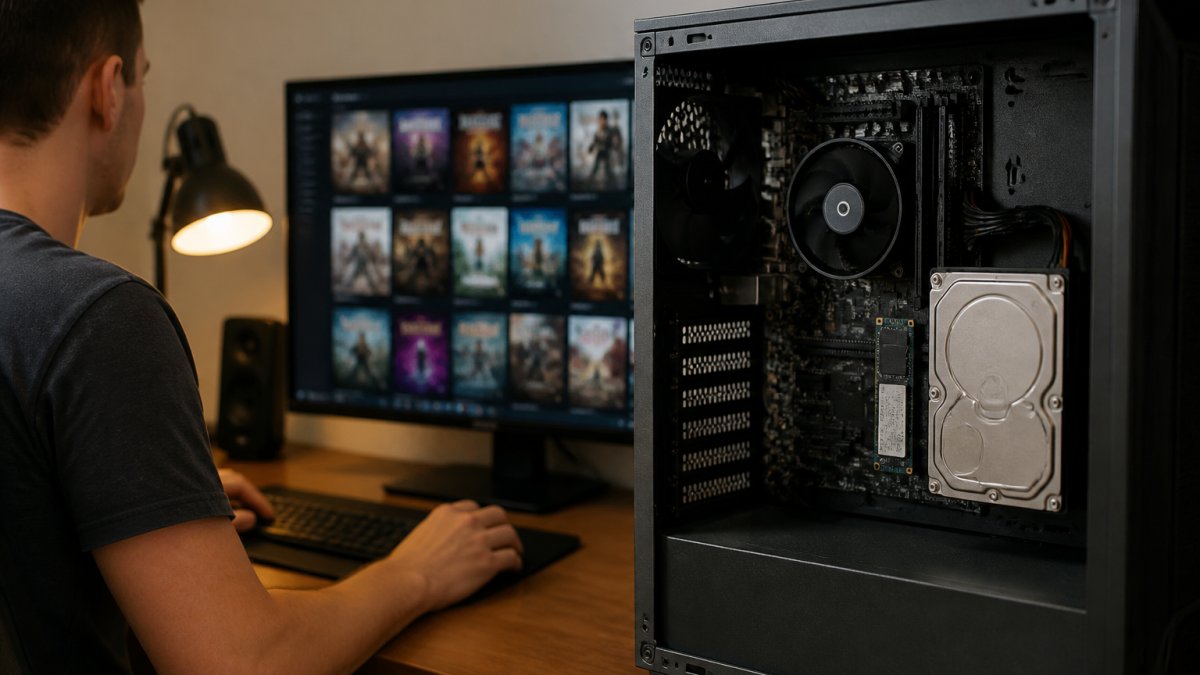
Start with the physical fit. Modern cases increasingly drop 3.5-inch bays in favor of airflow and cleaner cable routing, and many mid-tower designs now ship with two or fewer. Count your free bays before you buy a drive. If you're out of room, your options are a 2.5-inch HDD (rarer and slower), an external enclosure over USB, or a case swap. PC Building Reality's case analysis flags this trend, and it's the most common reason a planned HDD upgrade stalls at the last step.
Then set up the split. Here's the workflow we'd use:
- Install Windows and your top three to five games on the NVMe or SATA SSD.
- Point each launcher's install directory to the HDD where it allows you to choose a drive.
- Play from the SSD. When a title has been untouched for a month or so, move it to the HDD.
- Keep saves backed up in both places, cloud saves cover most storefronts, but a local copy on the HDD costs nothing.
Moving a game between drives is easier than it used to be. Launchers handle game moves differently, so budget some time for the ones that don't cooperate.
Archiving versus active play is the real distinction. Think of the SSD as your desk and the HDD as your filing cabinet. You don't delete a game you've finished; you file it. When you want to play it again, you move it back to the SSD the night before, and it's ready. That workflow is what lets a 50-game library live on a 2TB SSD plus a 12TB HDD without constant reinstalling.
If you'd rather skip the build, our N100 game PC with a 2TB HDD arrives ready for this exact setup.

Watch out: don't point your OS, page file, or active game installs at the HDD to "save space" on the SSD, you'll trade a small capacity win for a noticeably slower machine.
Choosing the Right High Capacity HDD for Your Collection
Match the drive to your library, not to a spec sheet. A 4TB drive suits most players; 8TB to 12TB suits collectors with retro libraries and media.
Western Digital's archiving notes point out that HDDs scale well for years of archives, photos, and videos. That longevity is the real selling point.
For a plug-and-play option, our 12TB gaming HDD with 86,000+ retro games at $297.99 pairs the capacity with a ready-made collection.

Best for: collectors who want one drive to hold everything. Skip if: you only play two or three games at a time.
Frequently Asked Questions
Are HDDs still worth it for gaming?
Yes, for bulk storage. A high capacity HDD costs far less per terabyte than an SSD, so it is the cheapest way to keep a large game library installed and accessible. Load times are longer than on an NVMe drive, but frame rates in game are not affected by the storage medium. Most builders pair a fast SSD for the operating system and active titles with an HDD for everything else.
Does an HDD affect gaming FPS?
No. Frame rate is determined by your processor, RAM, and graphics card, not the storage drive. An HDD affects load times, initial level streaming, and how quickly game assets appear, but once a scene is loaded the frame rate is the same as on an SSD. If you are chasing higher FPS, spend the money on a GPU upgrade before a faster drive.
Can you play games from an external HDD?
Yes. An external HDD for gaming connects over USB and works for storing and launching games, though transfer rates are lower than an internal SATA drive. It is a good option for laptops with no free drive bays or for moving a library between machines. Keep in mind that open-world titles with heavy asset streaming will load noticeably slower from USB.
What capacity hard drive is best for a large game collection?
For a dedicated collector or content creator, 4TB or more is the recommended starting point. Modern games can be large, so a 4TB drive holds a substantial number of titles before you factor in media files. A 12TB drive gives you room for years of archives, photos, and video alongside your games without constant uninstalling.
The challenge is simple: stop deleting games to make room. Build a library you can actually keep.
At The Techie Den, we stock high-capacity drives and consoles built for exactly that, with plug-and-play libraries, multi-system front ends, and fast shipping. Get started with The Techie Den and turn your backlog into a collection you'll never uninstall.


