

Table of Contents
- Console Overheating Symptoms: Warning Signs You Shouldn't Ignore
-
How to Stop Console Overheating: 7 Steps That Actually Work
- Step 1: Give the Console Room to Breathe
- Step 2: Power Cycle and Let It Cool Down
- Step 3: Clean Vents and Fans Safely
- Step 4: Check Ambient Temperature and Humidity
- Step 5: Install Firmware Updates
- Step 6: Use External Cooling Accessories Wisely
- Step 7: Replace Thermal Paste When Cleaning Isn't Enough
- How to Clean Dust Out of PS5 (and Other Consoles) Without Damage
- Best Console Cooling Fans: What Actually Helps and What Doesn't
- Diagnostic Tools and Long-Term Preventative Care
- Frequently Asked Questions
Last Updated: September 13, 2026
Console Overheating Symptoms: Warning Signs You Shouldn't Ignore
Console overheating rarely announces itself with a single dramatic failure. It creeps in through fan noise that gets louder each week, frame rates that dip during demanding scenes, and shutdowns that seem random until they aren't. The pattern is consistent: the warning signs were there long before the console gave up. Reading them is the first step in how to stop console overheating.
Fan Noise, Frame Drops, and Sudden Shutdowns
The internal fan is your best diagnostic tool. A healthy console produces steady, low-level airflow noise. When dust restricts airflow, the fan spins faster and the pitch climbs. Frame drops follow because the system throttles performance to reduce heat. If your console shuts down mid-game, overheating protection has already kicked in, meaning internal temperatures crossed an unsafe threshold.
Error Messages and Overheating Protection
Modern consoles display specific warnings before forcing a shutdown, often paired with a message telling you the system is too hot. Treat any such error as urgent: when heat dissipation is compromised, the system cuts power to protect itself, and repeated shutdowns stress internal components and can cause long-term damage.
How to Stop Console Overheating: 7 Steps That Actually Work
The most effective fix combines immediate cooling with long-term preventative care. Work through these steps in order, and most problems resolve without a repair bill.
Step 1: Give the Console Room to Breathe
Place the console in open space with at least several inches of clearance on every vented side. An enclosed cabinet traps hot air and forces the system to recycle it. If your setup lives in a media console, move it to the top shelf. This single change resolves a surprising share of console overheating complaints.
Step 2: Power Cycle and Let It Cool Down
Unplug the console and let it sit for at least 30 minutes. A full power cycle clears temporary thermal states and lets the heatsink return to ambient temperature. Don't restart immediately, residual heat makes the next session worse.
Step 3: Clean Vents and Fans Safely
Use short bursts of compressed air held at an angle, never directly into the fan blades, since spinning a fan faster than its bearing design allows can damage it. A lint-free cloth wipes exterior vents. For deeper cleaning, follow the console-specific guidance below.
Step 4: Check Ambient Temperature and Humidity
Room temperature directly affects heat dissipation. A room above roughly 80°F makes temperature regulation harder, and high humidity compounds it by reducing air-based cooling efficiency. Keep the play space comfortable and avoid direct sunlight on the console.
Step 5: Install Firmware Updates
Manufacturers regularly adjust fan curves and thermal management through firmware updates. Check for system updates monthly and install them promptly. Skipping updates leaves your console running the same thermal profile it shipped with, even when engineers have since improved it.
Step 6: Use External Cooling Accessories Wisely
A cooling pad or external fan can help a console in a warm room, but only when it complements the console's own airflow rather than fighting it. Avoid accessories that pull air from the same direction as the internal fan, since they create turbulence instead of relief.
Step 7: Replace Thermal Paste When Cleaning Isn't Enough
Thermal paste sits between the processor and heatsink, and its thermal conductivity degrades over years of heat cycling. If cleaning and airflow fixes don't lower temperatures, reapplication is the next step. This is advanced work, so weigh the warranty implications covered later before opening the case.
How to Clean Dust Out of PS5 (and Other Consoles) Without Damage
Cleaning is where most people cause damage they didn't need to. The safest approach uses compressed air, a lint-free cloth, and 90%+ isopropyl alcohol for stubborn residue, with the console powered off, unplugged, and cooled for at least 30 minutes. Never use a household vacuum on internal components, the plastic nozzle and moving air generate static discharge that can fry circuitry, and the suction can spin fans past their bearing limits.
Dust matters for a mechanical reason: every console uses a negative-pressure intake that pulls room air across a heatsink. Dust collects on fan blades and heatsink fins, insulating them. A thin dust film on heatsink fins can raise thermal resistance enough to push the processor into throttle range, which is why frame drops often appear before any shutdown.
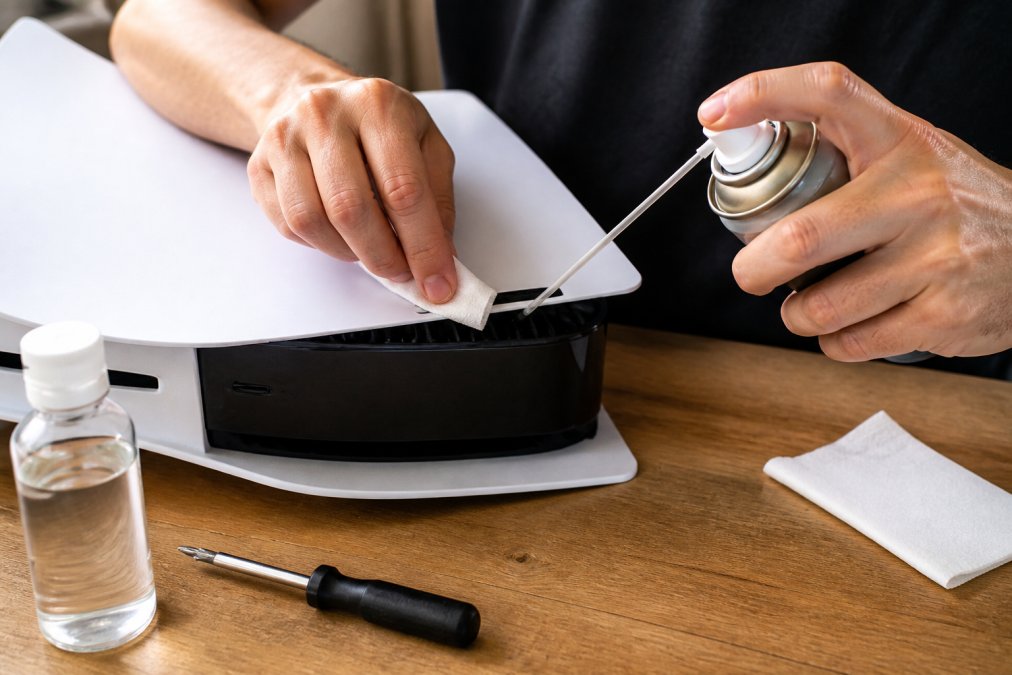
PS5
Remove the white side panels by lifting the corner nearest the logo and sliding the panel toward the base, no tools required on the standard model. The dust traps are the two intake vents along the top edge and the recessed channel behind the fan. Hold the fan stationary with a plastic spudger or folded business card while you blow short bursts at the intake, angled outward. Do not tip the can, propellant leaves residue that attracts more dust. Sony's own support guidance recommends this level of exterior and intake cleaning; anything past the fan shroud is a disassembly job.
Xbox Series X
The Series X pulls air in through the base and exhausts through the top vent. The base grille is the primary dust trap, and it's accessible without opening the chassis. Use a soft brush to loosen dust from the base grille, then compressed air from the top vent downward to push it out the way it came. The rear port array collects dust too, wipe it with a dry microfiber cloth, never a wet one, since moisture near the power port is a short-circuit risk.
Nintendo Switch Dock
The dock has vents on the back and bottom that clog faster than the console because the dock runs warm even at idle. Compressed air on the dock vents every six months is enough. Never spray compressed air at the Switch screen, propellant can etch the plastic anti-glare coating. The console's own intake is along the top edge; a soft brush is safer than air there because the fan is small and easy to overspin.
Older Consoles
Consoles with removable faceplates (many Xbox 360 and PS4 models) let you reach the intake vents directly. The same principle applies: access the vents, blow dust outward, wipe surfaces with a dry microfiber cloth. Avoid metal brushes, they scratch plastic and can bridge electrical contacts. For disc-based consoles, never blow air into the disc slot; you'll drive dust onto the laser lens.
| Console Type | Cleaning Frequency | Key Access Point | Tool to Avoid |
|---|---|---|---|
| PS5 | Every 3-6 months | Removable side panels, top intake | Household vacuum |
| Xbox Series X | Every 3-6 months | Base grille, top exhaust | Wet cloths near power port |
| Nintendo Switch dock | Every 6 months | Dock rear and bottom vents | Compressed air on screen |
| Older consoles | Every 6 months | Faceplate vents | Metal brushes, disc slot |
Warranty-Safe Cleaning: Where the Line Is
This is the part most guides skip. Exterior cleaning, vents, panels, cloth wipes, compressed air into accessible intakes, is almost universally considered normal maintenance and does not void a manufacturer warranty. Disassembly is where the line moves. Removing screws, opening the chassis, or removing the heatsink to replace thermal paste can void coverage on most consoles unless your jurisdiction's consumer protection rules override the manufacturer's terms. Before you open anything, check your warranty document, and if the console is still covered, consider whether professional service is cheaper than losing coverage. Photograph the vents and any visible internals before and after cleaning, dated photos showing normal wear rather than impact damage can support a warranty claim if the console fails later for an unrelated reason.
Best Console Cooling Fans: What Actually Helps and What Doesn't
External cooling accessories split into two groups: those that support the console's existing airflow and those that interfere with it. A well-designed cooling pad raises the console slightly and encourages passive airflow underneath, which helps in warm rooms. Clip-on fans that blow directly across intake vents often create more turbulence than relief, especially at fixed speeds the console can't coordinate with.
What matters most is placement and clearance, not fan count. A cheap stand that lifts the console off carpet outperforms an expensive multi-fan accessory crammed against a cabinet wall. Prioritize open-frame designs and adjustable speed control over raw airflow specs.
Diagnostic Tools and Long-Term Preventative Care
Most consoles expose temperature and performance data through built-in system menus, error logs, or companion apps, and almost no competing guide tells you to use them. Your console is already reporting its thermal health if you know where to look. Treating those readouts as a maintenance signal, rather than waiting for a shutdown, separates a fix from a recurring problem.
Software Diagnostics: What Your Console Is Telling You
Start by establishing a baseline. Play a light-load title for 20 minutes, then check the system's performance or error log. Record fan behavior, any thermal warnings, and the ambient room temperature. Repeat after a heavy session in a demanding game. A healthy console shows a modest rise; one with restricted airflow shows a steep rise and fan speed that stays pinned high after the session ends.
What to actually look for:
- Error codes and thermal warnings. Modern consoles log a specific code when they trigger thermal protection. Search that code against the manufacturer's support documentation, it tells you whether the shutdown was heat-related or something else (power delivery, storage, GPU fault).
- Fan speed behavior. If the fan ramps to maximum within a few minutes of a cold start, airflow is restricted or the thermal interface has degraded. A fan that stays at maximum after the console returns to the dashboard is a stronger signal than one that ramps during gameplay.
- Performance throttling. Frame drops that correlate with session length, fine for 10 minutes, rough at 40, point to heat soak rather than a software bug. If performance is bad from the first minute, the cause is usually elsewhere.
- Companion app data. Some consoles surface temperature and fan data through first-party mobile apps or system status screens. Check these after a demanding session rather than during, so you're reading steady-state numbers instead of transient spikes.
A rising trend over weeks, same game, same room, higher fan speed or earlier throttling, signals airflow obstruction or degrading thermal conductivity even before a shutdown occurs. That's your cue to clean, not wait.
Long-Term Preventative Maintenance Schedule
Fixing overheating once is a repair. Keeping it from returning is a schedule. A workable cadence for most households:
- Monthly: Wipe exterior vents with a dry microfiber cloth. Check that nothing has been stacked against the console and that clearance on vented sides is still open.
- Every 3-6 months: Compressed-air cleaning of accessible intakes. Homes with pets, carpet, or smokers should stay at the 3-month end.
- Every 6-12 months: Check for firmware updates and review the system error log for any thermal events you missed.
- Every 2-4 years, or when cleaning stops helping: Consider professional thermal paste service. Paste degrades gradually, and replacement is a last resort rather than routine maintenance.
Warranty Implications of DIY Cleaning
Opening a console case can void your warranty, depending on the manufacturer and your jurisdiction's consumer protection rules. Exterior cleaning with compressed air and a cloth is almost always safe. Anything requiring disassembly, including thermal paste replacement, carries risk. Check your warranty terms before opening anything, and consider professional service if the console is still covered. Outside the coverage window, the calculus flips: a professional cleaning and paste service is usually cheaper than a replacement console and restores the thermal headroom it shipped with.
Frequently Asked Questions
How do I stop my Xbox from getting so hot?
Give it space first. Keep the console on an open shelf with at least 4 to 6 inches of clearance on all sides, and never inside an enclosed cabinet. Vacuum or blow out the vents every few months to prevent dust accumulation. If the fan still runs loud during a short gaming session, the internal heatsink may be clogged and needs a deeper clean. Power cycling after long sessions also helps the system cool down properly.
Can I fix an overheated Xbox myself?
Yes, most console overheating cases are fixable at home. Start with the simple fixes: improve ventilation, power cycle the console, and clean dust from the vents with compressed air. If those don't work, a thermal paste replacement on the heatsink can restore heat dissipation. Just check your warranty first, since opening the console chassis may void it. If the console shuts down within minutes of powering on, the problem may be hardware-related and worth a professional repair.
What are the signs that my console is overheating?
The most common console overheating symptoms include a fan that sounds like a jet engine, frame rate drops during a gaming session, sudden shutdowns mid-game, and error messages about overheating protection. Some consoles also feel hot to the touch on the top or rear vents. If you notice two or more of these signs, stop playing and let the console cool down before troubleshooting further.
How often should I clean my console to prevent overheating?
Clean the external vents every 2 to 3 months with compressed air. If you live in a dusty home or have pets, aim for monthly. A full internal cleaning, including the heatsink and internal fan, is usually needed every 12 to 18 months. Pair that schedule with firmware updates and a quick check of your room's ambient temperature to keep airflow obstruction from building up.
Console overheating is a maintenance problem before it becomes a hardware problem, and the fixes are within reach for most owners. The Techie Den carries gaming consoles and accessories built for setups that run cool and stay reliable, from high-performance peripherals to the connectivity gear that keeps your station organized. Explore the collection, compare your options, and get started with The Techie Den to build a setup that lasts through every gaming session.


