

Table of Contents
- What You'll Need Before You Start Fixing Charging Port Issues
- Step 1, Safety Precautions and Powering Down Your Device
- Step 2, Charging Port Cleaning: How to Remove Lint and Debris Safely
- Step 3, Moisture in Charging Port: Detection and Liquid Damage Protocols
- Step 4, Inspecting for Bent Pins and Diagnosing Hardware Failure
- Step 5, Loose Charging Port Fix and Ruling Out Software Glitches
- When Your Phone Only Charges at a Certain Angle
- Wireless Charging as a Temporary Workaround and DIY vs. Professional Repair Cost-Benefit
Last Updated: August 1, 2026
A dead or finicky charging port is one of the most frustrating hardware problems a device owner can face, and knowing how to fix charging port issues quickly can save you from a costly repair bill or an unnecessary device replacement. This guide from The Techie Den walks you through every diagnostic step, from clearing out compacted lint to identifying bent pins and deciding when professional repair is the smarter call. Most charging port problems are simpler than they look, the real mistake is reaching for a metal tool or skipping straight to a repair shop before you've ruled out the obvious.
Debris, moisture, and software glitches account for the majority of intermittent charging issues. Below, we'll show you exactly how to diagnose the root cause, fix it safely, and know when to call in a professional.
What You'll Need Before You Start Fixing Charging Port Issues
Before you touch the port, gather the right tools. Using the wrong ones, particularly metal objects, can cause a short circuit or bend the delicate pins inside a USB-C or Lightning cable connector.
Tools checklist:
- Wooden toothpick or plastic dental pick
- Can of compressed air
- Bright flashlight or magnifying glass
- Soft-bristle brush (a clean, dry toothbrush works)
- Isopropyl alcohol (90% or higher) and cotton swabs
- A known-good charging cable and power adapter for testing
- A wireless charger (if your device supports it, as a workaround)
The non-conductive rule is non-negotiable. Metal tools introduce conductivity risk and can damage pin alignment permanently.
Step 1, Safety Precautions and Powering Down Your Device
Power down the device completely before touching the charging port. Working on a live port exposes you to voltage that can damage the port assembly further or cause injury.
- Power down the device fully (not just screen-off or sleep mode)
- Remove any case or cover that blocks access to the port
- Work on a clean, dry, non-conductive surface
- Discharge static electricity by touching a grounded metal object before handling internal components
- Keep liquids away from your workspace
Static electricity is an underrated risk. A static discharge into a USB-C port can damage the charging controller on the logic board, turning a simple cleaning job into a hardware failure.
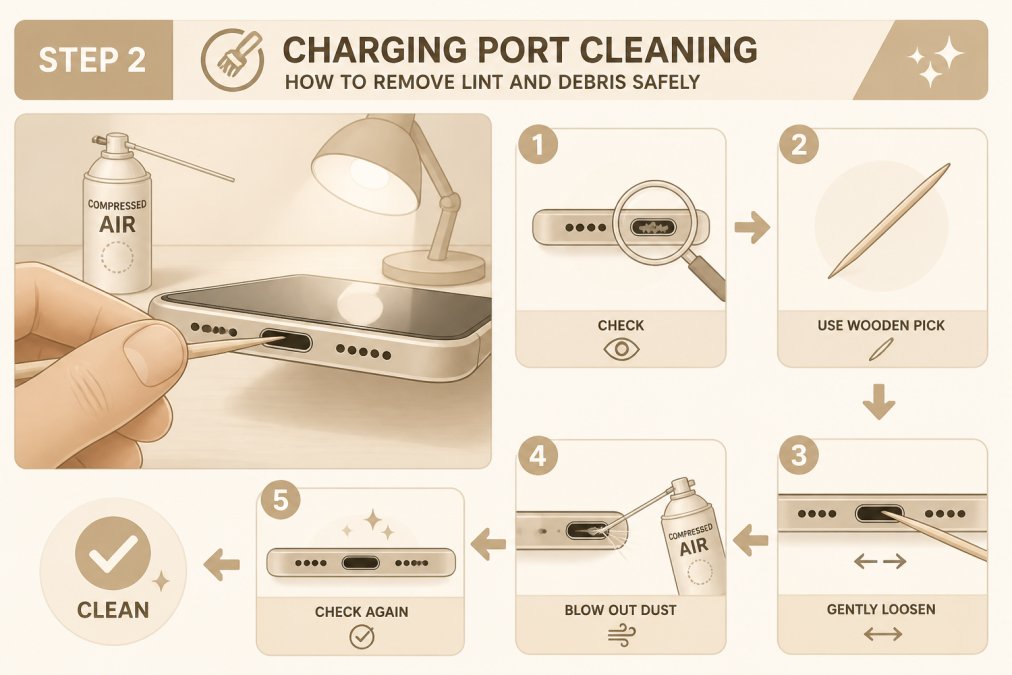
Step 2, Charging Port Cleaning: How to Remove Lint and Debris Safely
Charging port cleaning is the single most effective fix for intermittent charging problems. Lint, dust, and pocket debris compact over time at the back of the port, preventing the cable connector from seating fully.
Using Compressed Air the Right Way
Hold the can upright to prevent propellant from spraying into the port. Use short, controlled bursts at a slight angle, not straight in. Two or three one-second bursts are usually enough to dislodge loose debris.
After the air treatment, shine a flashlight directly into the port. If you can see a gray or dark mass compacted at the back, that's lint. Compressed air alone won't remove it at this stage.
Non-Conductive Tools: Wooden Toothpick vs. Metal Objects
A wooden toothpick is the right tool for the job. Insert it gently along the back wall of the port and drag the compacted lint toward the opening. Work slowly, the goal is to loosen and extract debris, not to scrape the port contacts.
Metal conducts electricity. Even with the device powered down, residual charge in the battery can create a path through a metal object that damages the port contacts. Wood and plastic break that circuit.
After removing visible debris, follow up with another burst of compressed air to clear any loosened particles.
Step 3, Moisture in Charging Port: Detection and Liquid Damage Protocols
Moisture in the charging port is a separate problem from debris. Many modern smartphones include a moisture sensor that triggers a software warning when liquid is detected. If you see a "moisture detected" notification, do not attempt to charge the device.
According to iFixit's repair guides for liquid damage protocols, inserting a charging cable into a wet port can cause oxidization of the pin contacts and short-circuit the charging circuit.
Protocol for moisture detection:
- Power down the device immediately
- Do NOT use compressed air directly into the port (this can push moisture deeper)
- Shake the device gently with the port facing down to drain surface liquid
- Leave the device in a dry, room-temperature environment for a minimum of 24 hours
- After 24 hours, inspect the port with a flashlight before attempting to charge
If the moisture sensor continues to trigger after 48 hours of drying, or if you notice corrosion (a greenish or white residue on the pins), the port assembly likely needs professional cleaning or replacement.
Step 4, Inspecting for Bent Pins and Diagnosing Hardware Failure
Bent pins inside a USB-C or Lightning port are a common cause of intermittent charging that no amount of cleaning will fix.
Shine a flashlight directly into the port and examine the pin alignment carefully. Healthy pins are straight, evenly spaced, and show no visible damage. Bent pins will appear tilted, pushed to one side, or collapsed toward the port floor.
Visual Diagnostic Guide: Dirty Port vs. Damaged Port
| Symptom | Likely Cause | DIY Fix? |
|---|---|---|
| Cable won't seat fully | Compacted lint/debris | Yes - clean with toothpick |
| Charges only at certain angle | Partial debris or loose port | Yes - clean, then test |
| Moisture warning persists | Liquid in port | Yes - dry 24-48 hours |
| Visible bent/collapsed pins | Physical damage | No - professional repair |
| Green/white residue on pins | Corrosion/oxidization | Rarely - professional cleaning |
| No charge, no response | Hardware failure or board damage | No - professional diagnosis |
| Intermittent fast charging drops | Debris on charging contacts | Yes - clean thoroughly |
If you spot a bent pin, stop. Attempting to realign pins at home almost always causes further damage.
Step 5, Loose Charging Port Fix and Ruling Out Software Glitches
A loose charging port fix isn't always a hardware problem. Before assuming the port assembly is physically damaged, rule out software as the cause.
Testing with Alternative Cables and Power Adapters
The most common misdiagnosis is blaming the port when the cable is the actual failure point. Charging cables degrade at the connector end from repeated bending, creating intermittent connectivity that feels exactly like a loose port.
Test with at least two different cables and two different power adapters before concluding the port is faulty. If one cable works reliably and another doesn't, the cable is the problem. According to the Consumer Product Safety Commission's guidance on USB charging safety, damaged cables are a leading cause of charging failures and, in some cases, a fire hazard.
Power Cycling and Restarting to Rule Out Software Issues
A software glitch can prevent a device from recognizing a connected charger even when the port is physically clean and undamaged.
- Perform a full power cycle: hold the power button, select power off, wait 30 seconds, restart
- If the device has a force-restart option, use it
- Check for pending OS updates, as manufacturers frequently release patches that address charging recognition bugs
- Reset network settings if the issue appeared after a software update
If the device charges normally after a restart, the problem was a software glitch, not a hardware failure.
When Your Phone Only Charges at a Certain Angle
A phone that only charges at a certain angle is almost always telling you one of two things: there's compacted debris preventing full cable seating, or the port assembly has loosened from its solder points on the logic board.
The debris diagnosis is the easier fix. Go back to the cleaning steps above and be thorough. Many users are surprised by how much lint can compact into a port over six to twelve months of daily use.
The loose port assembly is a different issue. If the port physically moves or flexes when you insert a cable, the solder connections holding it to the board have likely cracked. This requires professional repair.
Wireless Charging as a Temporary Workaround and DIY vs. Professional Repair Cost-Benefit
Wireless charging is the most practical temporary workaround while you diagnose or arrange repair for a damaged port. If your device supports Qi wireless charging, a wireless charger keeps you operational without stressing a damaged port further.
Continuing to force a cable into a damaged or partially blocked port can worsen pin damage, expand debris compaction, and accelerate corrosion. Switching to wireless charging while you troubleshoot is a smart bridge strategy.
DIY is appropriate for debris removal, moisture drying, cable replacement, and software troubleshooting. Professional repair is necessary for bent or broken pins, loose port assembly (solder failure), corrosion damage, and any situation where the port shows no response despite a clean, dry, cable-tested port.
Professional port replacement costs vary depending on device model and repair provider. Independent repair shops generally charge less than manufacturer service centers. The FTC's Right to Repair resources for consumers outline your options for third-party repair without voiding your warranty in many cases.
If the device is under warranty or AppleCare/manufacturer protection, use it. If it's out of warranty, an independent shop offering a port replacement for a device that's otherwise in good condition is almost always worth it compared to a full device replacement.
For devices that are several years old and showing multiple hardware issues, replacement may be the more practical path.
Charging port problems range from a five-minute cleaning job to a professional solder repair, and misdiagnosing the cause is what drives unnecessary costs. The Techie Den offers a curated selection of high-quality charging cables, wireless chargers, and connectivity accessories designed to keep your devices reliably powered across iPhone, Android, and USB-C setups. Explore The Techie Den's charging solutions to keep your setup running without compromise, and add to cart the accessories that match your devices today.
Frequently Asked Questions
How do I know if my charging port is damaged or just dirty?
A dirty port usually shows visible lint, dust, or debris packed inside, and cleaning it with a non-conductive tool often restores normal charging. A damaged port typically shows bent or broken pins, a loose connection where the cable wiggles freely, or intermittent charging even after a thorough clean. If your device only charges at a certain angle or not at all after cleaning, hardware failure is likely and professional inspection is recommended.
What tools do I need to clean a charging port safely?
For safe charging port cleaning, you'll need a can of compressed air, a wooden toothpick or a plastic dental pick, and a flashlight or bright lamp to inspect the port. Avoid metal objects at all costs, they conduct electricity and can cause a short circuit or damage pin alignment. Cotton swabs are also risky because fibers can get lodged inside. Stick to non-conductive tools to troubleshoot safely without voiding your warranty or causing further damage.
Can a loose charging port be fixed at home?
A loose charging port fix is sometimes possible at home if the issue is compacted debris pushing the connector tab out of position. Carefully removing lint and dust with a non-conductive wooden toothpick can restore a snug fit. However, if the port assembly itself is physically broken, the solder joints are cracked, or the pins are visibly bent, DIY repair is not recommended. At that point, a professional repair technician or the device manufacturer's service center is your safest option.
Can software glitches cause charging problems?
Yes, a software glitch can prevent your device from recognizing a power adapter even when the charging port is physically fine. To rule this out, perform a full power cycle by restarting or force-restarting your device before assuming hardware failure. Also test with an alternative cable and a different USB-C or Lightning cable power adapter. If charging resumes after a restart or cable swap, the issue was likely software or a faulty cable rather than a damaged port.
What should I do if there is moisture in my charging port?
If moisture is detected in your charging port, do not attempt to charge the device immediately, voltage and water are a dangerous combination that can cause oxidization or a short circuit. Most modern smartphones have a moisture sensor that will alert you on screen. Power down the device, shake it gently to dislodge water droplets, and allow it to air-dry in a warm, well-ventilated space for at least one hour. Avoid using rice or heat guns, as both can cause additional damage.
When should I seek professional repair services for a charging port?
Seek professional repair when cleaning and cable-swapping do not resolve intermittent charging, when you can see visibly bent pins or a cracked port assembly, when moisture damage is suspected but the device still won't charge after drying, or when your device is under warranty and DIY repair would void it. In the US, authorized service centers and certified repair shops can replace a port assembly. Weigh the repair cost against the device's current value before committing to a fix.
This article was written using GrandRanker


