

Table of Contents
- How to Plan Your High Performance Gaming Setup: A Framework That Works
- Best Gaming PC Build Guide: Components That Actually Matter
- Monitor Selection: Refresh Rate, Resolution, and Response Time Explained
- Essential Gaming Peripherals Guide: Keyboard, Mouse, Headset, and More
- Optimizing Gaming PC Performance: Drivers, Settings, and Overclocking
- Gaming Setup Aesthetics: Lighting, Cable Management, and Ergonomics
- Power Consumption and Energy Efficiency for Your High Performance Gaming Setup
- Conclusion
Last Updated: July 31, 2026
Building a serious gaming rig is one of the most rewarding tech projects you can take on. This high performance gaming setup guide cuts through the noise to get you results fast. Your GPU and monitor pairing determines your actual gaming experience more than anything else. Get those two right first, then build everything else around them.
How to Plan Your High Performance Gaming Setup: A Framework That Works
Start with your use case, not your budget. Three questions define your entire build direction:
- What games do you play, and at what resolution?
- Do you stream, record, or just play?
- Are you competing in esports titles or playing narrative single-player games?
Esports players prioritize FPS and input latency above all else. A 360Hz 1080p monitor with a mid-tier GPU will outperform a 4K display for competitive titles. Narrative and open-world gamers benefit more from resolution and ray tracing fidelity.
PC vs. Console: Choosing Your Platform
PC gaming gives you full control over components, refresh rates, resolution scaling, and upgrade paths. Console gaming offers simplicity, fixed pricing, and optimized performance without driver management. If you want 1440p at 144Hz or higher with the ability to upgrade individual components over time, PC is the only path. This guide focuses on PC, because it gives you the most control over every variable that affects performance.
Budgeting and Cost Considerations by Tier
Rather than citing specific dollar amounts that will be outdated within months, think in tiers based on target resolution and FPS:
| Tier | Target Resolution | Target FPS | Primary Bottleneck |
|---|---|---|---|
| Entry | 1080p | 60-144 Hz | GPU |
| Mid-Range | 1440p | 144-165 Hz | GPU + CPU balance |
| High-End | 1440p / 4K | 165-240+ Hz | GPU, VRAM, cooling |
| Enthusiast | 4K / Ultrawide | 144+ Hz | Everything, especially PSU |
Visit The Techie Den's current product listings for up-to-date pricing on peripherals and accessories.
Best Gaming PC Build Guide: Components That Actually Matter
Every component creates a ceiling for every other component. Understanding that hierarchy saves money and prevents bottlenecks.
CPU, GPU, and RAM: The Performance Core
Your GPU handles rendering. Your CPU handles game logic, AI, physics, and streaming. Your RAM determines how much data both can access without hitting slower storage.
GPU: For 1440p gaming at high settings, you need a card with at least 8GB of VRAM, though 12GB is the practical floor for modern titles with ray tracing enabled. DLSS (NVIDIA's AI upscaling) and FSR (AMD's open alternative) allow you to render at lower resolutions and upscale, recovering significant FPS without meaningful visual loss.
CPU: A bottleneck happens when your CPU cannot feed the GPU frames fast enough. For gaming, clock speed and single-core performance matter more than core count. Match your CPU tier to your GPU tier.
RAM: DDR5 is now the standard for high-end builds. Minimum 16GB for gaming, 32GB if you stream or run background applications.
Storage, Motherboard, PSU, and Cooling
These components do not generate FPS directly, but they determine whether your system is stable, fast to load, and capable of sustaining performance under load.
Storage: An NVMe SSD on a PCIe 4.0 or PCIe 5.0 slot is the current standard.
Motherboard: Match your motherboard to your CPU socket and your intended upgrade path.
PSU: Size your power supply unit with headroom. A quality 80+ Gold rated unit with 20-30% overhead is the right call.
Cooling: Air cooling handles most mid-range builds effectively. Liquid cooling becomes relevant when overclocking or housing components in tight cases with limited airflow.
Monitor Selection: Refresh Rate, Resolution, and Response Time Explained
Your monitor is where every performance decision you made inside the case either pays off or gets wasted. Matching your monitor to your GPU's realistic output is the most overlooked step in gaming setup planning.
Refresh Rate (Hz): The jump from 60Hz to 144Hz is dramatic. The jump from 144Hz to 240Hz is meaningful for competitive play. Beyond 360Hz, the perceptual gains diminish for most players.
Resolution: 1080p remains viable for esports. 1440p is the current sweet spot for high performance gaming, offering a balance of visual fidelity and GPU demand. 4K demands significantly more from your GPU and is best paired with DLSS or FSR to maintain playable FPS.
Response Time: Measured in milliseconds (ms), response time affects motion clarity. A 1ms GtG response time is the target for fast-paced games. IPS panels offer better color accuracy and viewing angles than TN panels, with response times now competitive enough for gaming.
Panel Type: TN panels are fast but visually inferior. IPS panels offer the best balance. OLED monitors deliver exceptional contrast and response times but come at a premium and carry burn-in considerations for static UI elements.
Input Lag: Distinct from response time, input lag is the delay between your action and the display rendering it. Enable your monitor's game mode to minimize processing latency. According to Rtings.com monitor testing methodology and data, measured input lag varies significantly between display modes on the same monitor, often by 20ms or more.
Multi-Monitor and Ultrawide Setup Optimization
The most common mistake with multi-monitor setups: mismatched refresh rates between displays. Windows and your GPU driver will default to the lowest common refresh rate across all connected monitors unless you configure each display independently.
For a dual-monitor gaming setup:
- Set your primary gaming display to its native refresh rate in Windows Display Settings
- Assign your secondary monitor separately, even if it runs at a lower Hz
- Disable G-Sync or FreeSync on the secondary monitor to avoid conflicts
- Use DisplayPort for your primary gaming monitor; HDMI is acceptable for secondary displays
Ultrawide monitors (21:9 and 32:9 aspect ratios) offer immersive field of view but require game-level support. Check compatibility before committing to an ultrawide panel for your primary gaming display.
Essential Gaming Peripherals Guide: Keyboard, Mouse, Headset, and More
Peripherals are where your build meets your hands, and the quality difference between budget and mid-tier gear is immediately noticeable.
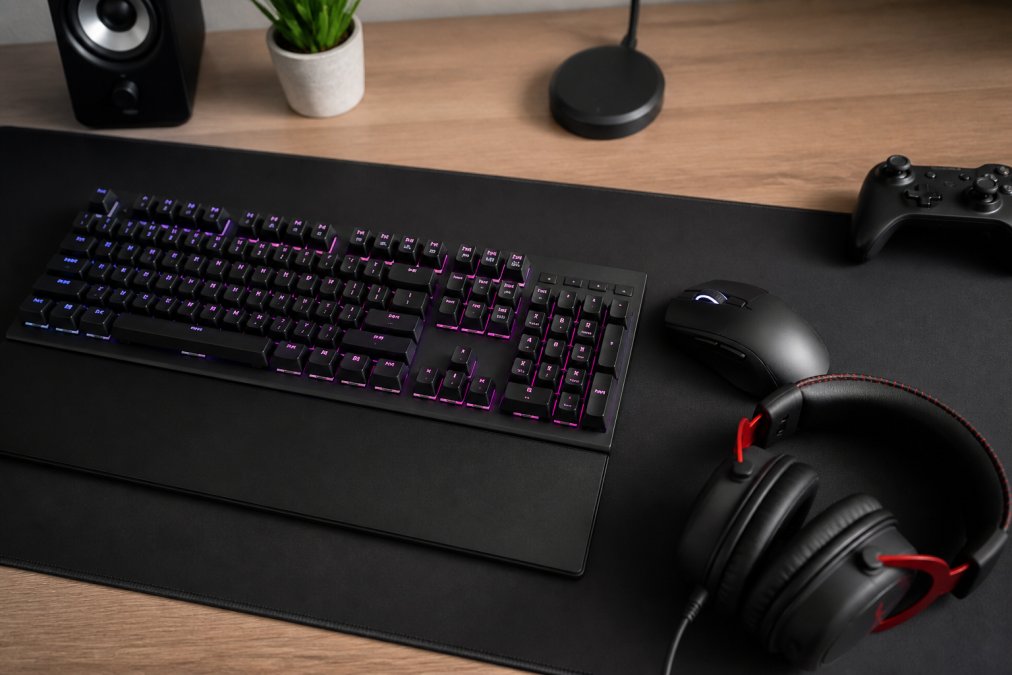
Mechanical Keyboard: Mechanical keyboards use individual switches per key, providing tactile feedback and actuation consistency that membrane keyboards cannot match. Switch type determines feel: linear switches suit gaming; tactile switches suit typing. Optical switches eliminate mechanical contact entirely, reducing latency to near zero.
Mouse: DPI is over-marketed. Most competitive players use 400-1600 DPI. What actually matters is sensor accuracy, polling rate (1000Hz is standard; 4000Hz and 8000Hz polling are now available on premium mice), and ergonomic fit for your grip style.
Headset: Stereo headsets work fine for most gaming. Spatial audio processing improves directional awareness in competitive titles. Look for a headset with a noise-canceling microphone if you communicate in team games.
Mouse Pad: An oversized mouse pad protects your desk, provides consistent tracking surface, and allows low-DPI, high-precision mouse movements.
Optimizing Gaming PC Performance: Drivers, Settings, and Overclocking
Optimizing gaming PC performance starts before you launch a single game. A fresh Windows installation with bloatware removed, up-to-date GPU drivers, and a properly configured BIOS will outperform an identical machine that has been neglected.
Driver Management: Install GPU drivers directly from NVIDIA or AMD. Use DDU (Display Driver Uninstaller) when switching GPU brands or resolving driver conflicts. Outdated drivers are a common source of stuttering and crashes.
In-Game Settings: Resolution scaling, shadow quality, and ambient occlusion are the highest-cost settings in most engines. Reduce these first when chasing FPS. Enable DLSS or FSR before reducing native resolution.
Overclocking: GPU overclocking via MSI Afterburner can yield meaningful FPS gains on air cooling. CPU overclocking through BIOS requires a compatible motherboard and CPU, and the thermal management to support sustained higher clocks. Start conservatively, stress test thoroughly, and monitor temperatures. As documented in Intel's official overclocking guide for desktop processors, improper overclocking without adequate cooling can reduce component lifespan.
Advanced Troubleshooting for Performance Issues
Stuttering and frame drops are the most common performance complaints. Check GPU and CPU temperatures under load using HWiNFO64 or MSI Afterburner overlay. Monitor VRAM usage in-game; hitting the VRAM ceiling causes severe stuttering. Verify your RAM is running at its rated speed (XMP/EXPO profile in BIOS). Check for background processes consuming CPU or RAM during gaming sessions. Verify your monitor is actually running at its rated refresh rate in Windows Display Settings.
Shader compilation stutters are not a hardware problem. They are a software optimization issue that typically resolves after a game's first few play sessions as shaders compile and cache locally.
VR Gaming Setup Considerations
VR gaming has unique hardware requirements that standard gaming setup guides ignore. A VR-ready system needs a GPU with sufficient VRAM and raw compute for rendering two perspectives simultaneously, a CPU that handles tracking and physics without frame drops, and USB bandwidth for headset data transfer. Ensure your case and cable routing allow clean headset cable management to your play area.
Gaming Setup Aesthetics: Lighting, Cable Management, and Ergonomics
Good cable management improves airflow inside your case, makes troubleshooting faster, and reduces dust accumulation around connection points. Route cables behind your desk where possible. Use velcro ties rather than zip ties. A cable raceway mounted under the desk hides power strips and excess cable length cleanly.
Ambient lighting behind your monitor reduces eye strain by raising the average brightness of your visual field. Smart LED strips behind your monitor at 6500K color temperature approximate daylight and reduce fatigue during long sessions. Warmer tones in the evening help maintain natural sleep cycles.
Ergonomics, Chair, Desk, and Monitor Placement
Poor ergonomics will end your gaming sessions earlier than any hardware limitation.
Monitor Placement: The top of your monitor should sit at or slightly below eye level. Distance should be roughly an arm's length. Tilt the monitor back 10-20 degrees. A monitor arm gives you precise adjustment that fixed stands cannot provide.
Chair: Lumbar support and adjustable armrests are non-negotiable for sessions longer than two hours. Your feet should rest flat on the floor, thighs parallel to the ground.
Desk: Desk height should allow your forearms to rest parallel to the floor with elbows at 90 degrees when your hands are on the keyboard. Standing desks with programmable height presets allow you to alternate positions throughout long sessions. According to OSHA ergonomics guidelines for computer workstations, monitor placement and seating posture are the primary factors in preventing repetitive strain injuries during extended computer use.
Accessibility in High-Performance Gaming Setups
Accessibility in gaming setups is a topic that almost no high performance gaming setup guide addresses. Key accessibility considerations include switch-adapted controllers for players with limited hand mobility, adjustable monitor arms that accommodate wheelchair height positioning, keyboard remapping software to redistribute key bindings to accessible positions, colorblind modes in-game combined with high-contrast monitor profiles, and voice command software as a supplementary input method for menu navigation. A well-planned gaming setup should accommodate the widest range of users.
Power Consumption and Energy Efficiency for Your High Performance Gaming Setup
A high-end gaming rig under full load can draw 500-800 watts from the wall. At average US electricity rates, running a system at high load for several hours daily adds meaningfully to monthly utility costs over time.
Practical power efficiency strategies include enabling power-saving states in your BIOS for CPU and GPU when not under load, using Windows Power Plan settings to balance performance and idle efficiency, enabling GPU power limit controls in your overclocking software to cap maximum draw without sacrificing gaming performance, choosing an 80+ Gold or Platinum rated PSU for better conversion efficiency, and considering monitor brightness settings, displays at 50-60% brightness consume significantly less power than at 100%, with minimal perceptual difference in a well-lit room.
Modern GPUs include efficiency modes that throttle performance when playing less demanding titles or browsing between gaming sessions. These are worth enabling. The performance cost in actual gaming is zero; the power savings during idle periods are real.
Building a genuinely high-performance gaming setup means making decisions that compound well over time, not just buying the most expensive components available. The Techie Den's curated range of precision gaming mice, gaming consoles, and audio equipment is designed for exactly this kind of deliberate setup, where every piece earns its place. Browse The Techie Den's gaming peripheral and accessories collection to find the components that complete your build, and add to cart the gear that matches your performance tier.
Frequently Asked Questions
What components do I need for a high performance gaming PC?
A high performance gaming setup built around a PC needs a capable CPU, a dedicated GPU with sufficient VRAM, fast DDR5 RAM, an NVMe SSD for storage, a compatible motherboard with PCIe support, a reliable Power Supply Unit, and effective cooling, either air cooling or liquid cooling. Each component affects your FPS, latency, and overall gaming experience, so balancing them to avoid a bottleneck is just as important as the individual specs.
How can I optimize my gaming PC for the best performance?
Optimizing your gaming PC starts with keeping GPU and chipset drivers up to date, adjusting in-game settings to match your hardware, and enabling technologies like DLSS or FSR to boost FPS without sacrificing visual quality. Disabling background apps to reduce CPU load, enabling XMP or EXPO profiles for your RAM, and monitoring temperatures to prevent thermal throttling are also key steps. For advanced users, careful overclocking of the CPU or GPU can yield additional gains.
What are the best peripherals for a high performance gaming setup?
The essential gaming peripherals guide for a high performance setup includes a mechanical keyboard with tactile feedback for fast, accurate inputs, a gaming mouse with adjustable DPI and low input lag, a headset with low latency audio, and a large mouse pad for consistent tracking. For competitive or esports play, prioritize peripherals with wired or tri-mode wireless connectivity, polling rates of 1000 Hz or higher, and switches rated for millions of keystrokes to ensure long-term reliability.
Should I build or buy a high performance gaming PC?
Building your own PC typically gives you more control over component selection, easier upgradability, and better value per dollar at most performance tiers. Buying a pre-built is faster and comes with a warranty covering the full system, which appeals to those who want a plug-and-play experience. If you follow a solid best gaming PC build guide, building is generally the better long-term investment, but pre-builts have improved significantly and are a legitimate option for time-pressed buyers.
How do I ensure good cooling for a high performance gaming PC?
Good cooling starts with choosing the right solution for your hardware: air cooling with quality tower coolers works well for most builds, while all-in-one or custom liquid cooling is better suited for high-end CPUs or overclocked systems. Ensure your case has adequate airflow with intake fans at the front and exhaust at the rear or top. Reapplying thermal paste, keeping dust filters clean, and monitoring temperatures with software like HWiNFO helps maintain safe operating temps and prevents performance throttling.
Is a high performance gaming setup overkill for casual weekend gaming?
Not necessarily, many components in a high performance gaming setup scale well for casual use. You don't need flagship GPUs or 4K monitors if you're playing at 1080p on weekends, but investing in a quality mechanical keyboard, a responsive mouse, and a comfortable chair improves every session regardless of how often you play. A mid-tier build or a current-generation console with solid peripherals often hits the sweet spot between performance and cost for casual gamers.
What should I consider for a VR gaming setup?
VR gaming places significantly higher demands on your system than standard gaming. You'll need a GPU capable of rendering at high refresh rates for both eyes simultaneously, typically a mid-to-high-tier card with ample VRAM. A fast CPU, at least 16 GB of RAM, and a USB or DisplayPort connection for your headset are also essential. Clearing physical play space, setting up proper tracking sensors or inside-out tracking, and ensuring your PC meets the headset manufacturer's minimum recommended specs are critical first steps.
This article was written using GrandRanker


