

Table of Contents
- Why Your Ergonomic Setup Directly Affects Remote Work Performance
- Home Office Ergonomics Checklist: What to Assess Before Buying Anything
- Choosing the Right Ergonomic Office Chair and Lumbar Support
- Adjustable Height Standing Desks, Anti-Fatigue Mats, and Dynamic Movement
- How a Monitor Arm Transforms Your Remote Work Posture and Eye Level
- Keyboard, Mouse, and Neutral Wrist Position to Prevent Repetitive Strain Injury
- Lighting, Blue Light, and Glare Reduction for Long Remote Work Sessions
- Remote Work Posture for Small Spaces, Neurodivergent Needs, and Stretching Routines
Last Updated: August 2, 2026
Getting the best ergonomic setup for remote work right is one of the most impactful investments you can make for your long-term health and daily output. At The Techie Den, we offer a curated selection of peripherals and accessories. According to the OSHA ergonomics guidance for computer workstations, poorly configured workstations are a leading contributor to musculoskeletal disorders in office workers. This guide shows you how to diagnose your current setup, choose the right gear for your body and budget, and build sustainable movement habits that protect your musculoskeletal health over years.
Why Your Ergonomic Setup Directly Affects Remote Work Performance
Poor remote work posture compounds silently. You feel a little neck stiffness on Monday, mild wrist strain by Wednesday, and by Friday you've lost productive hours to discomfort and distraction. A proper ergonomic setup is a configured workstation where desk height, chair depth, monitor placement, and peripheral positioning collectively support the body's neutral alignment, reducing load on the cervical spine, lumbar region, wrists, and lower limbs during extended computer use.
The real gains come from pairing the right equipment with deliberate habits, regular workstation assessments, and dynamic movement throughout the day, not from buying expensive furniture alone.
Home Office Ergonomics Checklist: What to Assess Before Buying Anything
Buying gear before diagnosing your setup is the most common and expensive mistake remote workers make. Start with a five-minute workstation assessment instead.
Workstation Assessment: Desk Height, Chair Depth, and Foot Placement
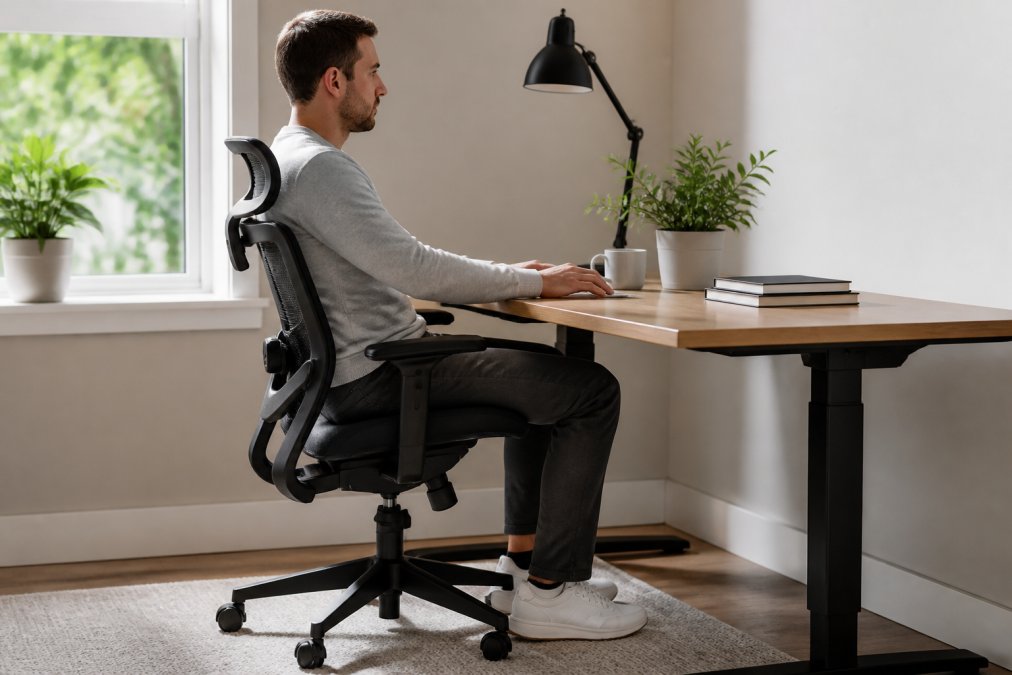
Sit in your current chair with your feet flat on the floor. Your knees should form a 90-degree angle, with your thighs roughly parallel to the floor. Desk height is correct when your elbows rest at approximately 90 degrees while your forearms are parallel to the work surface. If your shoulders are shrugging or your wrists are bent upward to reach the keyboard, the desk is too high. If you're hunching forward, the monitor is too low.
Check these five things before spending a dollar:
- Feet flat on the floor or on a footrest
- Knees at roughly 90 degrees, not compressed by the seat edge
- Lower back making contact with the chair's lumbar support
- Elbows at 90°, matching desk height
- Monitor top edge at or just below eye level
| Setup Element | Correct Position | Common Problem |
|---|---|---|
| Chair seat depth | 2-3 fingers between seat edge and knee | Seat too deep compresses back of knees |
| Desk height | Elbows at 90°, forearms parallel | Shoulders shrugging upward |
| Monitor distance | Arm's length (18-24 inches) | Too close increases eye strain |
| Foot placement | Flat on floor or footrest | Dangling feet increase lower back pressure |
| Lumbar support | Fits natural inward curve of low back | Gap between back and chair causes pelvic tilt |
Identifying Your Biggest Pain Points First
Neck tension points to monitor height. Wrist strain points to keyboard and mouse positioning. Lower back pain points to chair depth, lumbar support, or prolonged static sitting. Identify your primary complaint before purchasing anything.
Choosing the Right Ergonomic Office Chair and Lumbar Support
An ergonomic chair is the single highest-use purchase in any home office setup, because you spend more continuous hours in contact with it than any other piece of equipment.
The Herman Miller Aeron is the reference point for this category. Its PostureFit SL system supports both the lumbar and sacral regions independently. The Pellicle mesh suspension dissipates heat, a real advantage during long sessions. The 12-year warranty and documented resale value make the total cost of ownership defensible. The Aeron comes in three sizes, and sitting in the wrong size negates most of its benefits. A Herman Miller Aeron chair in size B with adjustable PostureFit SL, tilt limiter and seat angle, fully adjustable arms, standard arm pads, and 2.5″ carpet casters costs $1,750.00. A size A Aeron chair is recommended for those 4'10"-5'4" tall, weighing up to 300 pounds. Size B is for those 5'2"-6' tall, weighing up to 350 pounds. Size C is for those 5'10"-6'6" tall, weighing up to 400 pounds.
Armrest Adjustment, Seat Depth, and Pelvic Tilt
Armrests should support your forearms without lifting your shoulders. Seat depth controls pelvic tilt: a seat that's too deep forces a posterior pelvic tilt, which flattens the lumbar curve and loads the low back. Aim for two to three fingers of clearance between the seat edge and the back of your knees.
Budget-Friendly Chair Alternatives and DIY Lumbar Hacks
A quality ergonomic chair doesn't require a major expense. Many mid-range chairs with adjustable lumbar support, seat depth, and armrests perform well for most body types. If you're using a chair without built-in lumbar support, a rolled bath towel or a dedicated lumbar cushion placed at the natural curve of your low back provides meaningful relief.
Adjustable Height Standing Desks, Anti-Fatigue Mats, and Dynamic Movement
Static sitting is the real enemy of musculoskeletal health. The goal is dynamic movement throughout the day, and an adjustable height standing desk is the most direct tool for achieving it.
The UPLIFT V2 offers electric height adjustment covering a wide range, accommodating both seated and standing positions across most body types. Four memory presets mean you're not guessing your ideal height each time you transition. The UPLIFT V2 standing desk starts at $569 for a 42 x 30-inch walnut laminate top, two basic grommet covers, and a basic keypad. More premium solid wood options can drive the price up considerably. The UPLIFT V2 can rise from 25 to 50.9 inches and supports up to 355 pounds.
Alternate between sitting and standing roughly every 30 to 60 minutes. Standing for hours without moving is not ergonomically better than sitting. An anti-fatigue mat becomes essential. The Ergodriven Topo's topographical surface actively encourages subtle weight shifts and foot movements, reducing fatigue more effectively than a flat mat.
How a Monitor Arm Transforms Your Remote Work Posture and Eye Level
A monitor arm is not a luxury accessory; it's a cervical spine intervention. Most people don't realize how much their monitor placement is costing them until they fix it.
The Ergotron LX Desk Monitor Arm supports monitors up to 34 inches and 25 pounds, with 13 inches of height adjustment, full 360-degree rotation, and integrated cable management. You can position your screen at exact eye level regardless of your desk surface, then reposition it instantly for different tasks. The Ergotron LX Pro Adjustable Desk Monitor Arm (45-682-292) costs $199.00.
Focal Distance, Cervical Spine Alignment, and Screen Glare Reduction
The top of your monitor should sit at or just below eye level, so your gaze angles slightly downward at roughly 15 to 20 degrees. Monitor distance should be approximately arm's length, or 18 to 24 inches, which is the optimal focal distance for reducing eye strain.
Screen glare comes from light sources behind or beside the monitor reflecting off the screen surface. Reposition the monitor perpendicular to windows rather than facing them, and use a matte screen protector if glare persists. Reducing screen glare directly reduces the forward head posture many people unconsciously adopt to see a washed-out screen more clearly.
Laptop Riser and External Peripherals for Laptop-Only Setups
Using a laptop directly on a desk forces a compromise: either your screen is at the right height and your wrists are bent upward, or your wrists are comfortable and your neck is bent downward. A laptop riser is essential.
The Rain Design mStand raises your laptop screen to near eye level using a single-piece aluminum construction that also aids cooling. Pair it with an external keyboard and mouse for a minimum viable ergonomic setup for laptop-only work.
Keyboard, Mouse, and Neutral Wrist Position to Prevent Repetitive Strain Injury
Repetitive strain injury develops gradually from sustained non-neutral wrist positions. The fix is reconfiguring your input devices so the neutral wrist position is the default.
The Logitech MX Keys S keyboard uses spherically-dished keys that guide fingertips into a more natural position, reducing lateral deviation. The Logitech MX Master 3S has an ergonomic shape that supports a natural palm grip and thumb rest, reducing ulnar deviation compared to a standard flat mouse. For users with existing wrist issues, a vertical mouse positions the hand in a handshake orientation that nearly eliminates forearm pronation.
A keyboard tray mounted below desk height is the most underused ergonomic tool in home offices. It positions the keyboard below the desk surface so elbows can sit at a true 90-degree angle without raising desk height. According to NIOSH guidance on work-related musculoskeletal disorders, keyboard and mouse positioning are among the primary modifiable risk factors for upper extremity musculoskeletal disorders in computer workers.
Lighting, Blue Light, and Glare Reduction for Long Remote Work Sessions
Lighting is the most overlooked variable in a remote work ergonomic setup, and it affects both physical comfort and perceived professionalism on video calls.
The Elgato Key Light Air produces 1,400 lumens with adjustable color temperature from 2,900K to 7,000K, controlled via app on Mac, Windows, iOS, or Android. Position it slightly above eye level and angled toward your face to replicate natural window light. The Elgato Key Light Air is available for $129.99.
Blue light from screens in the evening hours disrupts circadian rhythm by suppressing melatonin production. Use warm color temperature settings on your monitor after 6 PM, enable your operating system's built-in night mode, and ensure your room has adequate ambient lighting so your screen isn't the brightest object in your field of vision. Position your primary light source to the side of your monitor, never directly behind or in front of it.
Remote Work Posture for Small Spaces, Neurodivergent Needs, and Stretching Routines
The conventional ergonomics guide assumes a dedicated home office with room for a full-size standing desk and multiple monitors. Most remote workers don't have that.
Apartment and Small Space Ergonomic Solutions
Small space ergonomics is about modular, multi-purpose solutions. A wall-mounted fold-down desk paired with a compact ergonomic chair can create a functional workstation in under 24 inches of wall space. A HUANUO adjustable footrest solves foot placement issues without requiring a height-adjustable desk. A portable monitor arm that clamps to any table edge means you can create a proper ergonomic setup at a kitchen table, then pack it away completely.
Neurodivergent-Friendly Ergonomics: Sensory and Focus Considerations
For remote workers with ADHD, autism spectrum conditions, or sensory processing differences, standard ergonomic advice often misses the mark because the barriers go beyond posture.
Sensory considerations include texture sensitivity with chair materials, which makes mesh-back chairs uncomfortable for some users. Fabric or cushioned alternatives may be more appropriate. Noise sensitivity makes mechanical keyboard switches a productivity barrier; quiet low-profile keyboards like the MX Keys S are a better fit. For focus, a monitor arm that allows rapid repositioning between tasks supports the task-switching patterns common in ADHD. Dimmable LED panels with warm color temperature settings, rather than overhead fluorescents, reduce sensory overload during long sessions. According to Job Accommodation Network resources on ergonomics and disability, individualized workstation accommodations significantly improve productivity and reduce fatigue for workers with sensory and attention-related conditions.
Daily Stretching and Movement Routines to Maintain Musculoskeletal Health
Equipment alone doesn't protect musculoskeletal health. Movement does. The most effective approach is micro-breaks every 30 to 60 minutes.
A practical daily routine for remote workers:
- Cervical spine release (every 60 min, 60 seconds): Slowly tilt your ear toward your shoulder, hold 20 seconds each side. Relieves neck tension from forward head posture.
- Thoracic extension (every 90 min, 30 seconds): Interlace fingers behind your head and gently arch backward over the chair back. Counteracts the forward rounding that accumulates during typing.
- Hip flexor stretch (twice daily, 60 seconds each side): Kneel on one knee with the other foot forward, shift weight forward gently. Prolonged sitting shortens hip flexors and contributes to lower back pain.
- Wrist and forearm stretch (every 60 min, 30 seconds): Extend one arm, palm facing up, and gently pull fingers back with the other hand. Directly addresses the tension that precedes repetitive strain injury.
- Standing transition (every 30-45 min): Use your standing desk or simply stand and walk for two minutes.
The American Physical Therapy Association guidance on workplace ergonomics and movement recommends integrating movement breaks into the workday as a primary prevention strategy for musculoskeletal disorders.
Building the best ergonomic setup for remote work is an ongoing process, not a single purchase decision. The right peripherals make a measurable difference when matched to your body, your space, and your actual work patterns. The Techie Den carries precision-engineered peripherals including high-performance wireless mice, ergonomic keyboards, and office productivity accessories that support exactly this kind of optimized setup. Explore the full collection at The Techie Den and add the components that address your specific pain points today.
Frequently Asked Questions
What is the best ergonomic setup for remote work?
The best ergonomic setup for remote work combines an adjustable chair with lumbar support, a desk set to elbow height, a monitor at eye level, and an external keyboard and mouse that keep your wrists in a neutral position. Add a laptop riser if you work from a laptop. Small upgrades like a footrest, anti-fatigue mat, and proper lighting round out a complete workstation. You do not need to buy everything at once; start with your chair and monitor height first.
How should I position my monitor for the best ergonomics?
Place your monitor so the top of the screen sits at or just below eye level, roughly 20 to 28 inches from your face. This keeps your cervical spine in a neutral position and reduces neck strain. A monitor arm like the Ergotron LX makes precise adjustments easy and frees up desk space. If you use a laptop, a laptop riser paired with an external keyboard and mouse achieves the same result without a dedicated monitor arm.
What is the correct sitting posture for an ergonomic home office setup?
Sit with your feet flat on the floor or on a footrest, knees at roughly a 90-degree angle, and hips pushed back into the seat so your lumbar region contacts the chair's support. Your elbows should rest at desk height with a 90- to 110-degree elbow angle. Keep your shoulders relaxed, not hunched. Adjust armrests so they lightly support your forearms without raising your shoulders. Check your pelvic tilt: a slight forward tilt reduces lower back pressure during long sessions.
Do I need an ergonomic office chair, or will a standing desk solve my posture problems?
Both address different aspects of musculoskeletal health, and neither alone is a complete fix. An ergonomic office chair with proper lumbar support handles seated posture and reduces spinal compression. A standing desk adds dynamic movement and reduces the risks of prolonged sitting. The most effective approach combines both: sit with correct posture in a quality chair, then alternate to standing for 15 to 30 minutes every hour. An anti-fatigue mat makes standing periods more comfortable.
What are budget-friendly ways to improve home office ergonomics without buying expensive gear?
Several low-cost adjustments make a measurable difference. Roll up a firm towel and place it at your lower back for lumbar support. Stack sturdy books under your monitor to raise it to eye level before investing in a monitor arm. Use a firm cushion under your feet as a footrest substitute. A small wireless keyboard and mouse from any electronics retailer keeps your wrists in a neutral position even on a tight budget. Address chair height and monitor level first since those two changes deliver the biggest posture improvements.
How can I set up an ergonomic workstation in a small apartment with limited space?
Wall-mounted or clamp-on monitor arms free up desk surface without requiring a larger desk. Foldable or wall-mounted desks work well in tight spaces and can be stowed when not in use. A compact external keyboard keeps your laptop screen elevated on a riser without spreading across the desk. Cable management clips keep wires tidy in cramped setups. Prioritize vertical space: raising your monitor eliminates the need for a deeper desk and keeps the workspace feeling open.
What ergonomic accessories should neurodivergent remote workers prioritize?
Neurodivergent workers often benefit from setups that reduce sensory overload and support focus. Bias lighting behind the monitor softens screen contrast and reduces eye fatigue without harsh overhead light. A vertical mouse or trackball reduces repetitive wrist motion for those sensitive to physical discomfort. Noise-canceling headsets block distracting ambient sound. An anti-fatigue mat with textured terrain gives proprioceptive feedback that some find grounding during long work sessions. Adjustable desk height also supports movement-based focus strategies.
This article was written using GrandRanker


