

Quick Summary
To protect personal data when selling electronics, back up what you need, sign out of all accounts, wipe the device with a proper factory reset or secure erase, then verify the wipe worked. A standard delete often leaves photos, texts, passwords and browser history recoverable.
- Back up photos, documents, contacts and exported passwords before erasing anything.
- Sign out of iCloud, Google, Microsoft and other accounts so the device cannot stay linked to you.
- On iPhone, use Erase All Content and Settings, then confirm the Hello setup screen appears.
- Turn off Factory Reset Protection on Android before selling to avoid locking out the buyer.
- Use manufacturer secure erase or cryptographic erase for SSDs, since overwriting is not reliable.
Table of Contents
- Why Old Devices Still Hold Your Personal Data
- Back Up and Sign Out of Accounts Before You Wipe
- How to Factory Reset iPhone for Sale
- How to Wipe Android Phone for Resale
- Securely Erasing Laptops, SSDs and Hard Drives
- Removing SIM Cards, SD Cards and Cloud Links
- Checking That Your Data Is Actually Gone
- Your Next Step: Prepare the Device for Its New Owner
- Frequently Asked Questions
How to Protect Personal Data When Selling Electronics
Last Updated: November 10, 2026
Why Old Devices Still Hold Your Personal Data
Most people think a quick delete clears their personal data from a device. It doesn't. Photos, texts, saved passwords and browser history can all stay behind, and tools can recover much of it. Many consumers are concerned about how companies use the data they collect. That worry doesn't stop at the company that made the phone. It follows the device into the resale market.
This question comes up often when people sell their devices. Before you list that old laptop or phone, you need a plan. Here's the short version: back up what you need, sign out of your accounts, wipe the device properly, and then check that the wipe worked.
Watch out: a standard delete or a basic reset is often not enough for a storage drive that held sensitive files. Treat each step below as a required check, not an optional extra.
Back Up and Sign Out of Accounts Before You Wipe
Start with your data, then your accounts. Once the device is wiped, the files are gone for good.
Before you erase anything, do these things:
- Copy photos, documents and contacts to a cloud service or an external drive
- Export saved passwords from your browser or password manager
- Confirm the backup opens before you move on
- Sign out of iCloud, Google, Microsoft and any app that stores files
Signing out matters because a device still linked to your accounts can be locked out of your own accounts after you sell it. Remove the device from your list of trusted devices too.
How to Factory Reset iPhone for Sale
A factory reset is the core step for an iPhone. It removes your content and settings, but only when you run it the right way.
- Make a final backup in iCloud or on your computer.
- Open Settings, tap General, then Transfer or Reset iPhone.
- Choose Erase All Content and Settings.
- Turn off Find My if asked, and enter your Apple Account password.
- Keep the phone on until the setup screen appears.
Once you see the "Hello" setup screen, the phone is clean and ready for the next owner. Don't finish setup, because that would put your Apple Account back on the device.
How to Wipe Android Phone for Resale
Android phones vary by brand, so menu names may differ. The steps below cover most models.
- Back up through Google or your phone maker's cloud service.
- Go to Settings, then System, then Reset options.
- Tap Erase all data (factory reset).
- Remove your Google account first if the phone asks.
- Confirm the erase and let the phone restart fully.
Check that Factory Reset Protection is off before you sell. If it stays on, the buyer may get stuck at the Google sign-in screen.
Securely Erasing Laptops, SSDs and Hard Drives
Laptops and drives need more care than phones, because the storage technology determines whether a standard reset is enough. The right method depends on whether the drive is a hard disk drive (HDD), a solid-state drive (SSD), or a drive that was encrypted from the start.
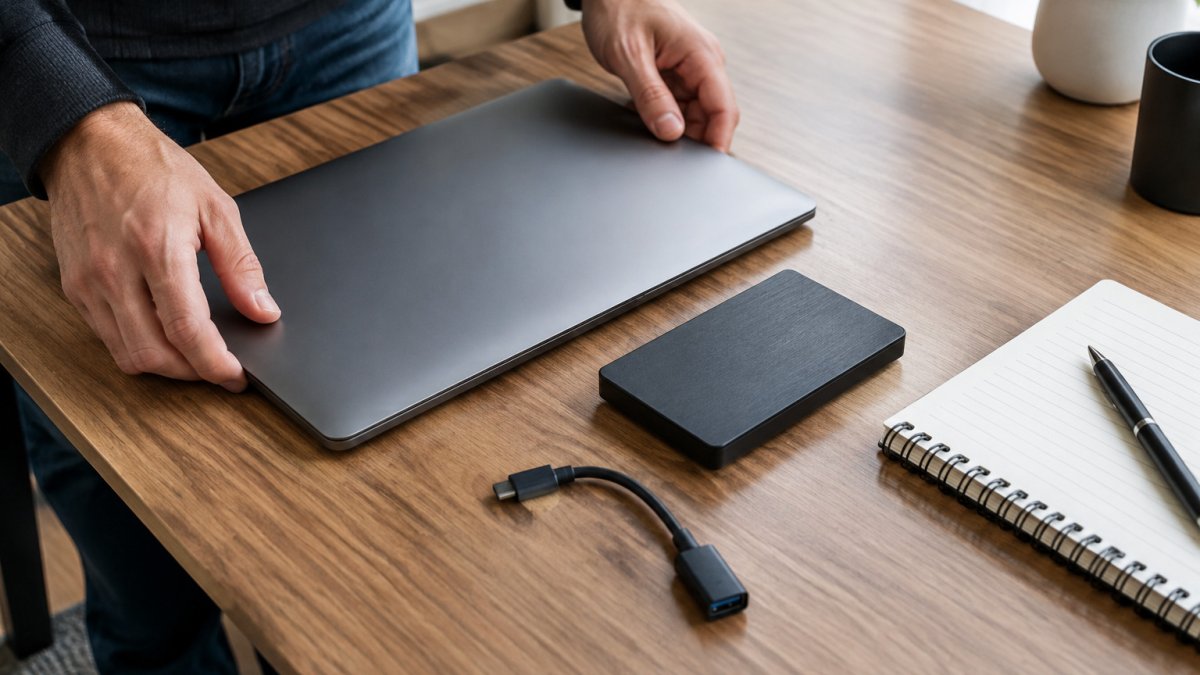
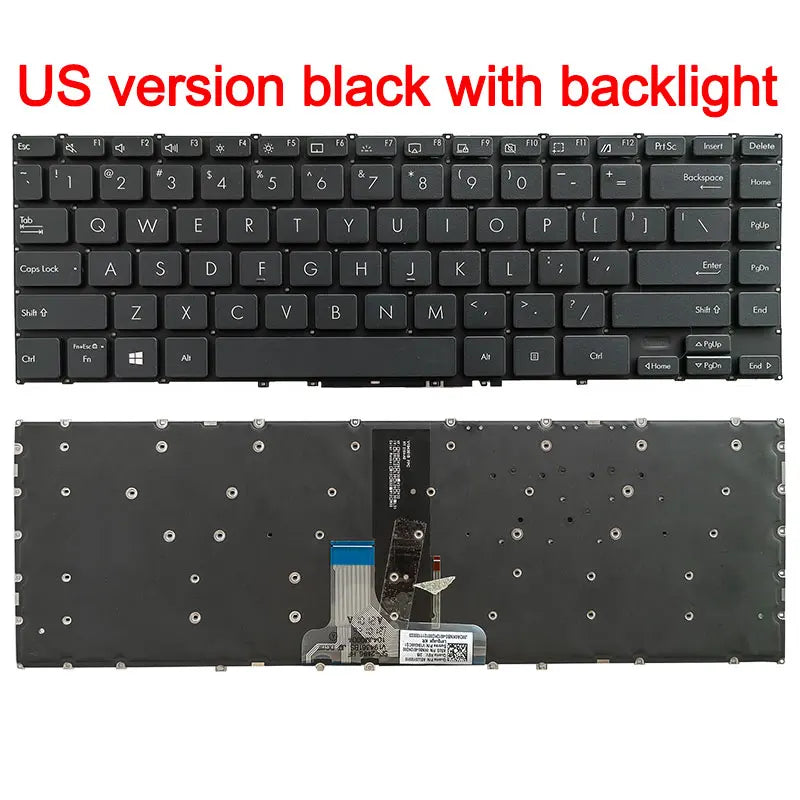
Hard disk drives (HDDs). An HDD stores data in magnetic sectors that can be overwritten in place. A full overwrite pass with dedicated wipe software writes new data across every sector, which makes the original files very difficult to recover. Run the verify pass your software offers, and keep the wipe report with your records. If you're refurbishing a device before resale, you can find replacement laptop keyboards for ASUS ZenBook models on The Techie Den.
Solid-state drives (SSDs). Overwriting is not reliable on an SSD. The controller uses wear leveling and over-provisioned space, so some data can sit in blocks that software never addresses, and a file-level overwrite may not touch them. For SSDs, use the manufacturer's secure erase command (often exposed through the drive's utility software) or the ATA Secure Erase feature built into most modern drives. Many current SSDs also support cryptographic erase, which destroys the encryption key so the stored data becomes unreadable, and this is usually the fastest option.
Encrypted storage. If the drive used full-disk encryption from the start, such as BitLocker on Windows or FileVault on macOS, the most practical wipe is to destroy the key. Turning encryption off or re-encrypting the drive before erasing it adds time without adding protection in most cases. On macOS, erasing the volume in Disk Utility after you sign out of iCloud removes the encryption key along with the data.
Operating system reinstall. For a laptop, reinstalling the operating system with the option to erase the drive is usually enough for an encrypted SSD. On Windows, choose Reset this PC and select the option to remove everything and clean the drive; on macOS, use Erase Mac from recovery mode.
Watch out: a delete, a quick format, or a standard reset on an unencrypted SSD may leave recoverable fragments behind, so do not rely on them for a drive that held sensitive files.
Choosing Data Destruction Software for Hard Drives
Dedicated data destruction software is most useful for HDDs and for external drives. Look for tools that offer a verify step and a wipe report, and that are actively maintained. For SSDs, prefer the manufacturer's tool over generic overwrite software.
| Device | Best Method | Extra Step |
|---|---|---|
| Laptop with encrypted SSD | OS reinstall with drive erase, or key destruction | Confirm encryption was enabled before wiping |
| Older hard disk drive | Full overwrite with verified wipe software | Keep the verify report |
| SSD (any) | Manufacturer secure erase or cryptographic erase | Do not rely on overwriting alone |
| External drive | Secure erase or full overwrite | Remove partitions and check the result |
| Work or school laptop | Follow your employer's or institution's policy | Return the device before wiping it |
Removing SIM Cards, SD Cards and Cloud Links
Storage you can remove deserves separate attention. Take out every SIM card before you hand over a phone. Remove any microSD card from a phone, camera or tablet, since a reset does not always clear it.
Then unlink cloud services. Log out of Dropbox, OneDrive and Google Drive on the device. This stops the device from syncing into your account after the sale.
Checking That Your Data Is Actually Gone
A wipe is only real once you have verified it. Run through this checklist before the device leaves your hands, and treat any failed item as a reason to repeat the wipe.
On an iPhone or iPad: after the erase, the device should restart into the "Hello" setup screen without asking for an Apple Account password. If it asks for your Apple Account credentials, Activation Lock is still on, and the device is not ready to sell. Confirm that Find My no longer lists the device in your Apple Account at iCloud.com, and remove any remaining entry there.
On an Android phone: the device should reach the initial setup screen with no Google account prompt. If a Google sign-in appears, Factory Reset Protection is still tied to an account. Remove the account from your Google account's device list, then repeat the reset if needed.
On a Windows laptop: after a reset with the option to remove everything, the setup experience should begin fresh. Check that no Microsoft account is linked to the device under Settings, and that BitLocker is either off or was cleared during the reset.
On a Mac: after Erase Mac, the device should boot to the setup assistant. Confirm that Find My is disabled for this Mac in iCloud, since an active Find My entry can block the next owner from activating it.
For drives: run the verify pass your wipe software offers, or check the manufacturer tool's report. Mount the drive afterward and confirm that the file browser shows no partitions or files you recognize.
For removable storage: confirm the SIM tray is empty and the microSD card has been removed and checked separately.
If a device will not power on or will not complete a reset, do not guess. Keep the device, remove the storage where possible, and take the drive to a qualified data destruction service, or physically destroy the storage yourself before disposal.
Your Next Step: Prepare the Device for Its New Owner
Once the device passes your checks, package it with the charger and original box if you still have them. For tips on getting the most value from an electronics trade-in, see our guide. Write down the model and the steps you took, so you can answer any questions from the buyer.
Selling a device is easier when you prepare it early. Browse the hard drives and flash drives at The Techie Den if you need a clean drive to back up your files first.
Frequently Asked Questions
How do I prevent my data from being sold?
Your data leaves with a device only if you leave it on the device. Before you sell, back up what you need, sign out of Apple ID or Google accounts, remove the device from Find My or Find My Device, and then perform a full factory reset. Remove SIM and SD cards first. For laptops and drives, use data-wiping software or a secure erase rather than relying on a standard delete. Keeping the device out of the buyer's hands until it is fully wiped also prevents tampering.
Is a factory reset enough to protect my privacy when selling electronics?
For most phones and tablets, a factory reset combined with signing out of your accounts is enough for everyday privacy. A standard reset on a traditional hard drive may leave recoverable files, so for laptops and drives use a secure erase or data-wiping software. Encrypted devices are harder to recover data from, but encryption alone does not replace a proper wipe. When in doubt, use the stronger method.
What should I do with my SIM and SD cards before selling a device?
Remove the SIM card and any SD card before you reset the phone. The SIM card holds your carrier account and possibly stored contacts, and the SD card often holds photos, documents and app data that a factory reset does not touch. Keep the SIM if you plan to move your number to a new phone. Wipe the SD card separately with a secure format or a data-wiping tool before you reuse or sell it.


